!!!WARNING Important
This project is still under development.
See [Status Page](status.md) for more information.
!!!
## Parts of the Project
* Desktop Client "Inspection Planner"
* Mobile Client "InspectApp"
* Server Components
## Data Flow
Due to potential problems with exchanging data directly between an office PC and a mobile device within a company network that might be limited by firewall filters and other security measures, the InspectApp uses a dedicated ZeeBORN cloud server for temporarily storing the questionnaires prepared in office and the data collected with the mobile app. In addition this approach allows the InspectApp to be used offline without any connection to the Internet and the office.
```mermaid
graph TB;
A["Desktop:
Prepare Inspection/Create Report"] -->|send to server| B["ZeeBORN Cloud Server"]
B --> |download with mobile app | C["Inspect App (mobile app):
collect data"]
C --> |send results to server| B
B --> |receive results from server| A
```
!!!WARNING Important
All data transfers between the desktop client, server and mobile app are secured by using personal identification numbers (**PIN**) issued by the server. PINs can be requested from the server within the desktop client while uploading data to the server for the first time.
!!!
## Desktop Client
The desktop client `InspectionPlanner.exe` is used for preparing an inspection, exchanging data with the mobile app and finally creating a report based on data collected with the mobile app.
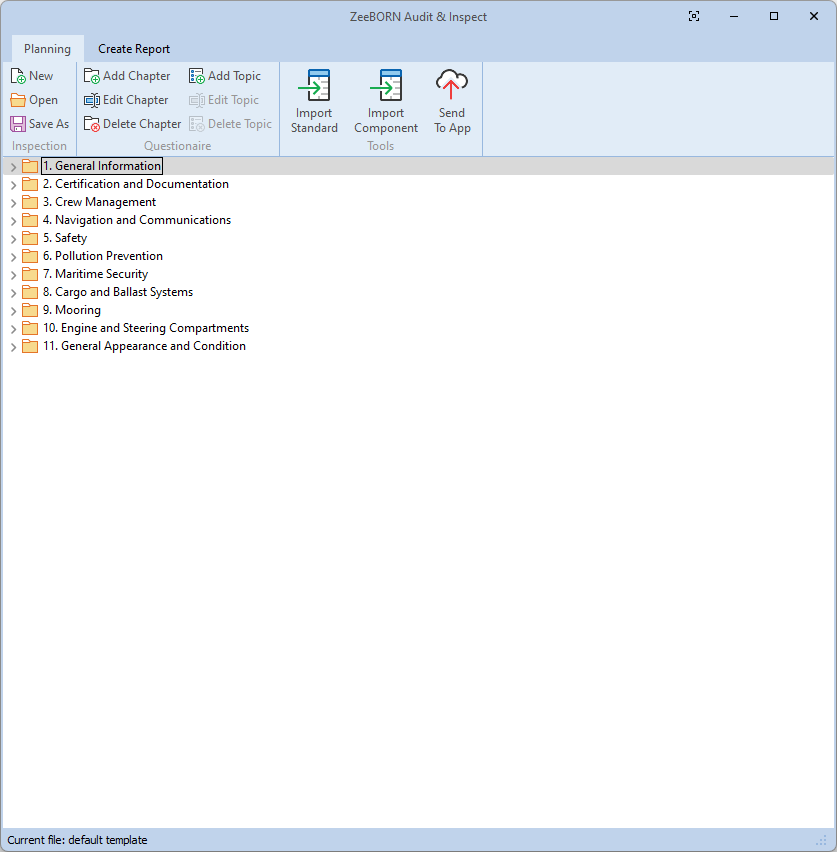
The desktop client is used for preparing inspection tasks by manually adding chapters and topics, copying audit standards from the ZeeBORN systems library and copying component data from selected vessels.
### Preparing Inspections
The preparation of an inspection consists of creating a questionnaire containing chapters and topics, where the chapters will be used for organizing the single topics and the topics will be used for collecting observations, tasks and remarks via the mobile.
In addition to manually adding chapters and topics the are additional functions for adding content to the questionnaire:
| {class="compact"}
---|---
Import Standard | Gives you access to the audit standards defined in the ZeeBORN system. Choose the audit standards you want to add to the questionnaire.
Import Component | Allows you to add a component to the questionnaire for adding component related topics to the questionnaire.
### Sending to Mobile App
Transmitting the questionnaire to the mobile app is a 2-step process:
1. Sending the data to a dedicated ZeeBORN server.
2. Downloading the questionnaire from the ZeeBORN server via the mobile app.
For sending the questionnaire to the server you will need to use your personal identification number (PIN) and a unique name for the questionnaire.
If you don't have a PIN yet, you can use the function `Create New PIN` for requesting a new individual PIN from the server. This PIN will be used in all future operations for exchanging data between the desktop app and the mobile app.
You will also need to choose a name for the questionnaire. The name used for uploading the questionnaire must also be used for downloading the questionnaire via the mobile app.
!!!INFO
Using different names allows you to manage different questionnaires for different sites/vessels at the same time.
!!!
### Report Creation
## Mobile App
The mobile app `Inspect` is used for collecting data for an inspection. The app allows to
* document observations including taking one or more photographs for each observation
* defining tasks for each observation
* adding remarks to planned inspection tasks
The content of the questionnaire is depending on inspections planned with the desktop app.
### Downloading Questionnaires
Questionnaires prepared and uploaded to the server with the desktop app can be downloaded with the mobile up by using the `Download` function.
Downloading a questionnaire requires the input of the personal identification number (PIN) created with the desktop app and the name used for uploading the data.
### Uploading collected data
After collecting all data with the mobile app, the results can be send back to the server with the `Upload` function.
## Server
A public server operated by ZeeBORN is used for exchaning data between the desktop app and the mobile app. This data exchange via a dedicated server finally allows to use pre-planned inspections tasks with the mobile app while beeing offline from the ZeeBORN system.
*[PO]: Purchase Order
*[AZA]: local folder
*[(PO]: Purchase Order
*[RQ]: Requisition
*[(RQ]: Requisition
*[RfQ]: Request for Quotation
*[(RfQ]: Request for Quotation
*[SO]: Service Order
*[(SO]: Service Order
*[SQ]: Service Requisition
*[(SQ]: Service Requisition
*[SRfQ]: Service Request for Quotation
*[OoB]: Open on Board
*[(OoB]: Open on Board
*[ART]: Average Running Time (operation hours per day)
*[MC]: Master Contract
*[ADS]: Advantage Database Server (database engine used in previous versions of the ZeeBORN software)
*[.replic]: file extension for replication files (aka data transfer files)