## General
All drills are displayed in the main overview.

All planned drills will be shown in black and all unplanned drills will be shown in blue and italic.
### folder "To be executed"
Panned Drills are divided in the following folder: previous, actual and next in folder "To be executed". It is depending on due days and selected check days.

### folder "open"
All reported drill reports will be shown
### folder "approved"
All from vessel approved drill reports will be shown.
### folder "closed"
All from Office approved drill reports will be shown sorted by year and month.
### folder "rejected"
All from Office rejected drill reports will be shown.
The tree can be specified and expanded by:
"Groups" - One or more groups can be selected.
"Types" - One or more groups can be selected. If groups is already selected only types of these groups.
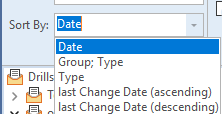
"Sort By"
| {.compact}
---|---
Date (by default)|all drills will be shown in order of the reported date.
Group; Type|to display the drills which belong to a selected drill group and then drill type.
Type|to display drills in alphabetical order.
last change date(ascending)|displays all drill reports sorted by last change date ascending
last change date(descending)|displays all drill reports sorted by last change date descending
## Report Drill
To report a Drill, select the required drill in the tree and hit „Report Planned Drill“.

You should enter the values.
!!! Note:
If you fill in a number greater than zero in the field „Number Absent“ - you have to enter a remark in the field „Name, Rank and Reason for Absentees”.
!!!
Switch to the next tab and the equipment will be marked which was used for the drills.
The capital letters stand for:
* G = Good
* R = Required Attention
* D = Details attached
Select Equipment. If a check mark is placed in the box “D” or “R” it is necessary to describe in the selected field “Remarks” (the system checks the entry during the approval process).
The fields „Additional Information“ and „Description of de-briefing“ are mandatory (the system checks the data during the approval process too).
Switch to the next tab if documents have to be attached.
### unplanned Drills

Before the report can be filled out the drill group and drill type have to be selected. The reporting process is the same as for planned drills.
The unplanned drills listed in the tree are shown in blue and italic letter
!!! Please note:
Only drill types from drill plan will be shown.
!!!
## Open Reports
A reported drill will be displayed in the tree under the folder „open“.
The following buttons are available in the area “Open Reports”:
|||
---|---
Edit|The report could be edit once again.
Share|The HTML view of the report (on the right) can be exported or print
Show History|History of the report will be shown.
Approve (on board)|Approve of report. After approval it is not possible to edit anything. An approval remark is mandatory.
Approve & Close|In case of relevant user right “close a report” so the open report can approve and close just in one step.
Documents|Add, view or delete of attachments.
Delete|In case of relevant user right the report can be deleted.
Comments|Comments will be edit or displayed.
## Approved Reports
After a report is approved no further changes or entries are possible. The report will be displayed under the folder „approved“.
The following buttons are available:
|||
---|---
Share|The HTML view of the report (on the right) can be exported or print.
Show History|History of the report will be shown.
Show Documents|Add, view or delete of attachments.
Comments|Comments will be edit or displayed.
## Closed Reports
After closing a report you will find it in folder „Closed“. The area “Closed“ will be sorted by year and month.
!!! Note:
For reasons of performance the Closing area will be not updated. It could be that a closed report will not be shown after closing in this area. After refreshing the report will be visible.
!!!
The following buttons are available in the area „Closed”:
|||
---|---
Share|The HTML view of the report (on the right) can be exported or print.
Show History|History of the report will be shown.
Show Documents|Existed attachments will be shown.
Delete|Delete of the report.
This button is only visible with the relevant rights.
Comments|Comments will be edit or displayed.
## Drill Overview
Hit button „Drills“ and you can navigate directly in the tree and the drill plan will be displayed for the actual year.

## More Actions
### Refresh
If the added data were not visible, please use `Refresh`to update the module.
If this not works, please contact ZeeBORN. Support@zeeborn.net
### Share
Instead of a typical Print or Export function, the system uses a Share functionality similar to features found on mobile devices.
Almost any document or data list shown in the system can be shared.
Depending on the type of data to be shared (document or data list), the following share options are available:
* Send to Printer
* Send E-Mail
* Export to PDF file (documents only)
* Export to Excel file (data grids only)
### Legend
##### Tree

##### Overview

## REPORTS
### Overview per Year
Here you will find an overview including all existed drills – over the last years is possible. But drills cannot be edit or change here.
*[PO]: Purchase Order
*[AZA]: local folder
*[(PO]: Purchase Order
*[RQ]: Requisition
*[(RQ]: Requisition
*[RfQ]: Request for Quotation
*[(RfQ]: Request for Quotation
*[SO]: Service Order
*[(SO]: Service Order
*[SQ]: Service Requisition
*[(SQ]: Service Requisition
*[SRfQ]: Service Request for Quotation
*[OoB]: Open on Board
*[(OoB]: Open on Board
*[ART]: Average Running Time (operation hours per day)
*[MC]: Master Contract
*[ADS]: Advantage Database Server (database engine used in previous versions of the ZeeBORN software)
*[.replic]: file extension for replication files (aka data transfer files)