## Configuration
### Environmental Data
All needed environmental data can be defined.
#### Sea State
Sea States are arbitrary. They can be renamed. Only Sea States which are
not in use, can be deleted.
#### Source of Lighting
Sources of Lighting are arbitrary. They can be renamed. Only Sources of
Lighting which are not in use, can be deleted.
#### Wind Direction
Wind Directions are arbitrary. They can be renamed. Only Wind Directions
which are not in use, can be deleted.
#### Wind Force
Wind Forces are arbitrary. They can be renamed. Only Wind Forces which
are not in use, can be deleted.
#### Weather Types
Weather Types are arbitrary. They can be renamed. Only Weather Types
which are not in use, can be deleted.
### Root Cause & Analysis
All Root Cause & Analysis Data will be used also in modules "Risk
Assessment" and "Audit & Inspect".
For all Incident Reports it is possible to analyze the root causes of
faults or problems.
#### Root Cause Category
It is possible to summarize Root Causes to Categories.
#### Root Causes
All Root Causes are arbitrary. It is up to your company to define all
needed Root Causes.
#### Risk Assessment Data
A Risk Matrix can be defined by Severity, Likelihood and Risk Level.

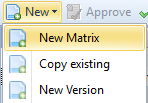
A new matrix can be created completely new, with copy one of the old matrices or as a new version of the default matrix.

With "approve" the matrix will be authorized. Only the matrix which is
"set as default" will be visible in our system.
Severity, Likelihood, Risk Level and Matrix are arbitrary.
| | | {class="compact"}
|---|---|
| 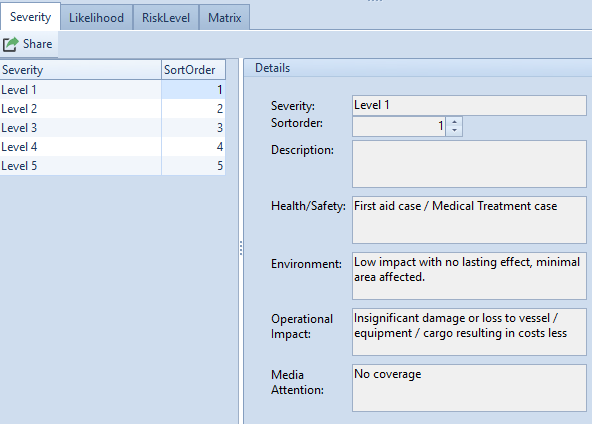 | For Severities a description of Health/Safety, Environment, Operational Impact and Media Attention can be defined.
**The sort order has to be given.** |
| 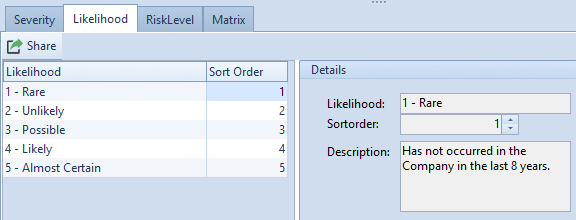 | For all Likelihoods a description can be stored.
**The sort order has to be given.** |
| 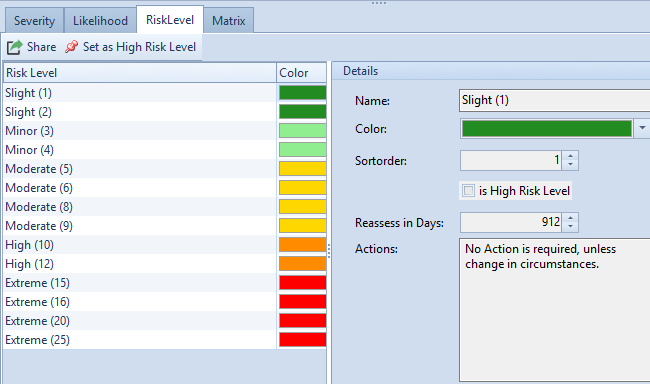 | **The sort order and color have to be given.**
If a Risk Level is a "High Risk Level" use button "set as High-Risk Level". Reassess in Days have to be defined only for module "Risk Assessment". Actions can be stored. |
| 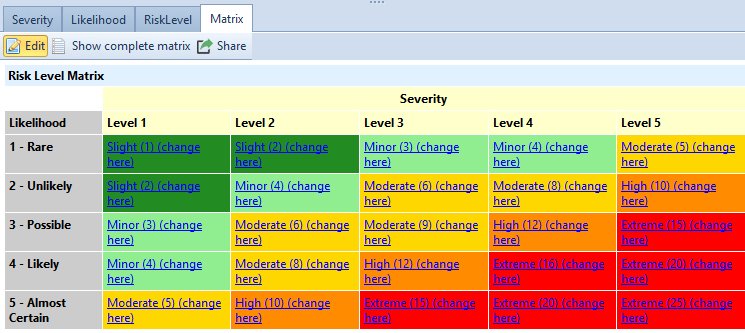 | With "edit" the matrix can be filled in. With "share" the matrix can be exported via pdf, printer etc.
**When the matrix is approved no further changes are possible.** |
##### "show complete matrix"
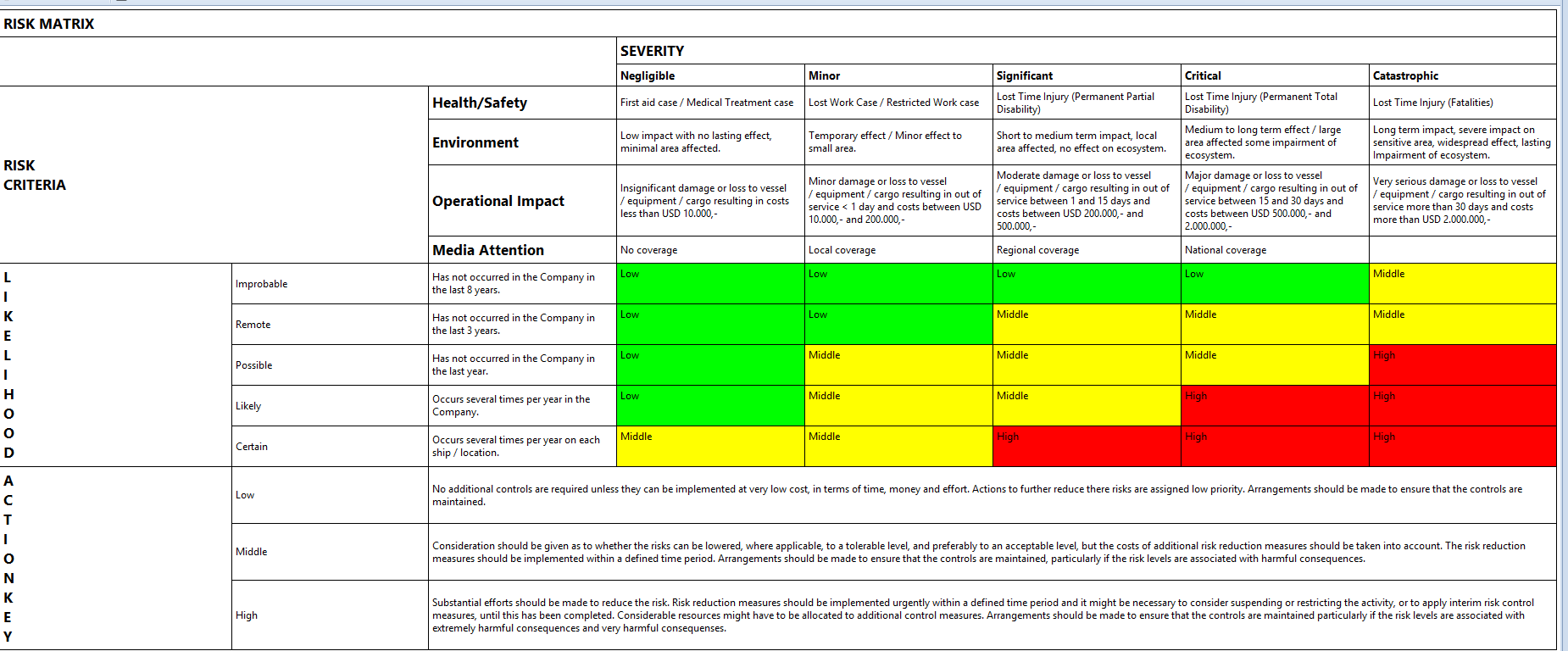
The Risk Matrix with all given information will be shown.
There are two choices of Matrix:
1. Severities in Column and Likelihoods in Row
2. Likelihoods in Column and Severities in Row
#### SIRE Reference
A SIRE Reference can be defined and with a description characterized.
All can be edited. Only SIRE References which are not in use, can be
deleted.
#### Accountability
Accountability areas are arbitrary. They can be renamed. Only
Accountabilities which are not in use, can be deleted.
### Incident/Accident Types
Incident/ Accident Types can be defined and with a description
characterized. All can be edited. Only Incident/ Accident Types which
are not in use, can be deleted.
### Locations
Locations are arbitrary. They can be renamed. Only Locations which are
not in use, can be deleted.
### Positions
Position Data will be used also in modules "Risk Assessment" and "Audit
& Inspect".
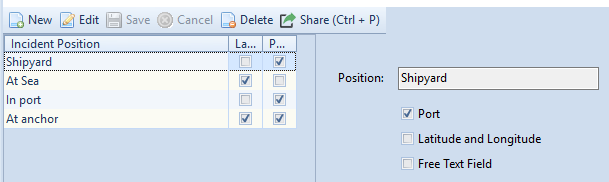
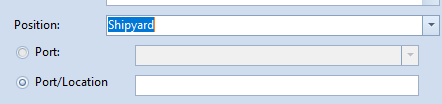
All needed ships position can be added. For each position, it is
necessary to give the information how the position has to be insert.
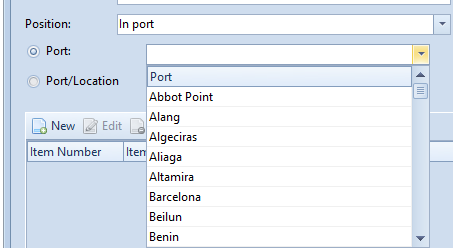
**PORT**: the system will have a free text field for port name and if
configured, the port can be selected from Drop Down list
**Latitude and Longitude**: the coordinates from ships location have to
be insert

**Free Text Field is only an additional information field to "Port" or
"Latitude and Longitude".**
### Item Category
Item Categories will be used also in module "Audit & Inspect".
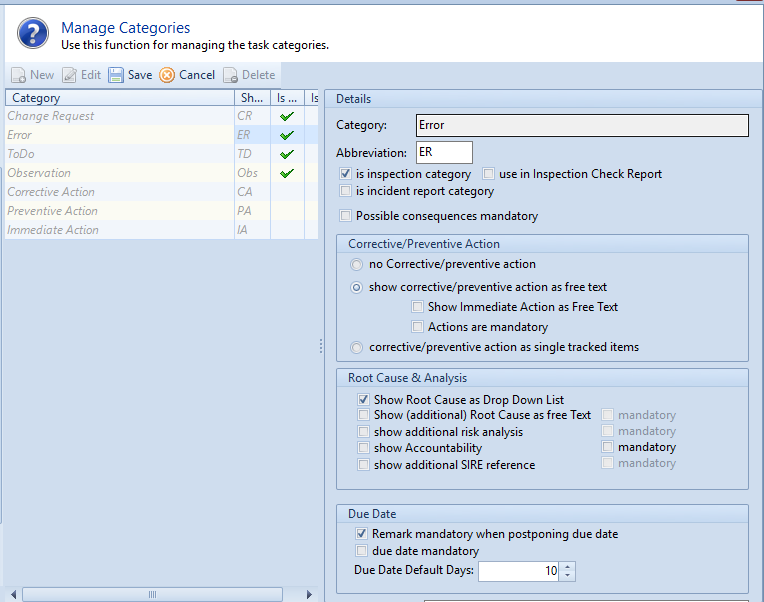
Item Category defines the type/name of deficiency used for several audit
types.
There are systems Item Categories, to see in grey lettering. All other
Item Categories are arbitrary. The Item Categories are also available in
Task Tracking and Incident Report if predefined.
+-------------------------+--------------------------------------------+
| Details | Defines where the item categories will be |
| | shown. |
| | |
| | If possible, consequences have to be |
| | given, the checkbox must be marked. |
+=========================+============================================+
| Corrective/ Preventive | For each item category can be defined how |
| Action | to handle corrective and preventive |
| | actions. |
| | |
| | **If corrective/preventive actions as |
| | single tracked items are selected, the |
| | action will be added as separate items.** |
+-------------------------+--------------------------------------------+
| Root Cause & Analysis | For each item category can be defined how |
| | to handle Root Cause Analysis. |
+-------------------------+--------------------------------------------+
| Due Date | All available variants of the due date |
| | handling are sited in this area. |
+-------------------------+--------------------------------------------+
| Description | For item categories a description can be |
| | integrated. |
+-------------------------+--------------------------------------------+
**Corrective/preventive action**
- No Corrective/Preventive Action: there is no possibility to handle corrective or preventive action.
- Show Corrective/Preventive Action as free text: action will be insert as a free text
- Show immediate Action as free text: immediate Action can be filled in
- Actions are mandatory: all action have to be filled in.
- Corrective/Preventive Action as single-track item: All action will be added as separate items.
**Root Cause Analysis**
- Show Root Cause as Drop Down List: Root Cause Category and the corresponding root causes can be selected from the shown lists.
- Show (additional) Root Cause as free text: all Root Causes have to be insert as a free text additional to the Drop Down List.
- Mandatory: Root Cause has to be filled in
- Show additional risk analysis: Risk Matrix can be shown for preparation.
- Mandatory: Risk Analysis has to be filled in
- Show Accountability: Accountability will be shown
- Mandatory: Accountability has to be filled in
- Show additional SIRE References: a SIRE reference can be selected from Drop Down list of configured SIRE References.
- Mandatory: SIRE Reference has to be filled in
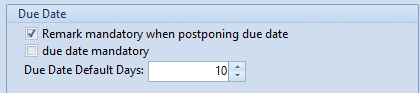
**Due Date**
- Remark mandatory when postponing due date: a remark has to be given for shifting the due date
- Due Date are mandatory: due date has to be filled in
- Due Date Default Days: Due date will be set automatically in **X** days after report day
### Accident Types
Accident Types are arbitrary. They can be renamed. Only Accident Types
which are not in use, can be deleted. All Types which are in use can be
set as inactive. If inactive Types will be needed again, they can be set
as active.
!!!
Personnel Accident is a system type and cannot renamed, deleted
or set as inactive.
!!!
### Category (Personal Accident)
Categories are arbitrary. They can be renamed. Only Categories (Personal
Accident) which are not in use, can be deleted.
### Injury (Personal Accident)
Injuries are arbitrary. They can be renamed. Only Injuries which are not
in use, can be deleted.
### Item Status
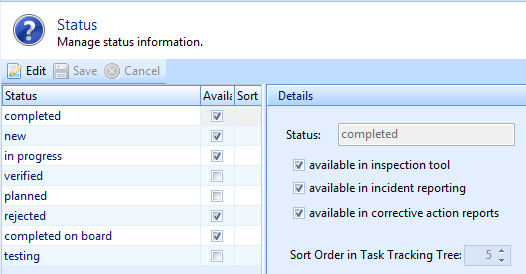
These are all system statuses. The visibility of the statuses can only
be defined and changed.
### Configuration (general)
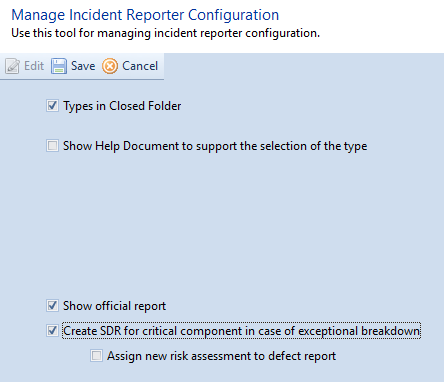
| {class="compact"}
---|---
Types in Closed Folder | all Reports will be sorted by Incident Types; otherwise reports will be sorted by year
Show Help Document to support the selection of the type | a Document for help will be shown
Show official report | an official report with company logo and address is created by ZeeBORN and can be used for all reports
Create SDR for critical component in case of exceptional breakdown | **Can be used only for module Maintenance** for all exceptional breakdown an SDR have to be created.
Assign new Risk Assessment to defect report
### SDR Defect Categories
SDR Categories are arbitrary. They can be renamed. Only SDR Categories
which are not in use, can be deleted.
### Manage Sites (Specified Use)
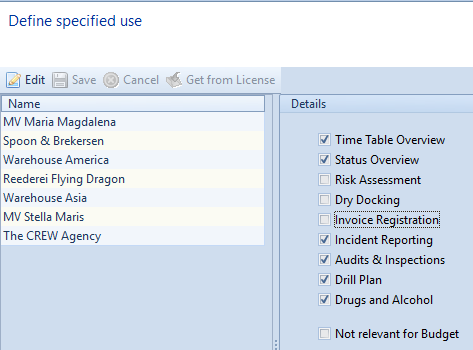
In the "edit" area module "Incident Reports" can be chosen by click on
checkbox or with Button "Get from License". With "save" all changes will
be taken over.
### Configure Incident Report Types
All report types can be configured in all details which have to be
filled in.
#### Details
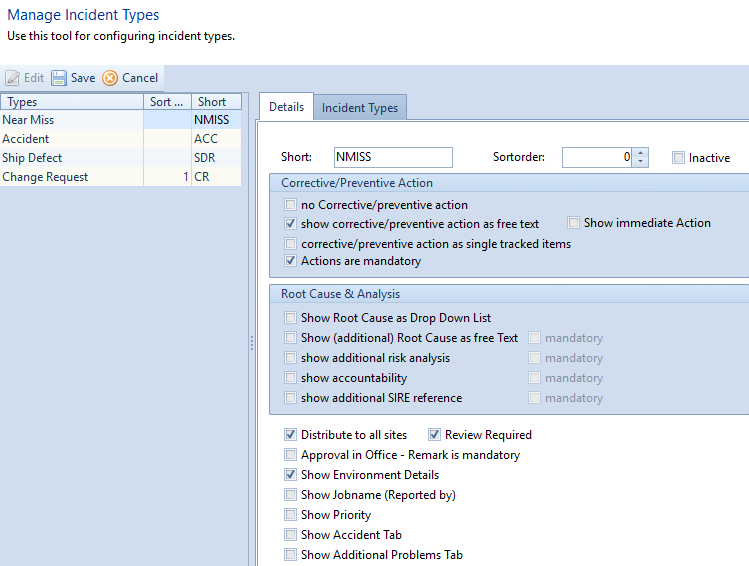
+-----------------------------------+-----------------------------------+
| Corrective/Preventive Action | For each item category can be |
| | defined how to handle corrective |
| | and preventive actions. |
| | |
| | **If corrective/preventive |
| | actions as single tracked items |
| | are selected, the action will be |
| | added as separate items.** |
+===================================+===================================+
| Root Cause & Analysis | For each item category can be |
| | defined how to handle Root Cause |
| | Analysis. |
+-----------------------------------+-----------------------------------+
**Corrective/preventive action**
- No Corrective/Preventive Action: there is no possibility to handle corrective or preventive action.
- Show Corrective/Preventive Action as free text: action will be insert as a free text
- Show immediate Action: immediate Action can be filled in
- Corrective/Preventive Action as single track item: All action will be added as separate items.
- Actions are mandatory: All actions hast to be filled in.
**Root Cause Analysis**
- Show Root Cause as Drop Down List: Root Cause Category and the corresponding root causes can be selected from the shown lists.
- Show (additional) Root Cause as free text: all Root Causes have to be insert as a free text additional to the Drop Down List.
- Mandatory: Root Cause has to be filled in
- Show additional risk analysis: Risk Matrix can be shown for preparation.
- Mandatory: Risk Analysis has to be filled in
- Show Accountability: Accountability will be shown
- Mandatory: Accountability has to be filled in
- Show additional SIRE References: a SIRE reference can be selected from Drop Down list of configured SIRE References.
- Mandatory: SIRE Reference has to be filled in
| {class="compact"}
---|---
Distribute to all sites | Reports will be spread to other vessels by Office
Review Required | Vessel has to be marked the report as read
Approval in Office-Remark is mandatory | When Office Report approves, a remark has to be given
Show Environmental Details | Environmental Data will be shown and has to be filled in
Show Jobname (Reported by) | Reported by can be chosen only the Jobname too
Show Priority | Priority can be given. "Normal" is set per default.
Show Accident TAB | TAB "Accident Type" will be shown
Show Additional Problems TAB | TAB "Additional Problems will be shown
#### Incident Types
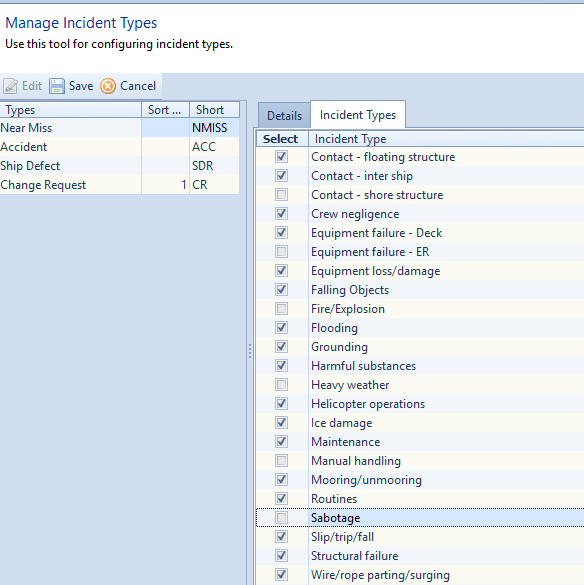
For each Incident Type has to be chosen which Incident will be
displayed. Only these Incidents can be selected for the corresponding
Incident Type.
### Assign my Ships
For an easier work with our system, we have the function "select my
ships". With one click all preferred ships are selected.
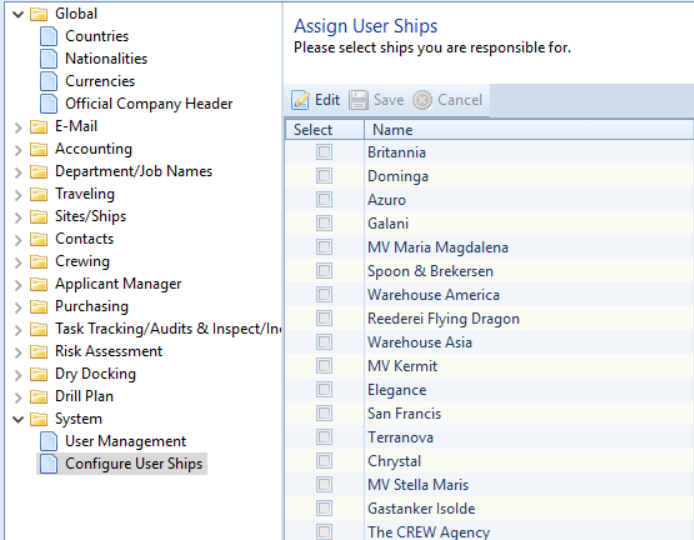
Hit button \"Edit\" to choose your needed ships. With save all changes
will be taken over. Hit "cancel" and all changes will be ignored.
Hit button \"Select my Ships\" to preselect your preferred ships.
## USE Module
**Version 1: All reports can be created only on the vessels.**
**Version 2: All reports can be created on the vessels and can be
created in Office for the vessels too.**
Which version you use is determined by the license.
### New Report
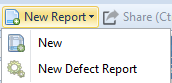
SDR Report will be processed seperatly. All other Report are sumarized.
#### New
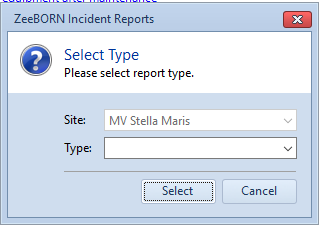 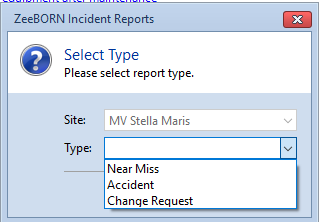
With "New" a report can be created. Please choose the correct Incident
Type by clicking on the arrow aside of Type.
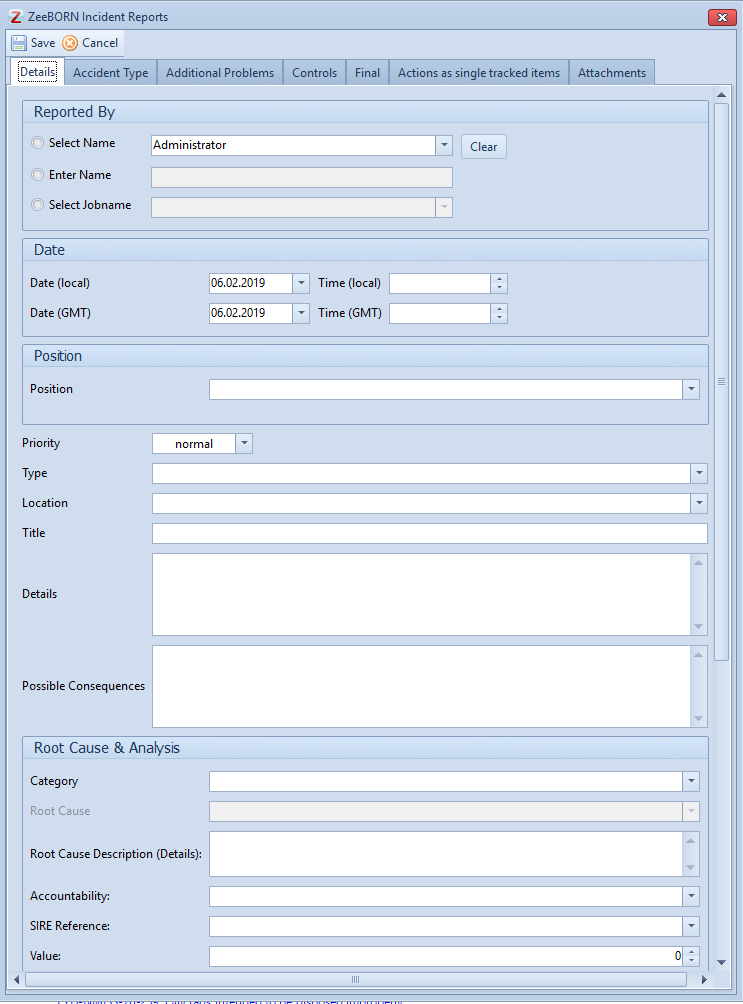
**How exactly the report looks depends on the configuration. Depends
also on the configuration which TABs are visible. Here are all possible
fields and TABs listed and explained accordingly.**
##### Reported by

**Only one of the choices can be added.**
For "Select Name" all names from the User Management are available. To
select a name please push arrow aside. With "Clear" Name can be erased
from report. With \"Enter Name\" a name can be entered. With \"Select
Jobname\" you can choose from all jobs that are configured in the
system.
##### Date

Local Date will be displayed the date from the Computer. This date can
be changed. Time has to be insert. GMT Date will be displayed the date
from the Computer too. GMT Time has to be insert.
##### Position
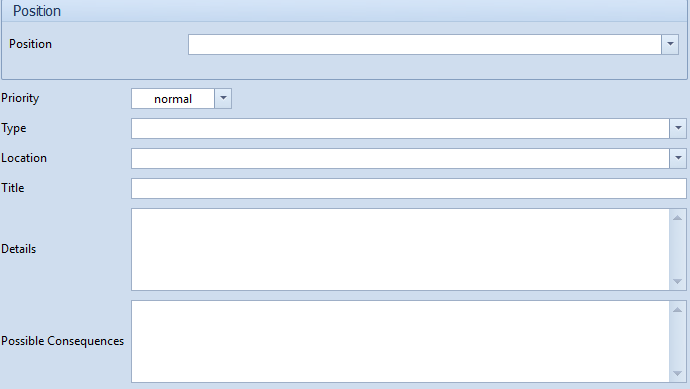
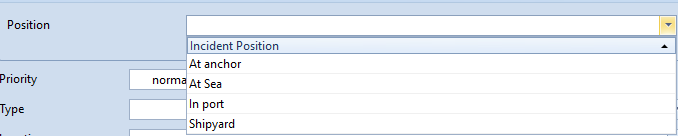
Depending on which position is selected, a port from the existing list
has to be selected or the latitude and longitude has to be entered.
Additional information can be entered in the free text field.
The Priority can be changed from "normal" to "high" or "low" by clicking
the arrow aside.
Type and Location are selected from the configured list by clicking the
arrow aside.
A Title hast to be given and Details a possible Consequences has to be
insert.
##### Root Cause & Analysis
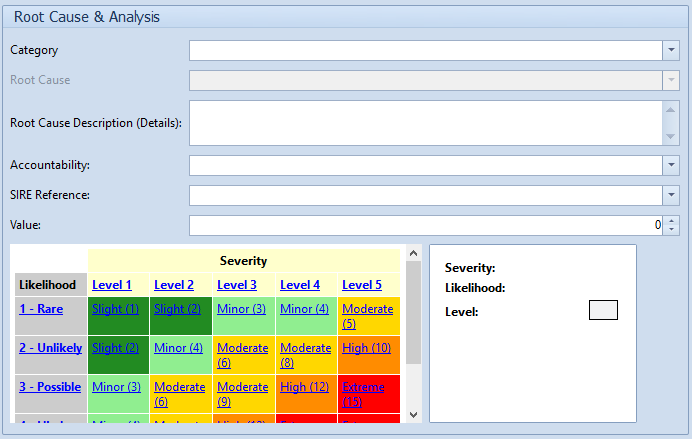
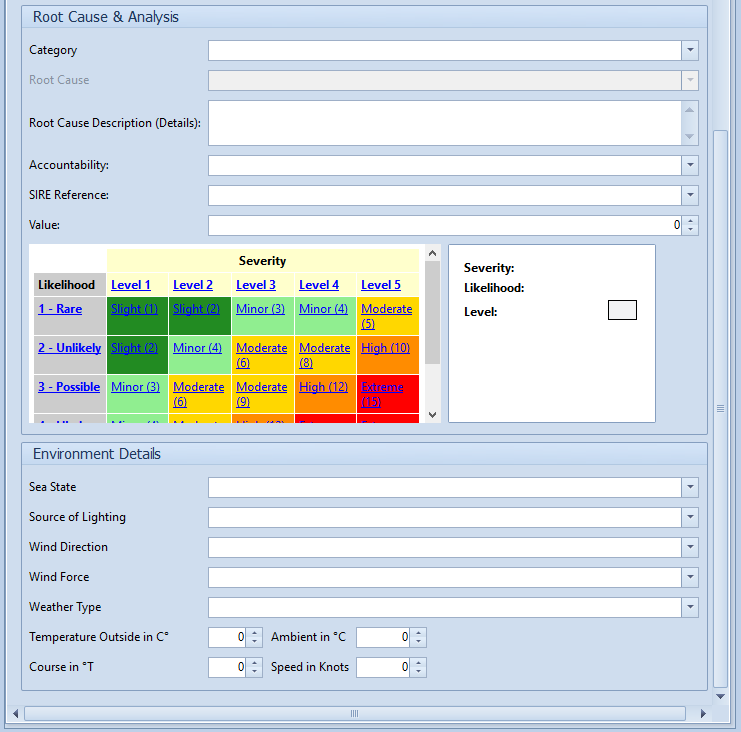
"Category", "Root Cause" depends on Category, "Accountability" and "SIRE
Reference" can be chosen from configured lists by clicking on arrow
aside the corresponding lines. Root Cause Description can be given.
If the costs are known or can be estimated, please fill in in "Value".
Please select the corresponding Risk from the Risk Matrix on the left
side.
##### Environmental Details
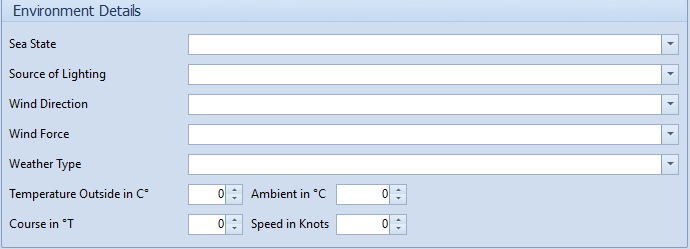
"Sea State", "Source of Lighting", "Wind Direction", "Wind Force" and
"Weather Type" can be chosen from configured lists by clicking on arrow
aside the corresponding lines. "Temperature", "Ambient", "Course" and
"Speed" has to be filled in.

##### Accident Types
In Accident Types all Accidents have to be filled in.
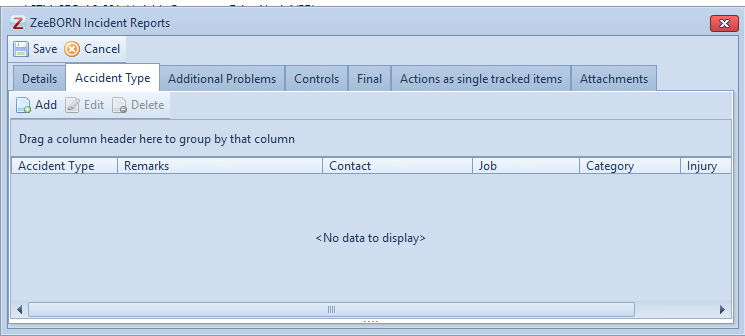
Choose the Accident Type by clicking on arrow aside the Accident Type.
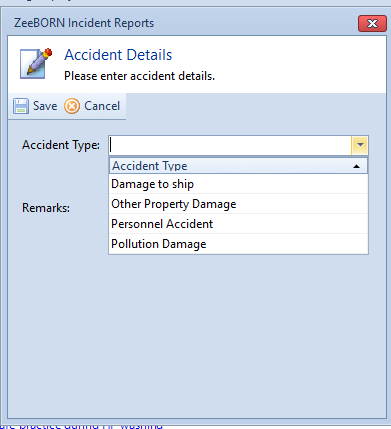
###### Personnel Accident
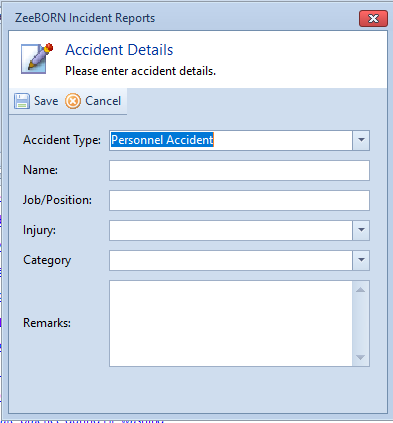
Name and Job/Position have to be filled in and the Injury and Personnel
Accident Category can be chosen from configured lists by clicking on
arrow aside the corresponding lines. A remark can be given.
###### Vessel Accident
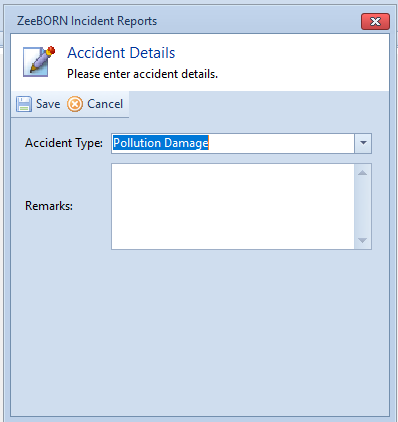
Choose the correct accident and describe the accident in the field
"remarks".
##### Additional Problems
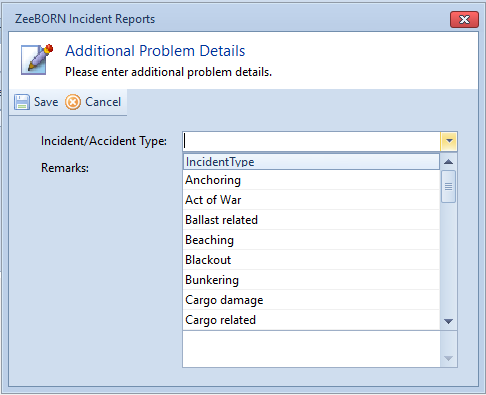
The Incident/Accident Type has to be selected by clicking on arrow
aside. Choose the correct type and describe the additional problem in
field "remarks".
##### Controls
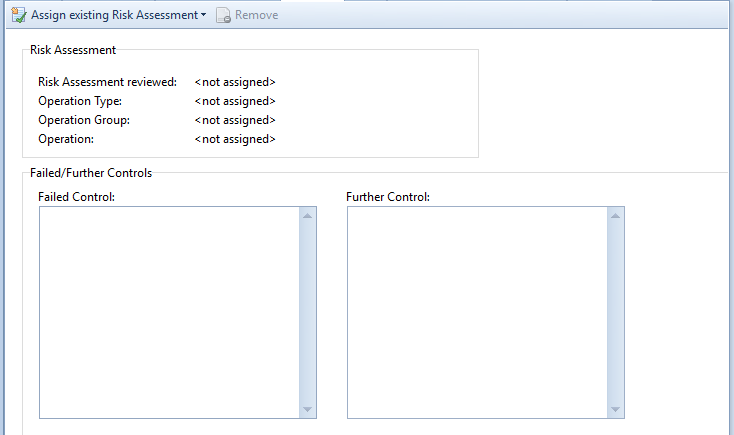
If needed "Failed Control" and "Further Control" can be given.
Hit "Assign existing Risk Assessment" and choose the way you look for
the Risk Assessment.
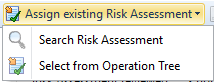
Search for Risk Assessment, please insert Name of the needed Risk
Assessment and click on "Search"..
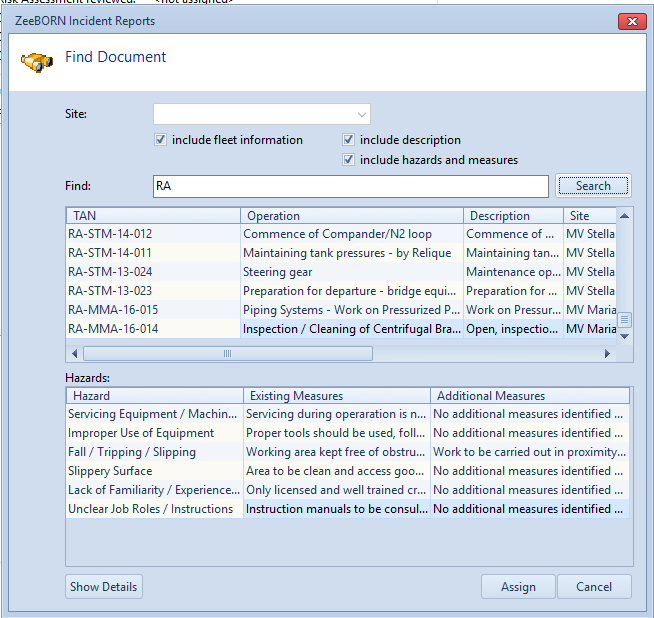
Choose the correct Risk Assessment and with "Assign" the Risk Assessment
will be added to the report.
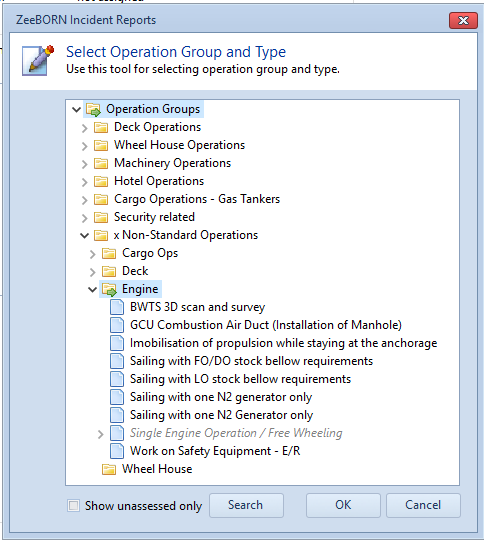
Click on "Operation Group" to open the folder. All Operations in grey
has Risk Assessments. Click on the Operation and choose the correct Risk
Assessment. With "Ok" the Risk Assessment will be added to the report.
##### Final
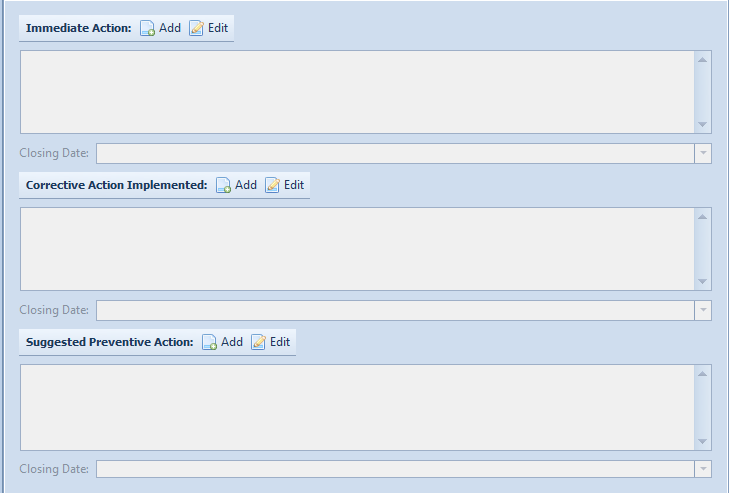
With "Add" the relevant Action can be insert. With "Edit" the
information about the action can be changed.
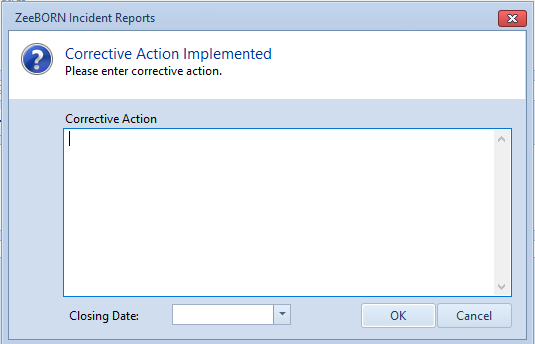
If the action has to be closed till a special date, please insert this
date in "Closing Date".
##### Action as single tracked items
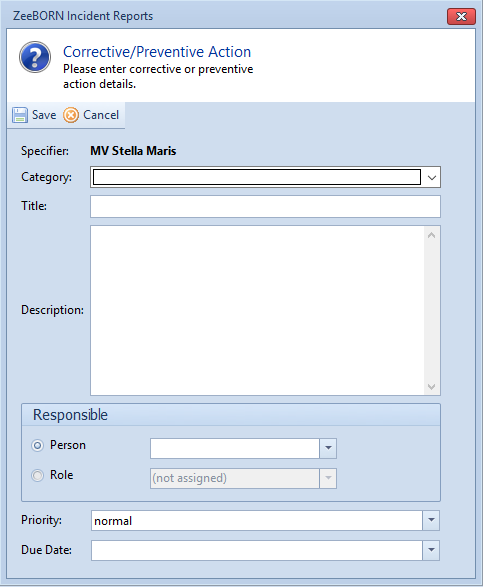
Choose category of action and fill in all relevant data. "Due Date" is
the date till the action has to be finished.
##### Attachments
Attachments can be added, edited and deleted.
#### New Defect Report
**Version 1: There are internal and external SDR report**
**Version 2: There are only SDR Reports.**
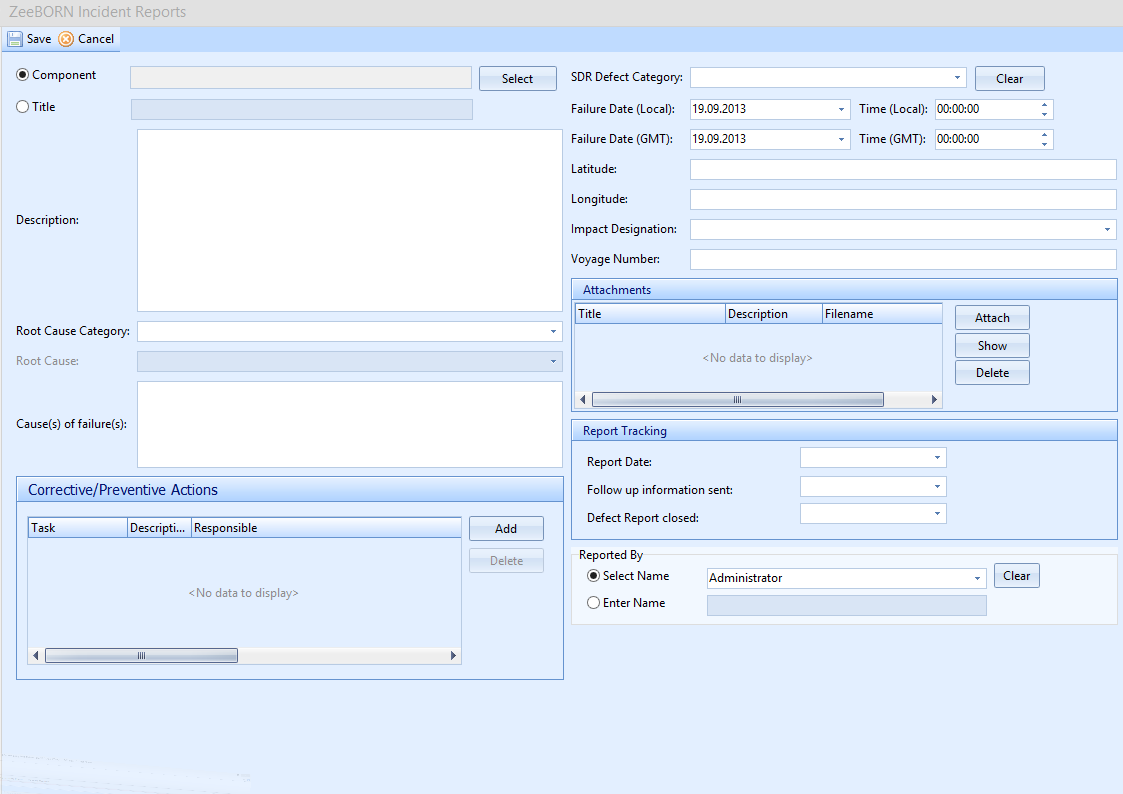
You can either select a component directly from the maintenance system
(if available, if not the field will be disabled) or enter a title.
Please fill in all relevant data.
### Internal Number/TAN
The internal number/TAN will always be built as follows: Ship-Incident
Type-Year-Running Number (one running number per ship based on type and
year).
### Approval on Board
Once you collected all necessary details you have to approve the report.
If the ship approved the report, it will no longer appear in the open
folder -- you find the report now in the approved folder of the current
ship. No further adjustments are allowed on board.
Please note: With the regular data transfer all recorded, not approved
reports are visible in the office, but read only. They are marked in the
office as OoB (Open on Board).
Only SDR can be sent via a special data transfer (immideate sending of
reports with bypassing the regular data transfer), for further action on
office side.
### Approval in Office
The report is now editable in the office. You can either decide to
- resend the report to the ship due to the request of additional
information
- assign To-Do items or Corrective/Preventive Action Items (as per
configuration)
- approve the report
If you approve the report, a new neutral TAN will be created (removing
references to origin of initial report).
##### Assign ToDo-Items (office)
If there is a ToDo-Item/task resulting from a Near Miss-- or Accident
Report, this will be created in the office and assigned to the
corresponding site. Assigning a ToDo-Item to several ships will multiply
the item (in the office version only), i.e. if 5 ships are assigned for
follow-up, the ToDo-Item will be multiplied 5 times, however, the
respective site will only see the own ToDo-Items.
Use button "Assign Item(s)" and select the ship(s) which should follow
up on this task.
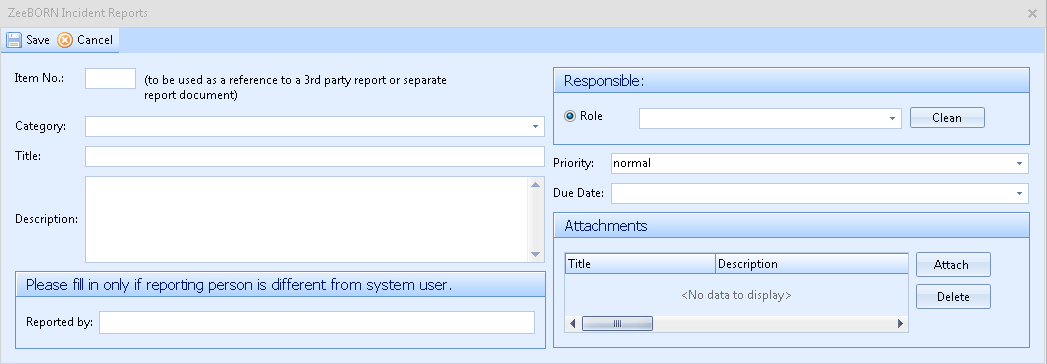
Fill in the details of the task and insert the responsible role and due
date \[if a responsible person instead of a role should be assigned --
go to the (ship-specific) item and use follow-up button\].
#### SDR only
If the ship is chartered, the office can insert the charterers contact
details into the report. To inform the charterer about the SDR the
button "send to charterer" can be used.
The report can be sent with or without attachments. Reports forwarded to
charterer will be shown in green/italic letters in the tree.
Once feedback from the charterer is received, the report can be sent
back to the ship for "Report Tracking" -- use button "Resend to ship"
and the report will be re-opened on board (extra folder "SDR -- For
Follow Up").
### Follow-Up of ToDo-Items (ship)
All reports with approved ToDo items will be shown on board in folder
"For Follow Up".
Use button "Follow Up" for updating the status and details of the
relevant tasks. Some status changes (e.g. closing a task item) require
the input of an additional follow-up comment.
[Closing on board]{.underline}: If an item is completed, the complete
inspection report moves under folder "Closed Inspections".
### Follow-Up of ToDo-Items (Office)
[Closing in office]{.underline}: Each item closed on board still needs
to be confirmed by the office. The item will be finally closed by
setting its status in a final follow-up to "completed". An additional
comment/closing remark can be added as well.
### Distribution of the reports
If all items (To Do items and corrective action items) are closed, the
report can be distributed.
If a To Do item was assigned to a ship, this ship will automatically be
on the distribution list.
If the report is distributed to other ships as well, those ships will
only see the report as such without the To Do item.
Reports without items can be distributed immediately after approving in
the office.
Reports can be distributed to the fleet using the Distribution features
of the module (for read/review).
Reports that are specifically distributed for review will be allocated
under folder "For Review" on board (folder "Fleetinfo" in the office).
A report under folder "For Review" has to be reviewed by the vessel
within a defined time period. On the right side under 'Distributing
Sites' you will see the date of distribution by the office and the due
date for review by the vessel. When the report is reviewed (use button
"Review"), the review date will be saved, and the report will move to
folder "Fleetinfo" (except for own report which will move to folder
"Closed" on board).
Reports which are distributed for read will be closed in the office
(Folder closed) and saved on board under folder "Fleetinfo".
You can also decide to close the report without distribution.
### Closing of the reports after reviewing
If all ships reviewed the report, it will be closed after data transfer.
## Useful Functions
### Follow Transaction
If you click on the button, the system follows the procced report to the
next folder e.g. from "Open Reports" to "Approved Reports".
| {class="compact"}
---|---
 | the system will follow the report
 | the system remains in the same folder
### Check Reviewing Status(all) -- *only available in Office*
System will check the reviewing status of all "distributed" and "for
review" marked reports and correct the status of the reports if needed.
### Show inactive Sites only -- *only available in Office*

If button is marked, the system will show all reports of all inactive
sites.
### Search
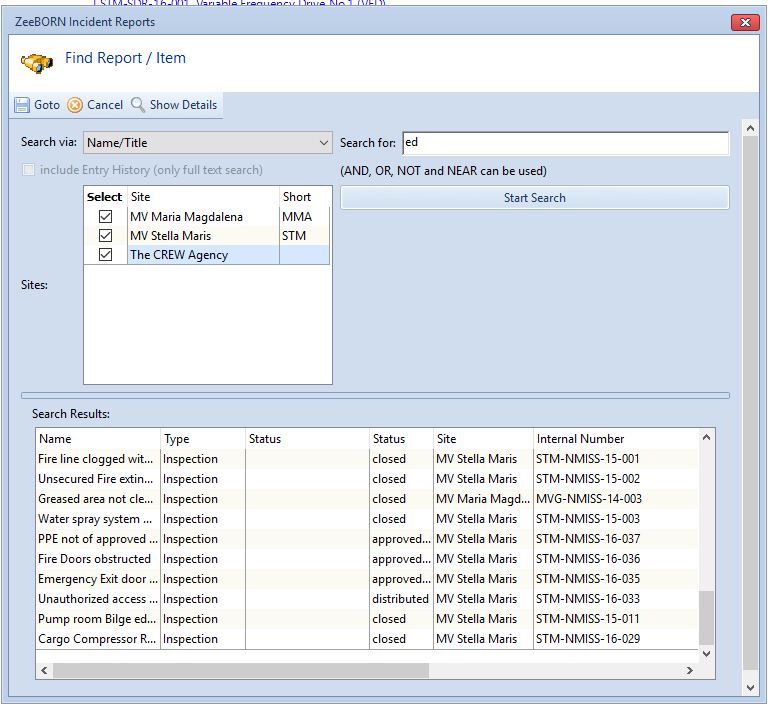
You may either search via Name, Number or a full text search (also
including the description of items). Use "Start Search" and the system
will show all inspection or item in question.

For full text search the history can be included.
Marked the Inspection or item you are looking for and with "Goto" the
system switch to the corresponded Inspection or item.
### Refresh
With "refresh" the system reloaded the module.
### Legend
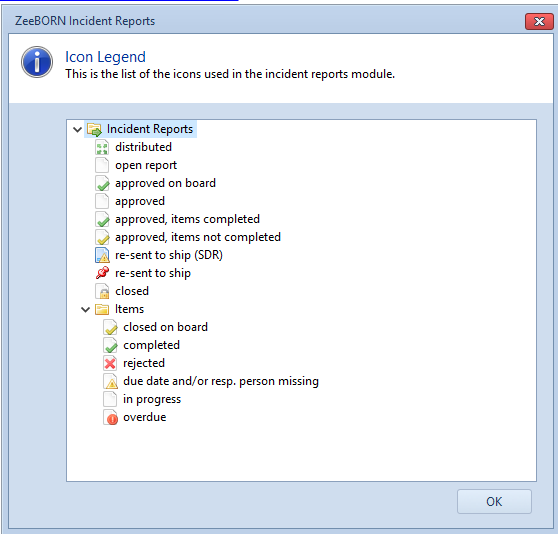
All icons will be explained.
## Reports
### Overview per Interval
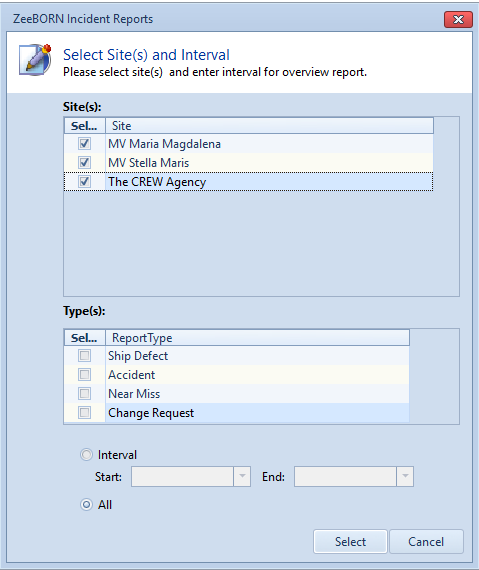
The Overview gives you a detailed overview about all reports. In the
screen you have the option to either show all entries (in this case just
use "OK" as all fields are check-marked per default) or define your
loading options by choosing a site, interval or report category.
### Analysis
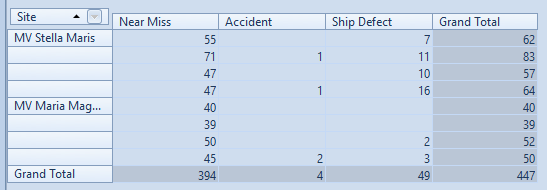
An analysis for a defined period will be given.
### Overall Report (Incidents and Audits)
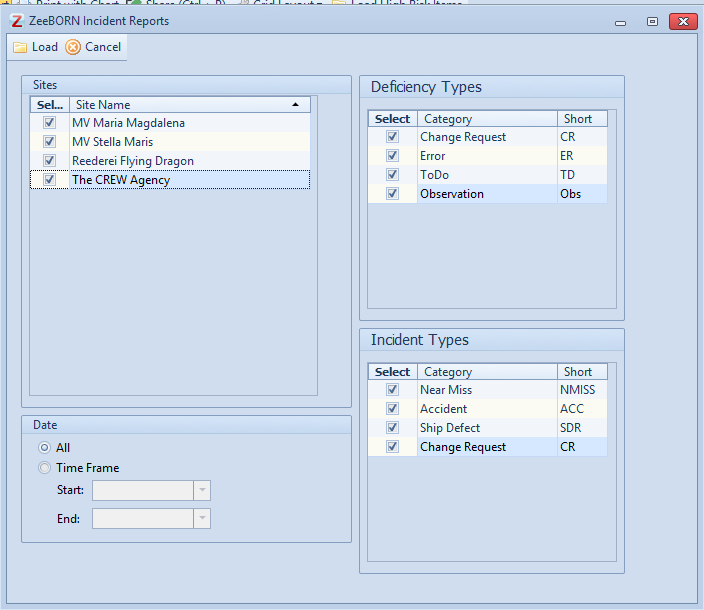
The Overview gives you a detailed overview about all reports for the
Deficiencies Types and Incident Types. In the screen you have the option
to either show all entries (in this case just use "Load" as all fields
are check-marked per default) or define your loading options by choosing
a site, interval, Deficiency Types or Incident Types.
*[PO]: Purchase Order
*[AZA]: local folder
*[(PO]: Purchase Order
*[RQ]: Requisition
*[(RQ]: Requisition
*[RfQ]: Request for Quotation
*[(RfQ]: Request for Quotation
*[SO]: Service Order
*[(SO]: Service Order
*[SQ]: Service Requisition
*[(SQ]: Service Requisition
*[SRfQ]: Service Request for Quotation
*[OoB]: Open on Board
*[(OoB]: Open on Board
*[ART]: Average Running Time (operation hours per day)
*[MC]: Master Contract
*[ADS]: Advantage Database Server (database engine used in previous versions of the ZeeBORN software)
*[.replic]: file extension for replication files (aka data transfer files)