Timetable
Configuration
The general configuration of the Timetable is agreed and implemented in the office (Admin Tools/Configuration).
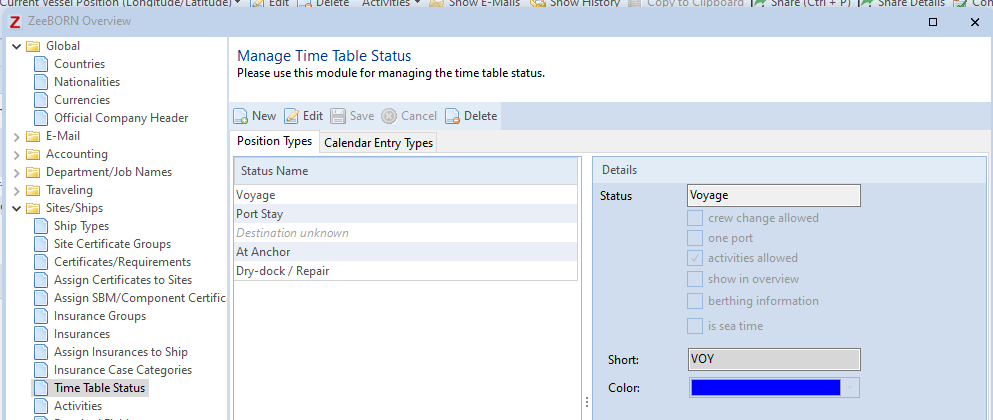
Timetable Status
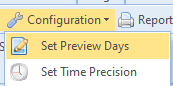
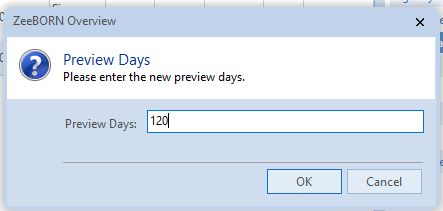
Set Preview Days
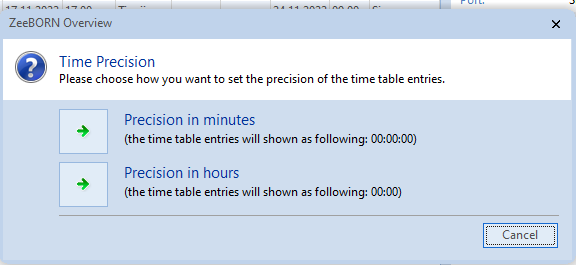
Set Time Precision
Use
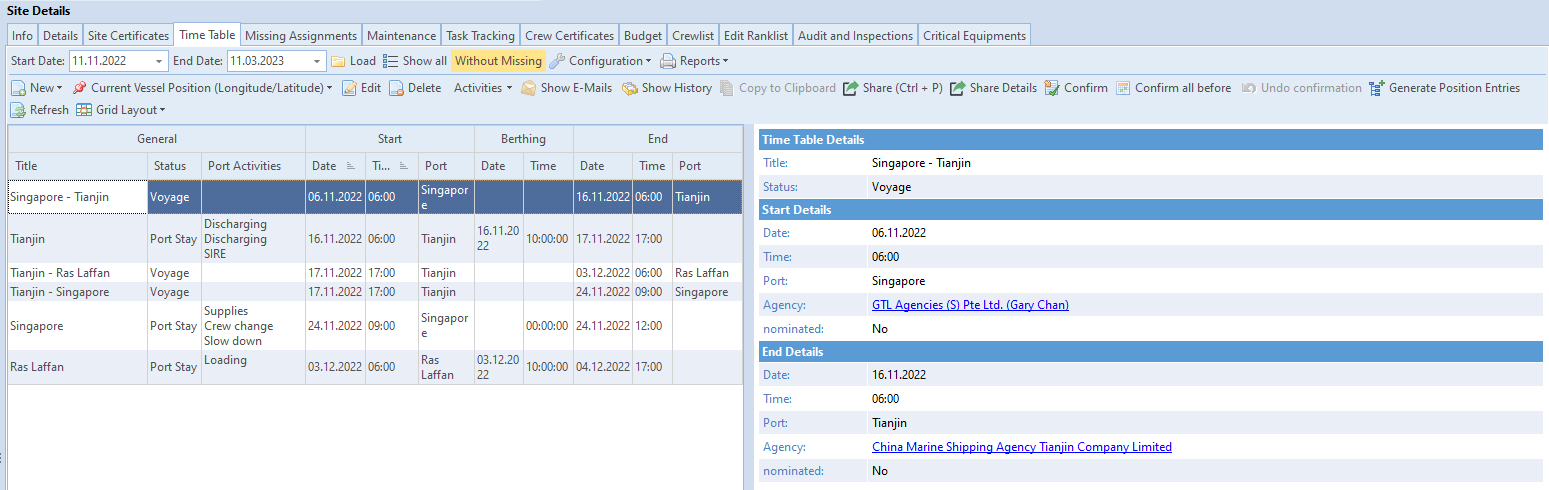

The Start Date is set automatically of today and the End Date is today
plus defined preview days. If you need another time frame, please set Start Date and End Date and click on Load.
 Button in yellow = function is active
Click on Show all and all inserted timetable entries will be shown.
 Button in yellow = function is active
Click on Without Missing and only inserted timetable entries will be
shown.
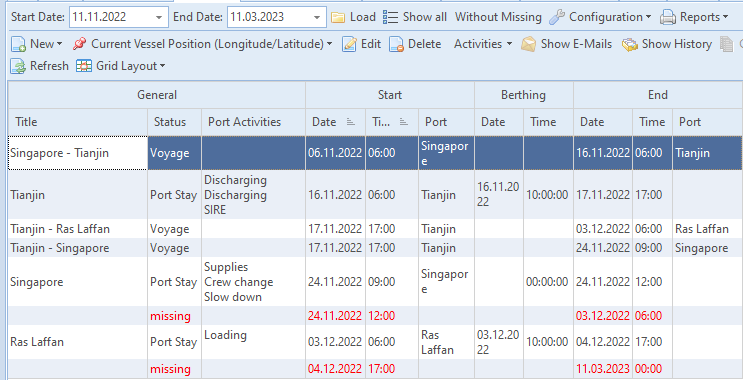
In red all-time gabs will be shown.

New
With New you can insert all timetable entries. The best way to insert
a timetable without gabs, please insert the Port Stay with New and
the voyage with Generate Position Entries.
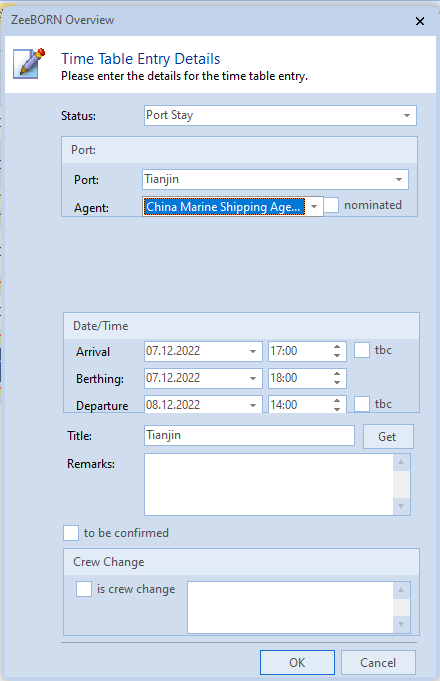
Please select Status and select the Port by clicking on arrow behind
the field.
Insert Arrival, Berthing and Departure date and time.
With clicking on Get the title will be generated.
Generate Position Entries
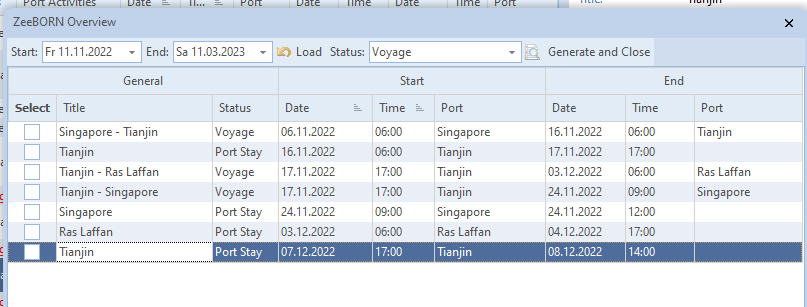
All entered timetable entries will be shown from today till the last entry.
Select the two port stays between a voyage has to be generated.

With Generate and close the voyage entry will be generated.

Edit
With Edit all entries can be edited.
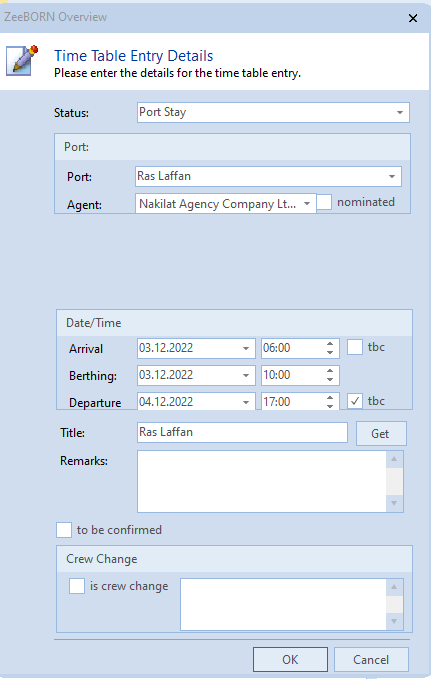
All data can be changed.
Please use Get if you change the ports.
Please edit the timetable entry where the stay will be longer to be sure that you don't have time gabs inside.
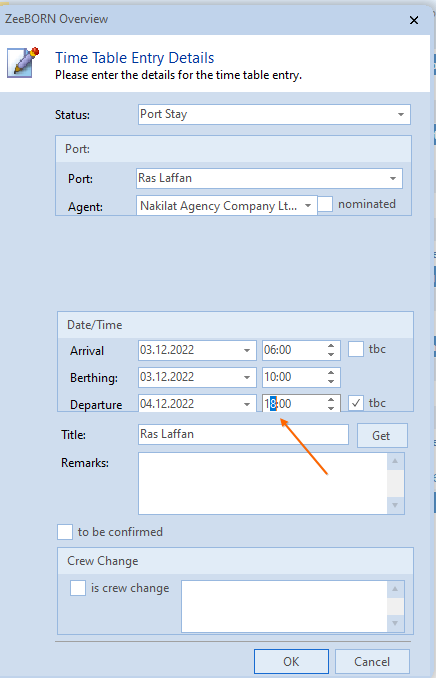
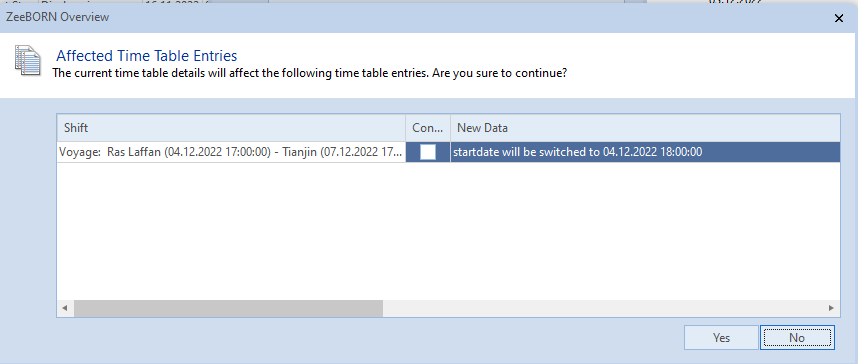
Our system corrects all entries where the time change will affect it.
Helpful Things
Share
Share: will open the regular print- and save-functionsPrint Details: print the select timetable entry.
Refresh
If changes will not be shown, please use Refresh.