Stand Alone Ship
Configuration
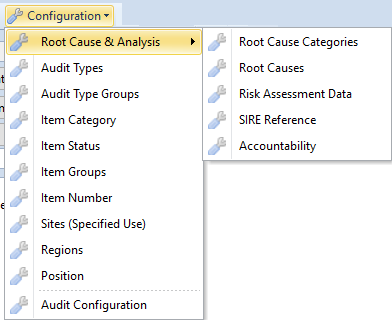
Root Cause & Analysis
For all Audit & Inspection items is it possible to analyze the root causes of faults or problems. If it is not in use in your company, all configurations can be ignored. It is important that in "Manage Audit & Item Categories" the part Root Cause & Analysis will not be in use.
Root Cause Categories
It is possible to summarize Root Causes to Categories.
Root Causes
All Root Causes are arbitrary. It is up to your company to define all needed Root Causes.
Risk Assessment Data
A Risk Matrix can be defined by Severity, Likelihood and Risk Level.

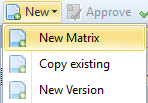 A new matrix can be created completely new, with
copy one of the old matrices or as a new version of
the default matrix.
A new matrix can be created completely new, with
copy one of the old matrices or as a new version of
the default matrix.

With "approve" the matrix will be authorized. Only the matrix which is "set as default" will be visible in our system.
Severity, Likelihood, Risk Level and Matrix are arbitrary.
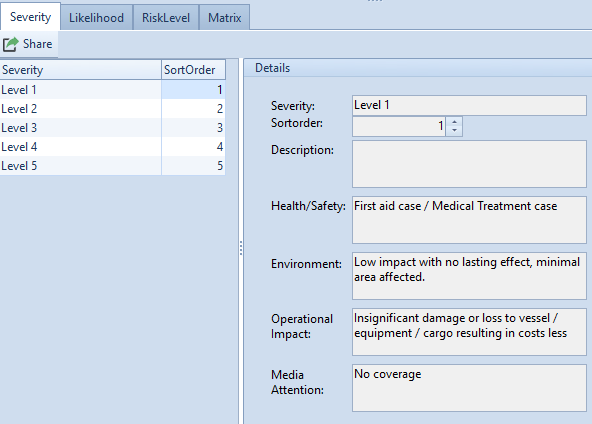 |
For Severities a description, Healty/Safety, Environment, Operational Impact and Media Attention can be defined. The sort order has to be given. |
|---|---|
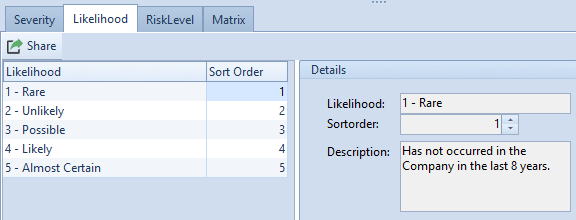 |
For all Likelihoods a description can be stored. The sort order has to be given. |
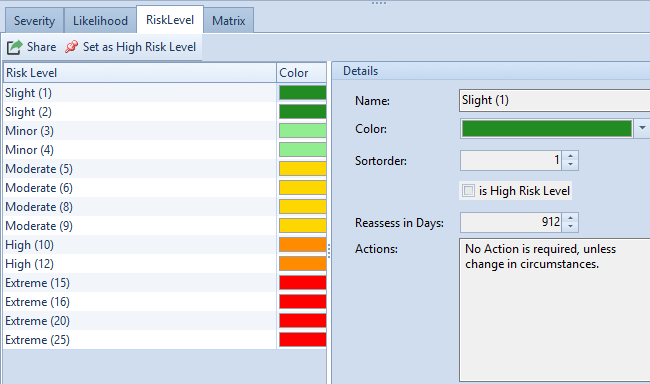 |
The sort order and color has to be given. If a Risk Level is a "High Risk Level" use button "set as High Risk Level". Reassess in Days has to be defined only for module "Risk Assessment". Actions can be stored. |
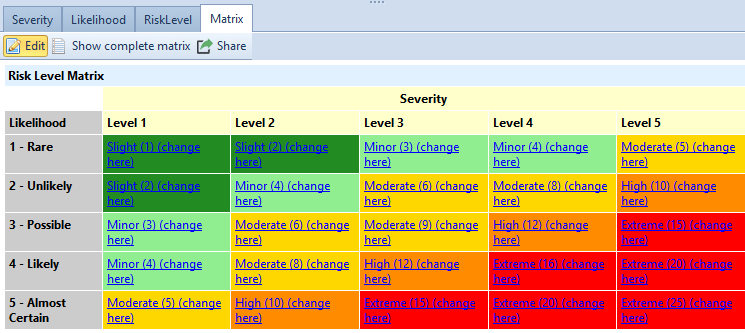 |
With "edit" the matrix can be filled in. With "share" the matrix can be exported via pdf, printer etc. When the matrix is approved not further changes are possible. |
"show complete matrix"
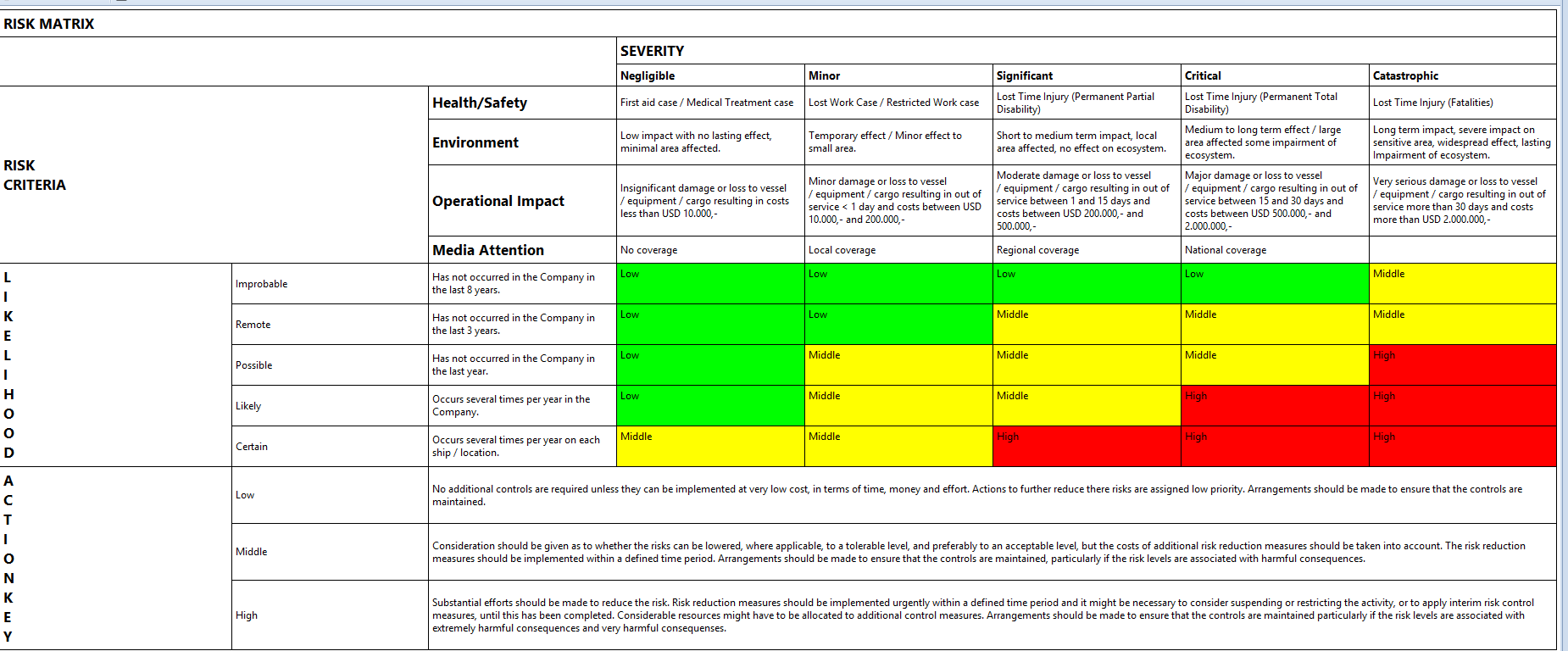
The Risk Matrix with all given information will be shown.
SIRE References
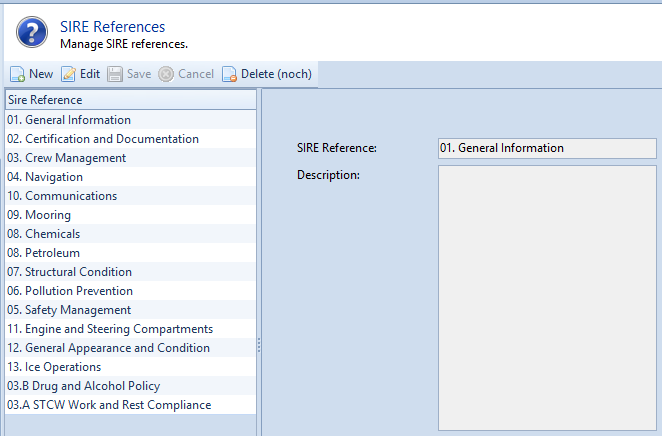
SIRE References are arbitrary. All can be edited. Only SIRE References which are not in use, can be deleted.
Accountabilities
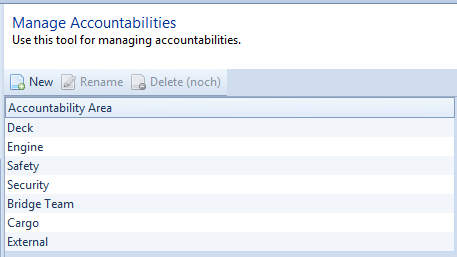
Accountibility areas are arbitrary. The can be renamed. Only Accountibilities which are not in use, can be deleted.
Manage Audit Types
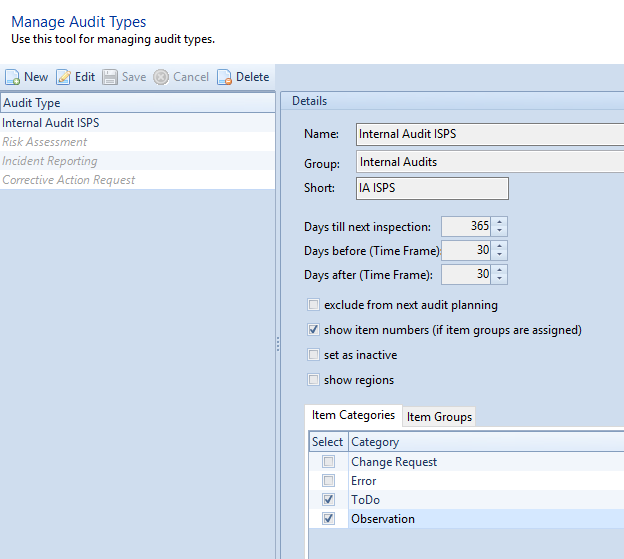
There are three pre-defined system audit types. All other audit types are arbitrary. For all types is it possible to predefine Item Categories to be shown for this type and Item Groups. Also it is possible to configure the visibility of the item number. For every type a time frame and the period between two inspections can be defined. All types for use in the Audit Check Report have to be marked in the configuration. If type don't need to be planned, it has to be marked too.
Manage Audit Groups
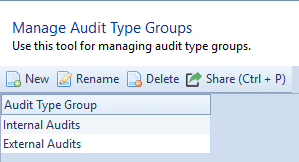
All Audit types can be summarized to Audit Groups.
Manage Audit/Item Category
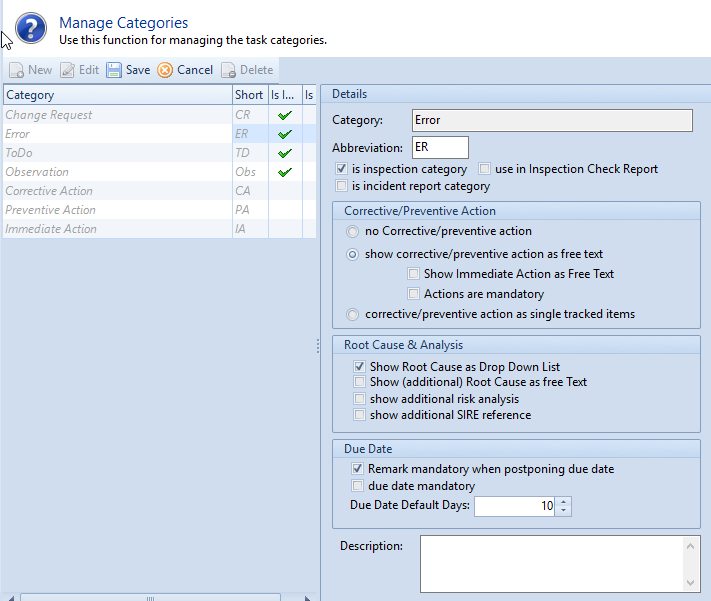
Item category defines the type/name of deficiency used for several audit types.
There are systems Item Categories, to see on grey lettering. All other Item Categories are arbitrary. The Item Categories are also available in Task Tracking and Incident Report if predefined. If
Corrective/preventive action
-
No Corrective7preventive action -- there are no possibility to handle corrective or preventive action
-
Show Root Cause as Drop Down List -- Root Cause Category and the corresponding root causes can be selected from the shown lists
-
Show (additional) Root Cause as free text -- all Root Causes have to be insert as a free text additional to the Drop Down List.
-
Show additional risk analysis -- Risk Matrix can be shown for preparation.
-
Show additional SIRE References -- a SIRE reference can be selected from Drop Down list of configured SIRE References
Manage Item Status
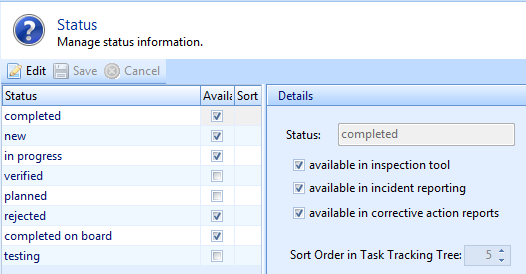
These are all system statuses. The visibility of the statuses can only be defined and changed.
Manage Item Groups
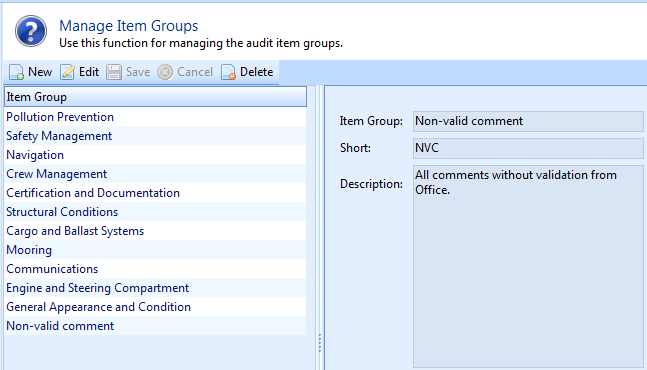
Item Groups are arbitrary. Descriptions for Item Groups are needed.
Item Number
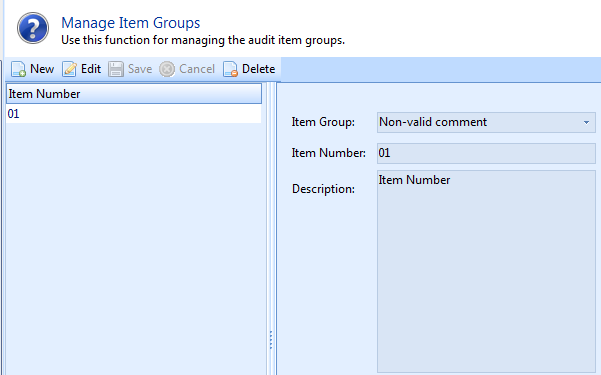
Item Numbers are arbitrary. The Item Number has to be allocated to an item Group.
Sites (specified use)
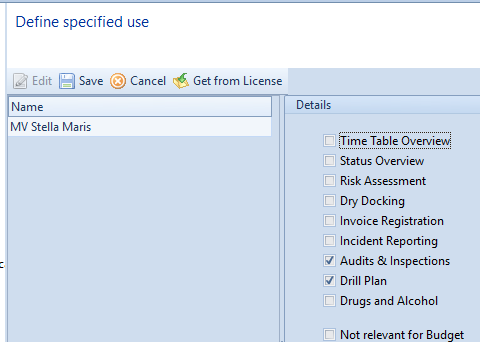
In the "edit" area all needed modules can be choosen by click on checkbox or with Button "Get from License". With "save" all changes will be taken over.
Regions
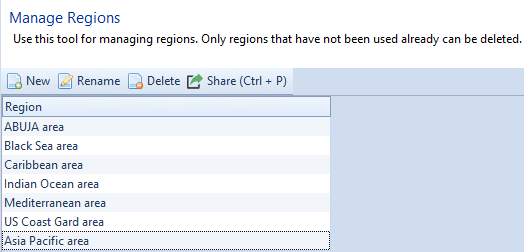
Regions are arbitrary. The can be renamed. Only Regions which are not in use, can be deleted.
Position
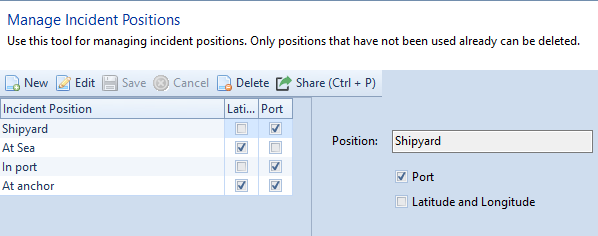
All needed ships position can be added. For each position is it necessary to give the information how the position have to be insert.
PORT the system will have a free text field for port name and if configured, the port can be selected from Drop Down list.
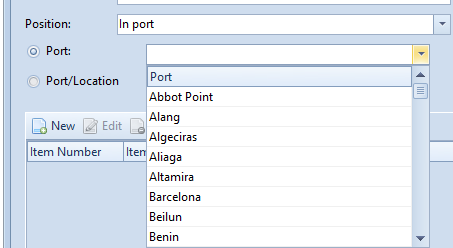
Latitude and Longitude the coordinates from ships location have to be insert

Audit Configuration
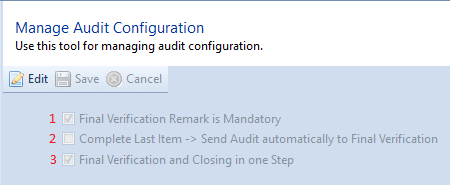
There are three generally function to be configured.
1If an Audit will be finalized; a remark has to insert by the user.
2 If the last item of an Audit or an Inspection is set as complete, the report will be moved to folder "Final Verification" automatically by the system.
3 When the report will be finalized the report automatically will be closed by system. This checkbox has to been set. Final Verification and close in two steps is only necessary for companies, not for the Standalone Version.
Use Module
Add Inspection Report
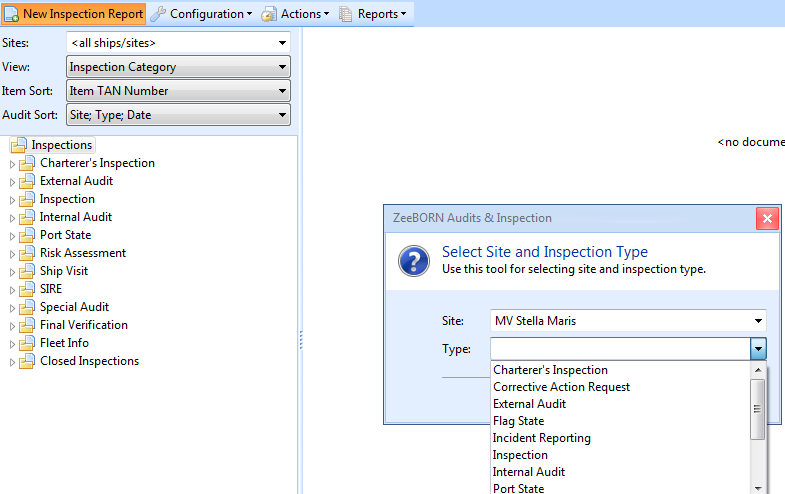
Use button "New Inspection Report" and choose type of inspection/audit you wish to report.
Select correct "Audit Date", fill fields for "Port" or "Location, "Auditor", "Report Number" and "Master". Use button "Get Title" and system will create correct report title based on the given information [Ship -- Type of Report -- Port -- Date].
Optionally a description can be inserted or attachments can be added.
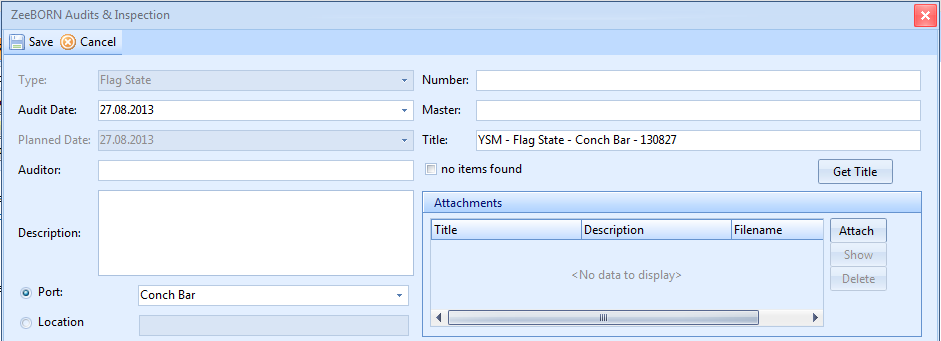
Note: Also inspections without any findings shall be reported in the system. In this case select check box "no items found" and the inspection will be closed. Above window can only be saved if either this check box is selected or inspection items are added.
Add Inspection Items
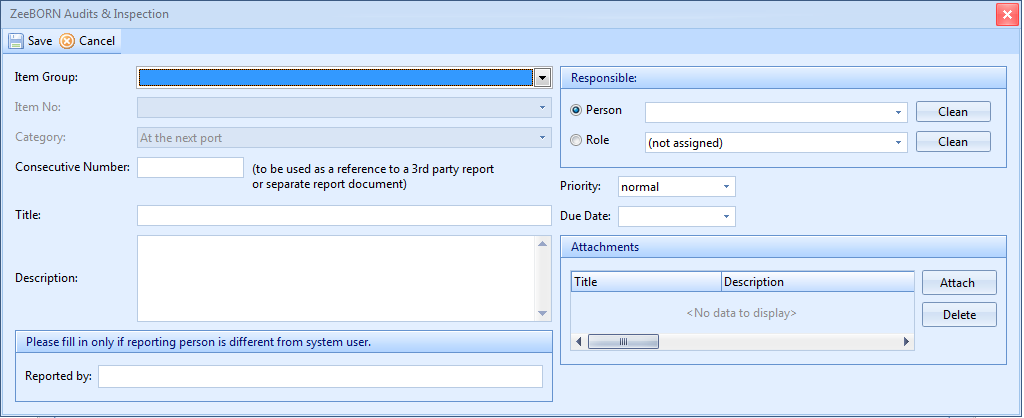
Use "New" and choose correct item category. For every inspection type the system will show you the applicable item categories. With choosing the Item group the available Item numbers are visible. Choose the correct one. Add a title and a description. The "Consecutive Number" is arbitrary with number and letter as in your company defined. Optionally attachments can be added.
With "OK" item will be saved. Title of this item is built as follows:
Item Category -- Ship -- Site (where item was created) -- Year -- Running Number
Follow-Up
Depending on your access rights you can also assign the Responsible Person and the Due Date.
This assignment is usually done by office site.
Status of Items
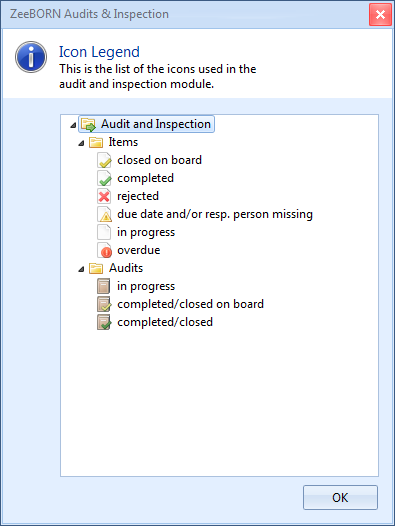
Status of each item is indicated by symbol and colour. You find legend under button "Actions".
Follow up for Inspection Items
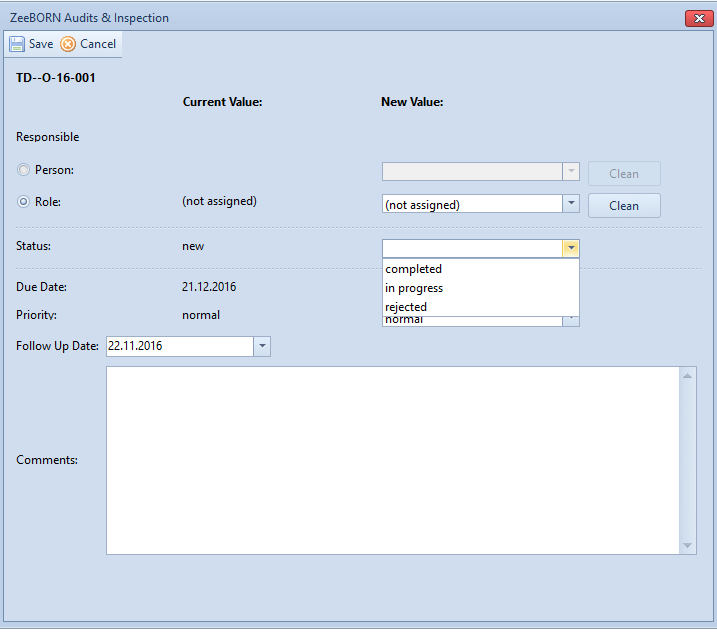
Use "Follow Up" for making any changes on item.
With status "completed" the item will be closed.
With status "in progress" the item will be opened for further actions.
With status "rejected" the item will be rejected, no further actions are needed.
It is mandatory to add a comment in order to save the changes in the item.
Note: If no responsible person and due date are assigned by the time of completion, system will set current user and date instead.
Confirm Inspection Reports
All inspections with status "completed on board" have to complete in office too. After this the inspection moves to folder "Final Verification".
Final Verification
All inspections have a final verification. The inspection is finished after this.
Add a Planned Inspection
Inspections can be planned via the report described in point
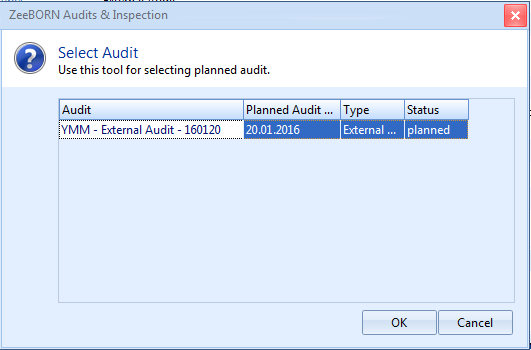
Note: If an inspection is already planned you will -- after selection an inspection type where you can select the corresponding planned audit and continue as usual. Don't forget to use "Get Title" after filling all fields in order to update inspection title accordingly.
Useful Functions
Search
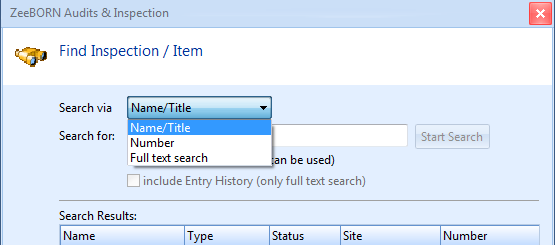
You may either search via Name, Number or a full text search (also including the description of items). Use "OK" and you will be guided to the selected inspection or item.
Reports
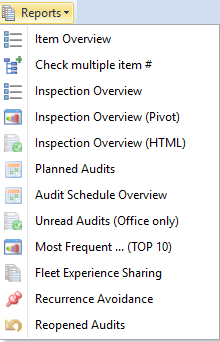
Item Overview
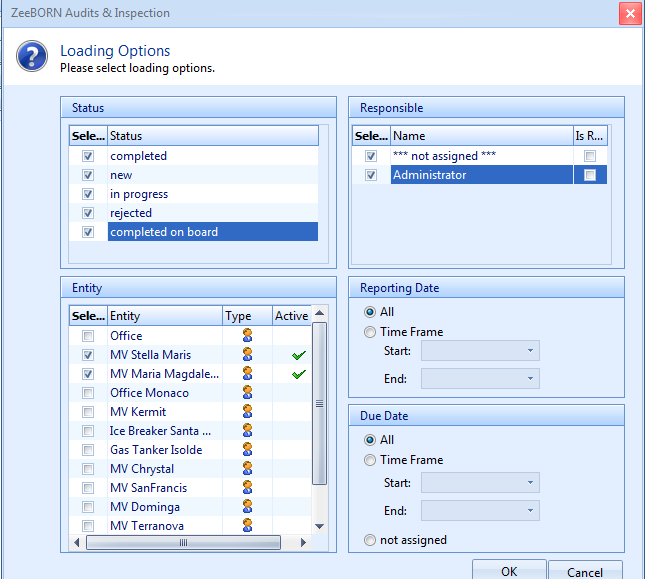
The Overview gives you a detailed overview about all inspections and items. In the screen you have the option to either show all entries (in this case just use "OK" as all fields are check-marked per default) or define your loading options by choosing a status, responsible person or set a time frame for reporting date respectively due date.
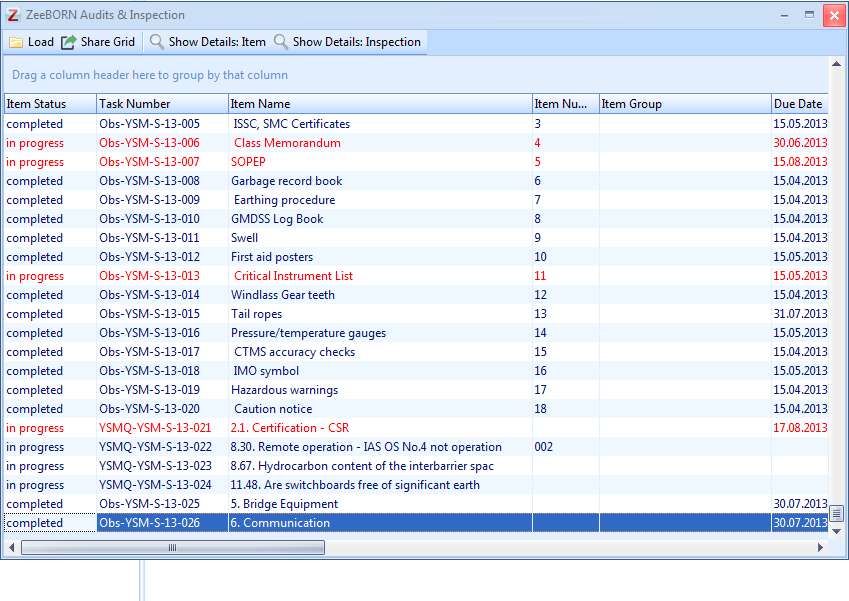
In the following list you may sort according to the several column headers (e.g. Due Date) or drag a column header to the top in order to group accordingly. Buttons "Show Details" contain a link to the respective inspection or item.
Check multiple item

With "check multiple items" the report "Item Overview" can be created for more than one item Type.
Inspection Overview
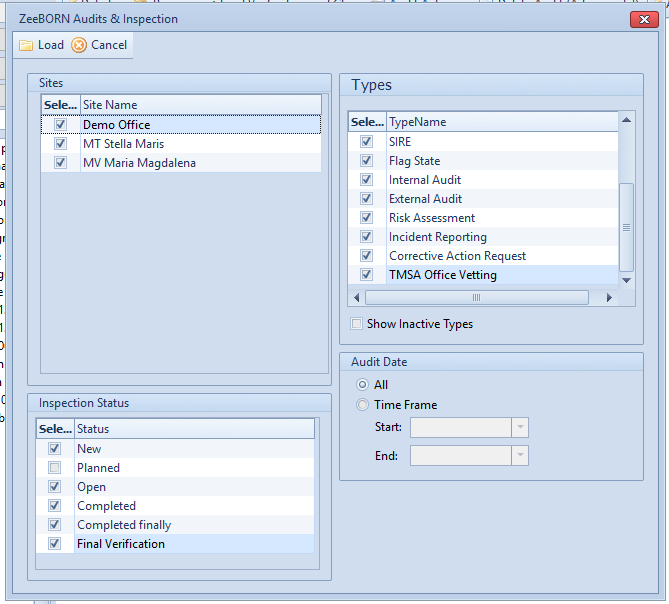
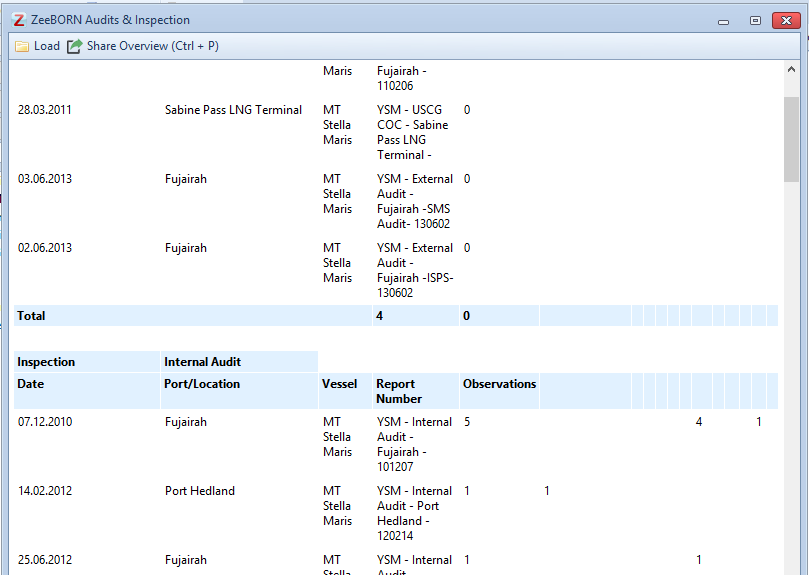
The report gives an overview about all selected Audits or Inspections.
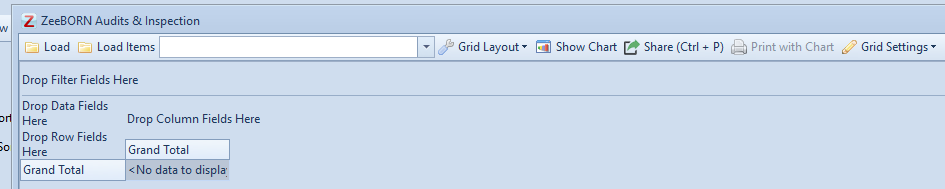
And as Pivot Grid
In Pivot Grid is it possible to make changes on the view of the report as needed.
And as HMTL view
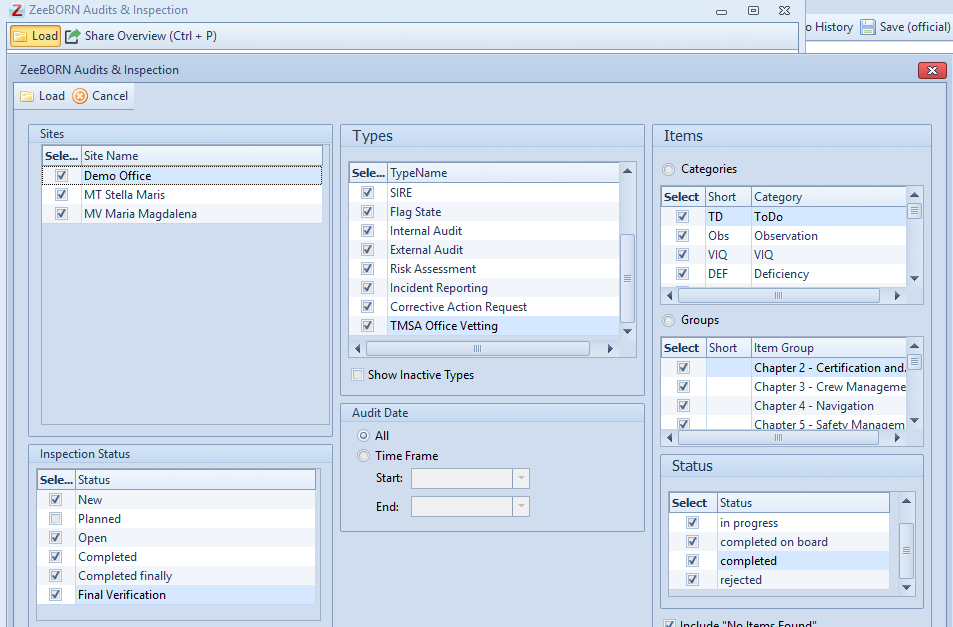
The report is also available in HTML view.
Planned Audits
In this list dates for future, planned audits can be set.
Gives an overview about all planned (and the last) audits. If a time frame for a certain inspection type has been set by the administrator, this will also be shown here.
For time intervals same principle applies as for annual class surveys, i.e. you have a screen in which inspection has to be completed (shown in brackets), however, anniversary date will not change for forthcoming inspections.
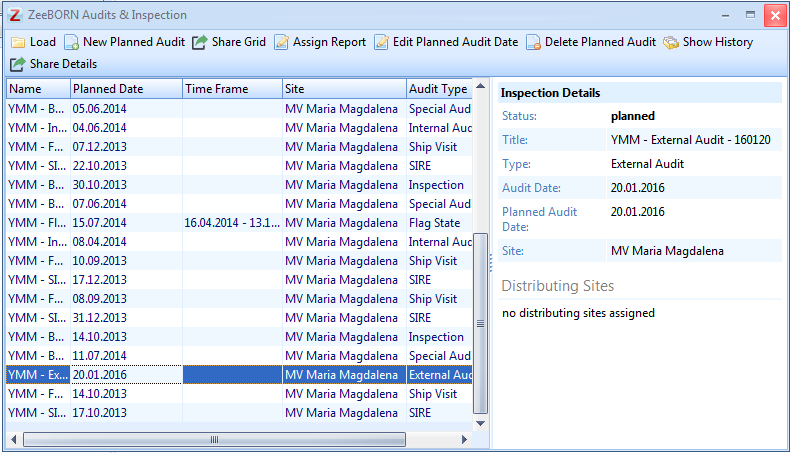
Audit Schedule Overview
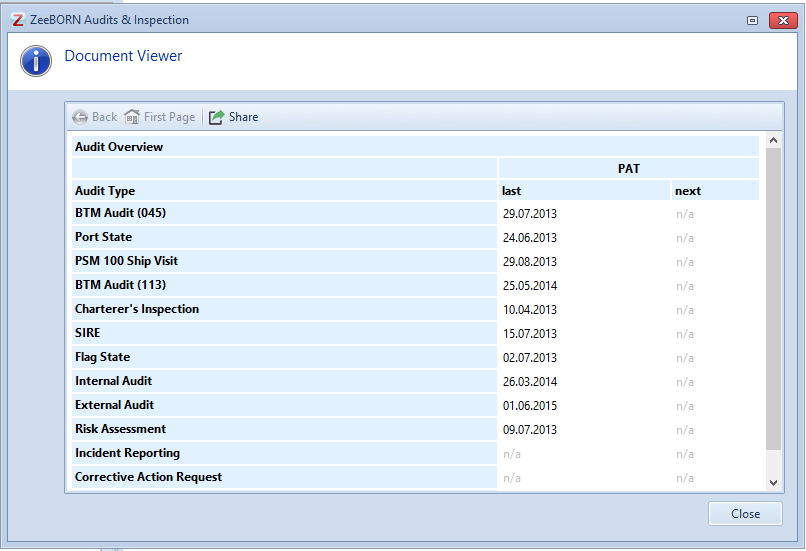
In Audit Schedule Overview you can see the date of the last report of a Audit Type and the date for the next planned Audit, if available.
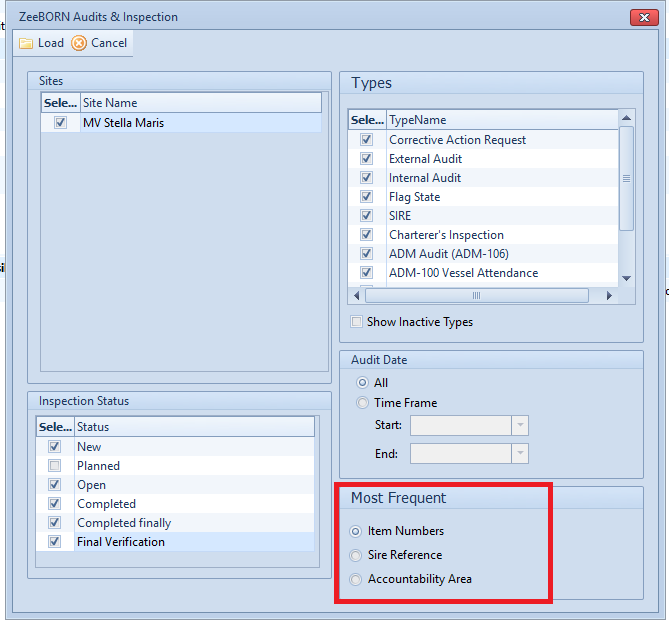
Most Frequent....(Top 10)
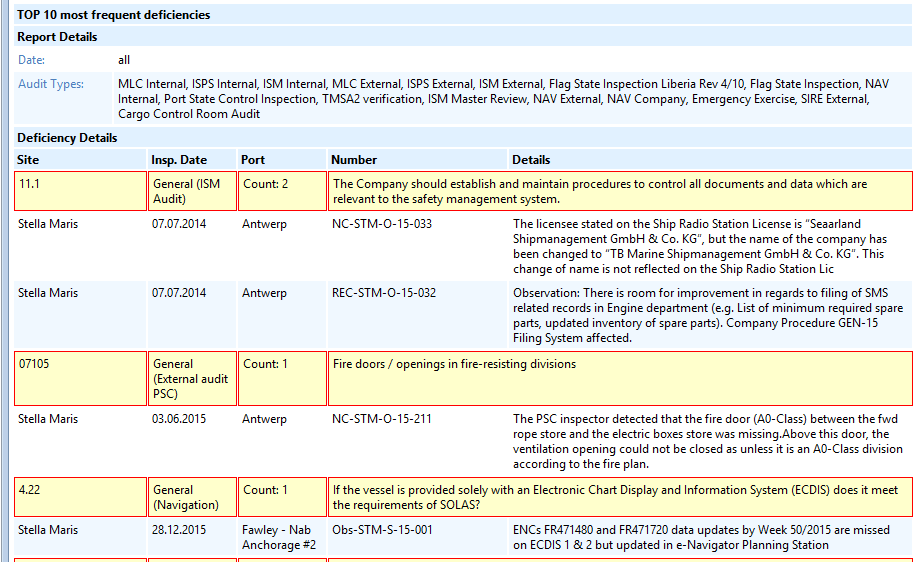
The report shows the 10 most frequent deficiencies.
Fleet Experience Sharing
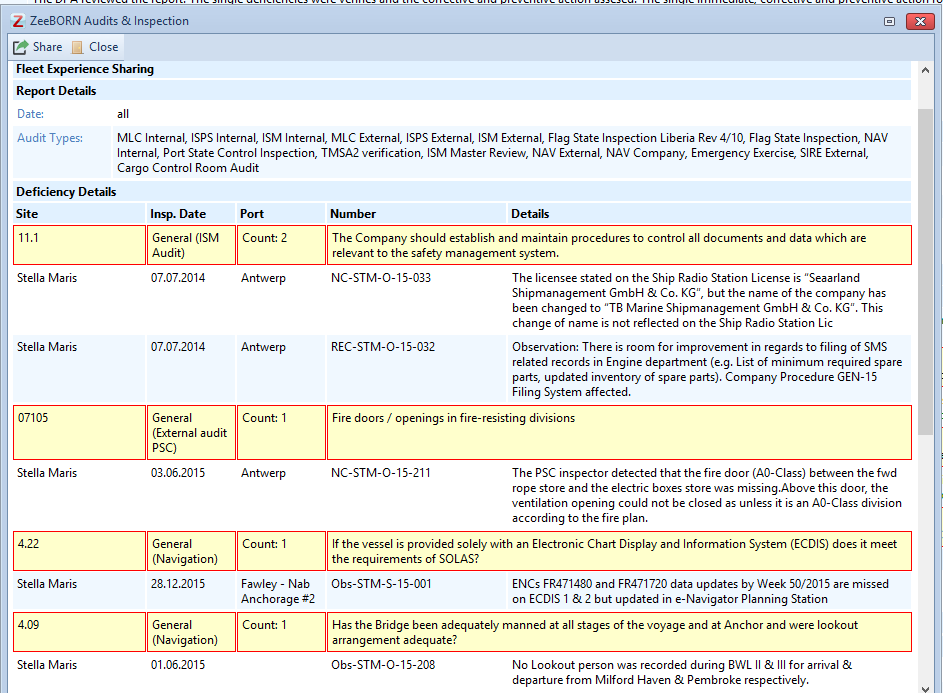
The report gives an overview about deficiencies in order to the selected most frequent.
Recurrence Avoidance
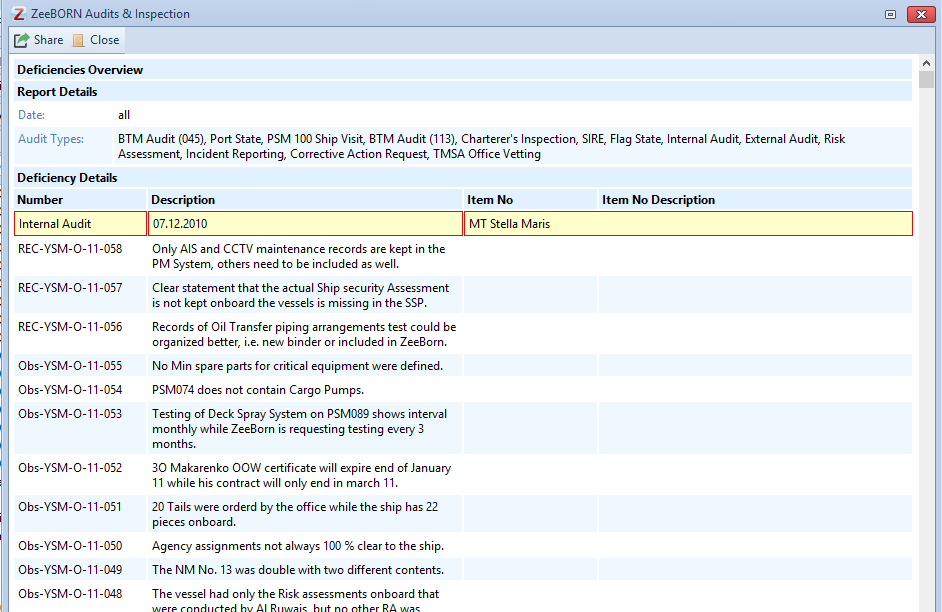
An overview will be given about all deficiencies sort by Audit type.
Reopened Audits

All reopened audits and Inspection will be shown.