Drill Plan Stand Alone Version
Configuration
Before using the system, you have to do some configurations. In the configuration area hit button Configuration according to your user right.
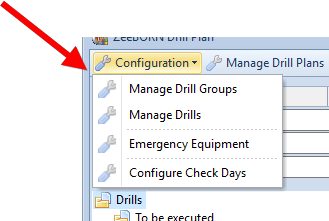
Manage Drill Groups
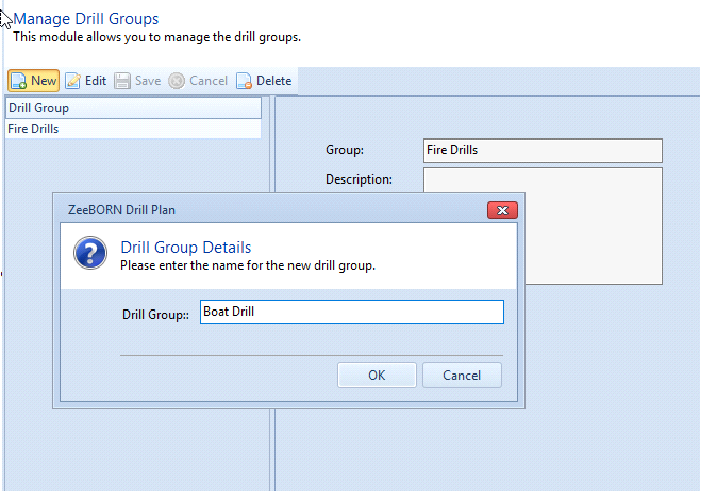
Hit button New to enter a Drill Group and perhaps add a Description. Confirm it with Save.
You can only delete Drill Groups which are not be used in the system.
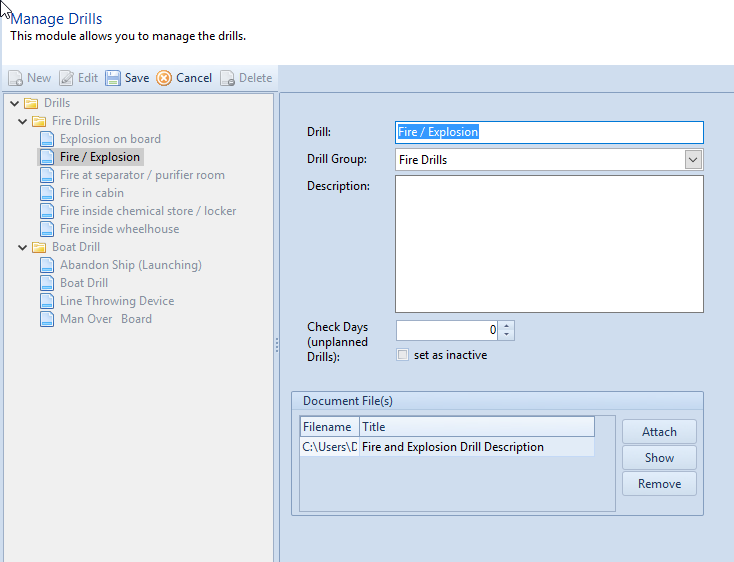
Manage Drills
In the next step, all drills have to be insert which are to be manage in the system.
Emergency Equipment
Management of Emergency Equipment. The handling of the Drill module will be trained here.
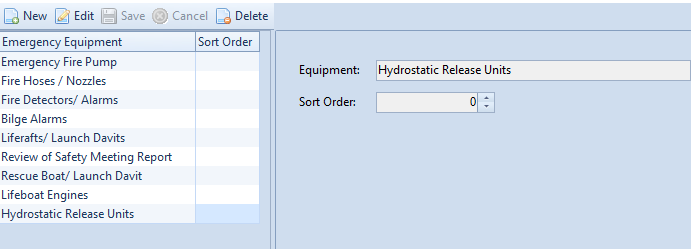
The function Sort Order could be used to sort the items.
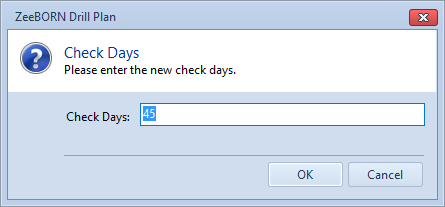
Configure Check Days
Here, you can configure Check Days for drills. The drills carried out are linked in the tree and will be displayed in the 3 following subfolders:
- Previous
- Actual
- Next
The sort into the right folder depends on Check Days.
Manage Drill Plans
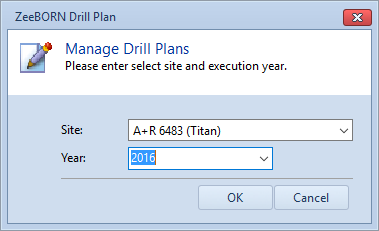
Now you can configure the annual drill plan. This means to determine which drills will be executed within one year. Use Manage Drill Plans to display the Drill Plan.
At first please enter New Drill Plan. After this select the execution year.
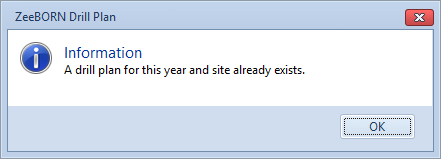
You will receive an error message (information) in case of a drill plan already exists for this year.
This function is used to select the drill in which week of the month or in which month it will be done. The overview shows all months with 4 weeks.
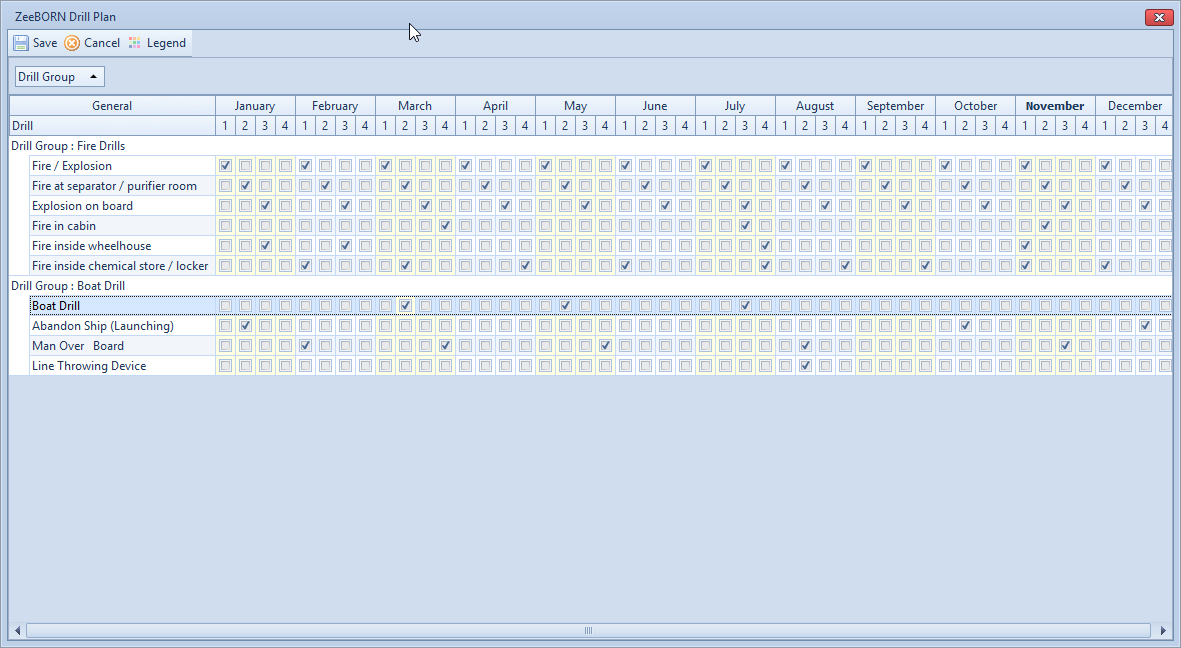
Hit button Save.
The generated plan is visible in the tree now.
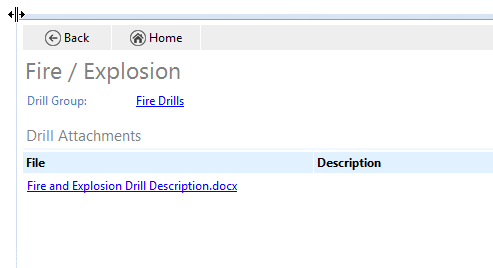
The generated drill plan has not been closed yet and can be further edit (1). All selected drills are marked in grey (2) because they have not been reported yet. In case of viewing drills colored in red so this means that drills are overdue. The reporting of drills is not possible at that time because the drill plan has not been approved yet. So you have the chance to generate the drill plan for the next year in time, as the plan will be shown not before approving. Hit button “Drill Name” (3) for receipt of additional information per drill that were saved in the configuration (i.a. selected attachments).
With following button, the plan can be edited.

The process `Assign Drills` will be closed after approving. The Drill Plan is shown below in folder `approved` in the tree.
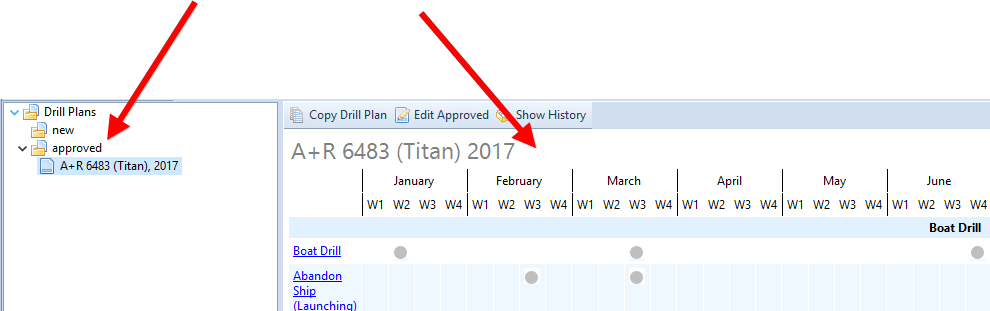
The button Edit approved is available under approved. Only in exceptional cases it is possible to edit an approved drill plan.
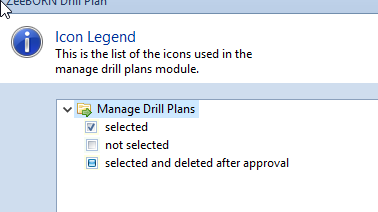
If you delete a drill from the drill plan the box will be marked differently. It may be reproduced at any time in the future that there was a planned drill.
Hit button Legend to get an overview about the used icons.
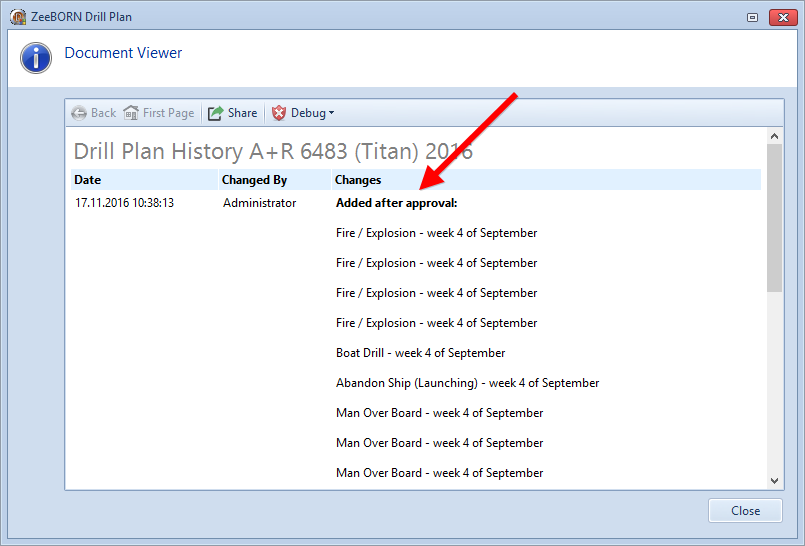
After approving any changes are displayed separately on the history:
Drill Reports
General
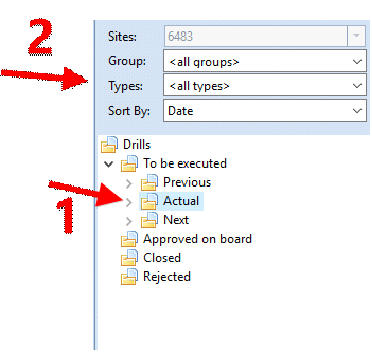
After approval of the selected drill plan, drills are displayed in the main overview.
Drills divide in the following folder: previous, actual and next (1). It is depending on due days and selected check days.
The tree can be specified and expanded (2):
- Hit button
Groupto only display the drills which belong to a selected drill group. - Hit button
Typeto display a specified drill. - To select the tree and sort by date or group and drill type as well as only drill type hit button Sort by.
Report Drill
To report a Drill, select the required drill in the tree and hit Report planned drill.
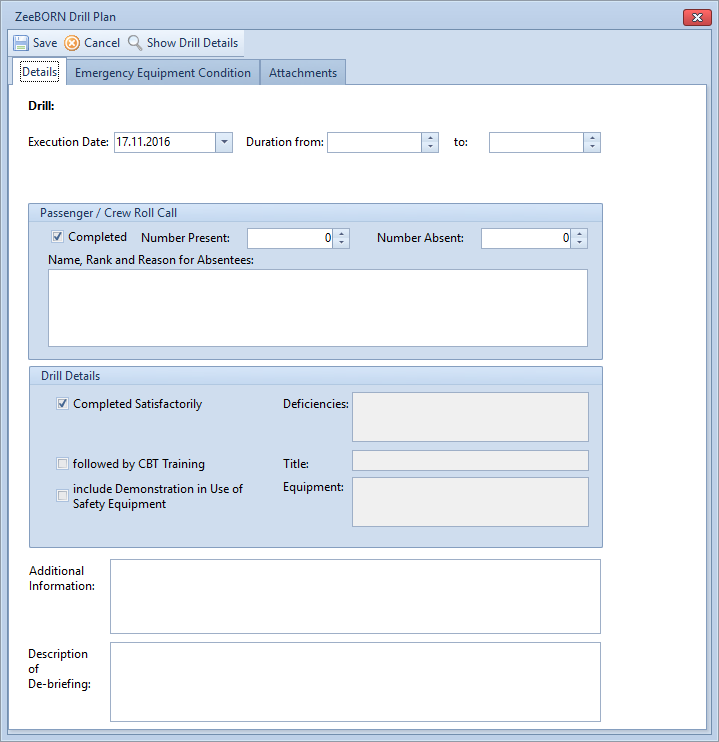
You should enter the values.
If you fill in a number greater than zero in the field Number absent - you have to enter a remark in the field Name, Rank and Reason for Absentees.
Switch to the next Tab and the equipment will be marked which was used for the drills.
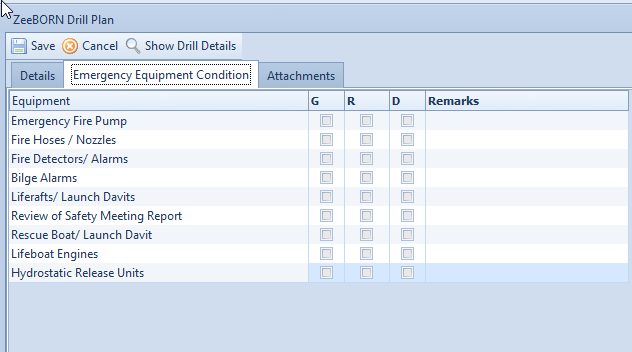
The capital letters stand for:
G = Good
R = Required Attention
D = Details attached
Select Equipment. If a check mark is placed in the box D or R it is necessary to descripe in the selected field Remarks (the systems checks the entry during the approval process).
The fields Additional Information and Description of de-briefing are mandatory (the system checks the data during the approval process too).
Switch to the next Tab if documents have to be attached.
Open Reports
A reported drill will be displayed in the tree under the folder open.
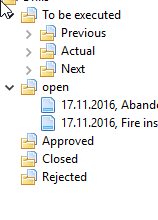
The following buttons are available in the area Open Reports:

Approved Reports
After a report is approved no further changes or entries are possible. The report will be displayed under the folder approved.
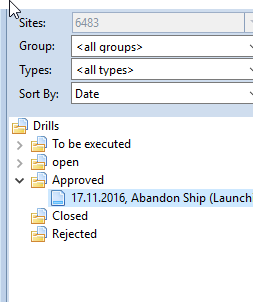
The following buttons are available:

| Share | The HTML view of the report (on the right) can be exported or print. |
| Show History | History of the report will be shown. |
| Close | The report will be closed finally. A reason will be notified. |
| Documents | Add, view or delete of attachments. |
| Delete | Delete of the report. This button is only visible with the relevant rights. |
| Comments | Comments will be edited or displayed. |
| Re-open | The report can re-opened for editing again. A reason will be notified and it will be shown in the report after re-open.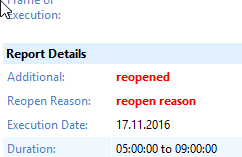 |
Closed Reports
After closing a report you will find it in folder Closed. The area Closed will be sorted by year and month.
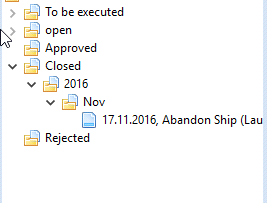
For reasons of performance the Closing area will be not updated. It could be that a closed report will not be shown after closing in this area. After refreshing the report will be visible.
The following buttons are available in the area Closed:

| Share | The HTML view of the report (on the right) can be exported or print. |
| Show History | History of the report will be shown |
| Show Documents | Existed attachments will be shown.. |
| Delete | Delete report This button is only visible with the relevant rights. |
| Comments | Comments will be edit or displayed. |
| Re-open | The report can re-open for editing again. A reason will be notified and it will be shown in the report after re-open.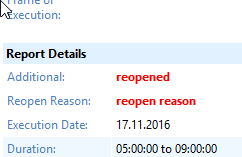 |
Report unplanned Drill
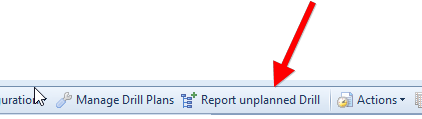
For reporting an unplanned drill hit button Report unplanned Drill.
Next overview is to select the preferred drill:
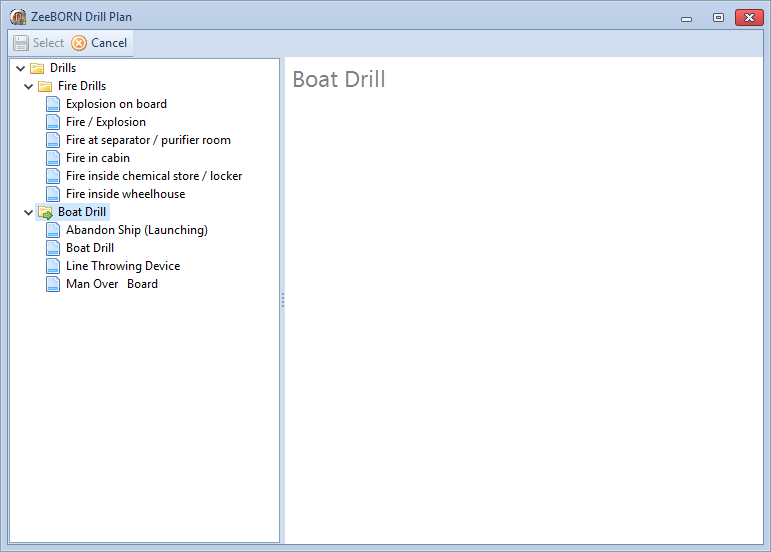
The reporting process is the same as for planned drills.
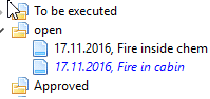
The unplanned drills listed in the tree are shown in blue and italic letter:
Drill Overview
Hit button Drills and you can navigate directly in the tree and the drill plan will be displayed for the actual year.
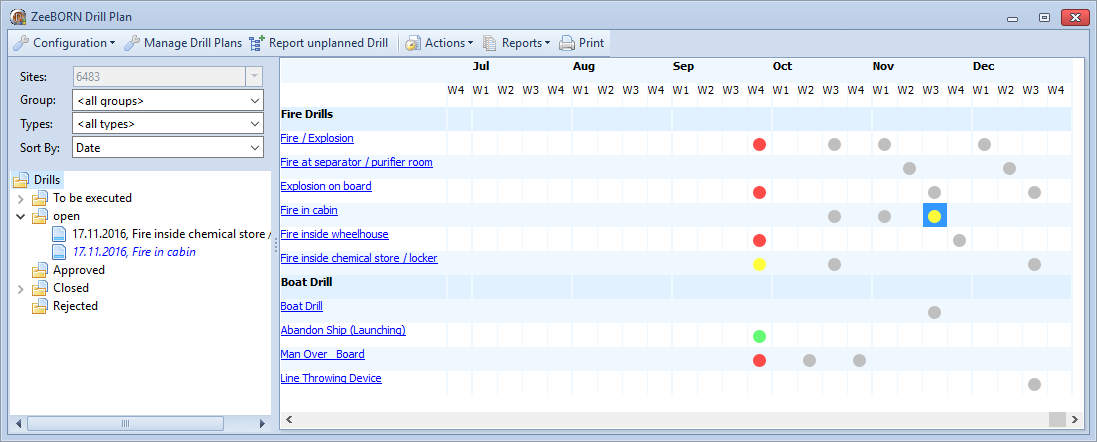
Hit button Actions -> Legend to find a list including all icons used in the drill plans module
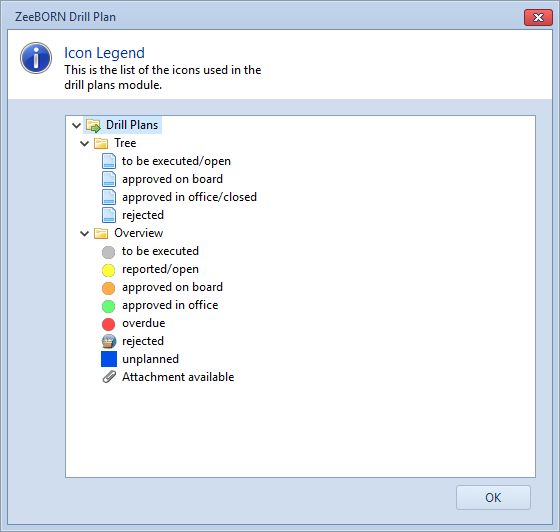
Select a ball (icon) in overview for:
- Report or Edit of a drill -> on the condition the status is: to be executed or open
- or display the drill report -> on the condition the status is: approved or closed
Reports
Difference between Planned and Execution Date
The report shows the difference between planned and actual execution date.
Overview per Year
Here you will find an overview including all existed drills – over the last years is possible. But drills cannot be edit or change here.