Web Portal (phone and tablet)
The ZeeBORN web portal opens in the browser of a phone, tablet or laptop - on Android, iPhone and iPad alike. Nothing has to be installed, there is no app in any store, and it works with the ZeeBORN user name and password you already have.
It is meant for the work that happens away from the desk: going through an inspection on board, answering topics, photographing a finding, and giving the approvals that would otherwise wait until you are back at the PC.
This replaces the Inspection App
The portal takes the place of the earlier Inspection App, which had to be installed from an APK file. That app is no longer used. Everything it did is now done in the browser - and more.
Signing in
Open the address you received from us in the browser of your phone and sign in with your own ZeeBORN user name and password. There is no separate account for the portal.
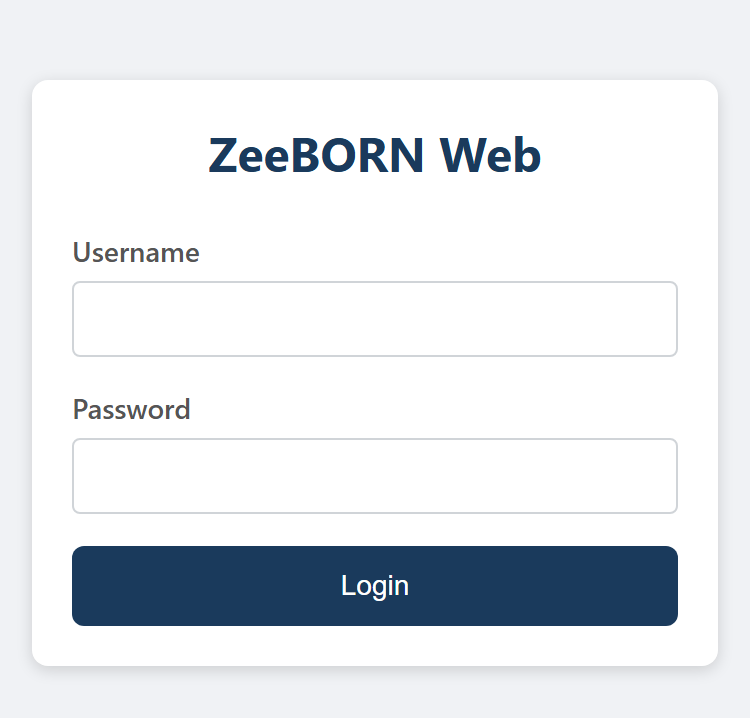
The address is not the same for everyone - each installation has its own. If you do not have it, ask your ZeeBORN administrator or us.
Keeping it one tap away
The portal can be placed on the home screen of the phone. It then opens like an app, in full screen and without the browser's address bar:
Nothing is downloaded in the process - the icon simply opens the portal directly.
Finding an inspection
Tap the menu ☰ at the top left and choose Inspections. The list shows all inspections.
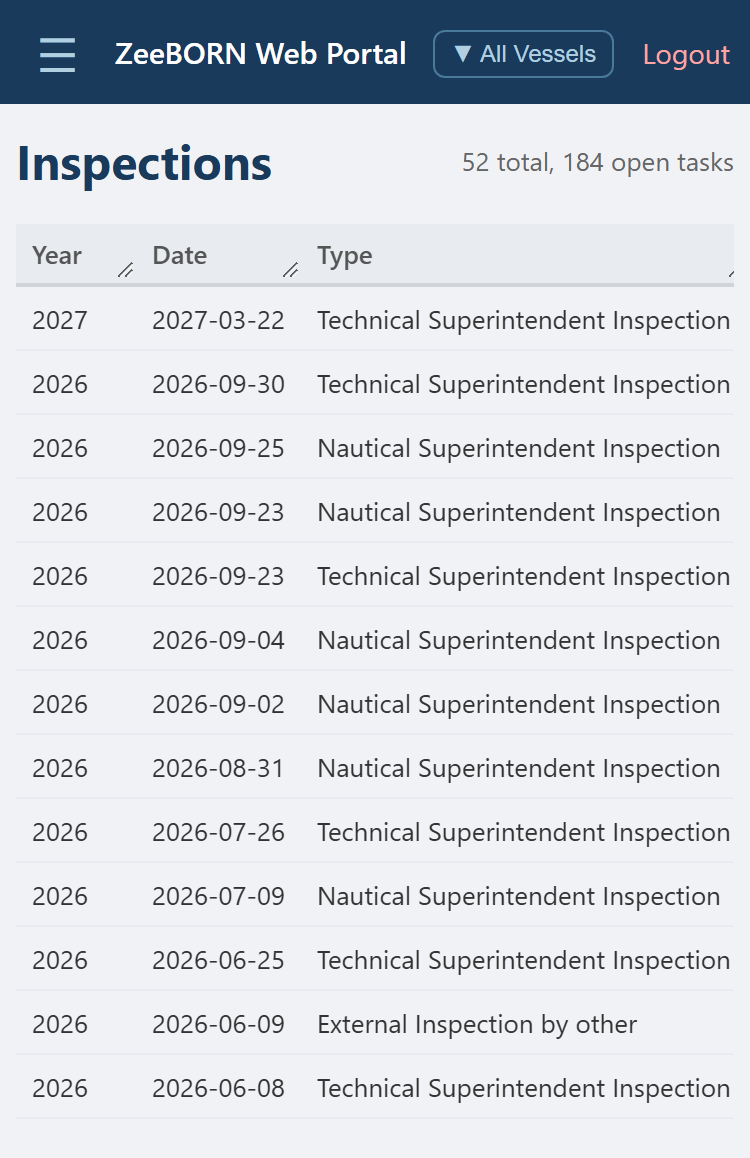
In the Safety Report column, tap Open on the row you want.
The table is wider than the screen
Swipe sideways on the table itself to reach the columns further right - that is where the Safety Report column sits. This applies to every wide table in the portal.
New inspections are created in ZeeBORN on the PC. On the phone you work through the ones that already exist.
Working through a topic
The report shows its structure; tap a topic to open it.
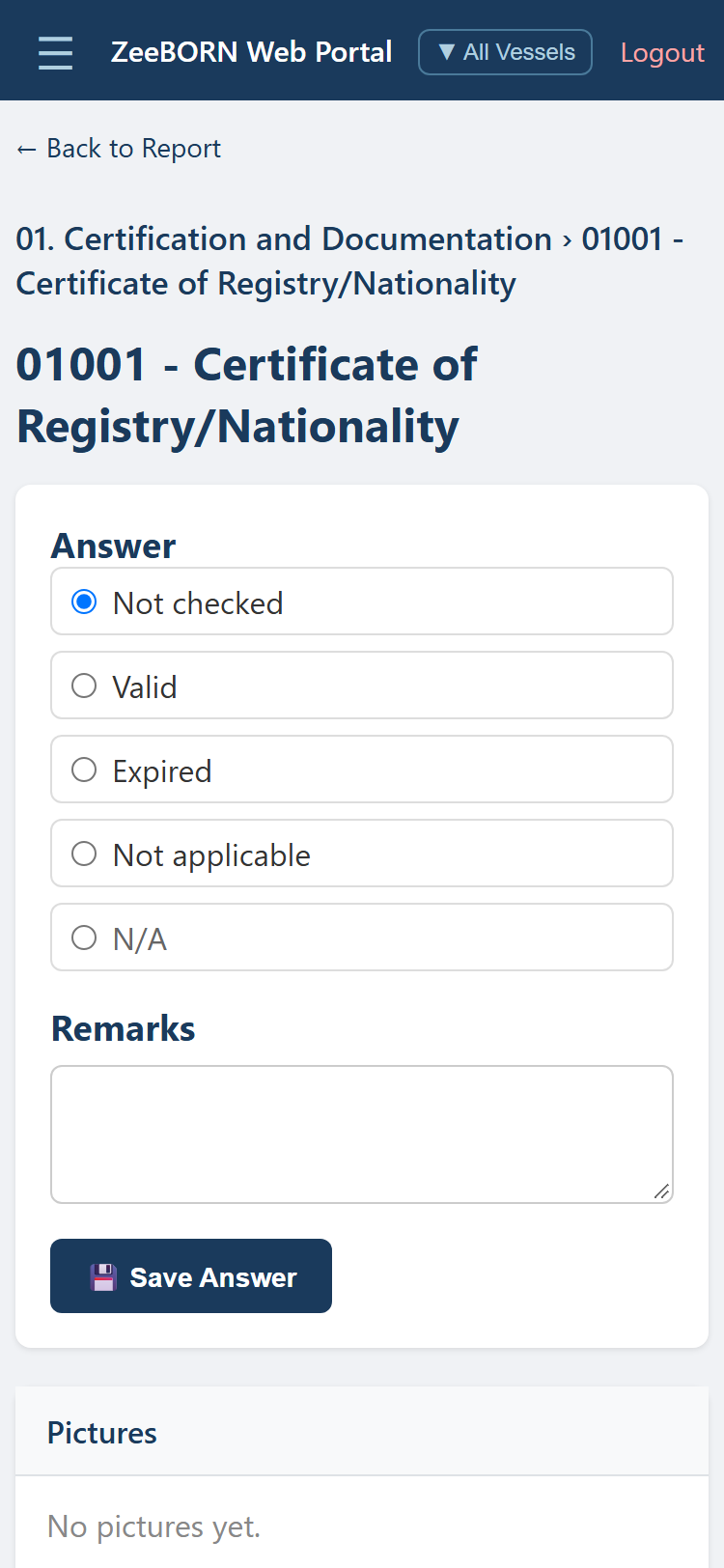
Pick an answer, add a remark where one is needed, then tap Save Answer. You stay in the report and can go straight on to the next topic.
- Pictures: tap Choose file - the phone offers the camera, so a finding can be photographed on the spot.
- Observations: recorded per topic, in the section of the same name.
When a report is locked
A yellow bar at the top of a report means an offline copy has been handed out. While that copy is out, the report is read-only here, so that nothing is changed in two places at once. It becomes editable again as soon as the offline copy has been imported back into ZeeBORN.
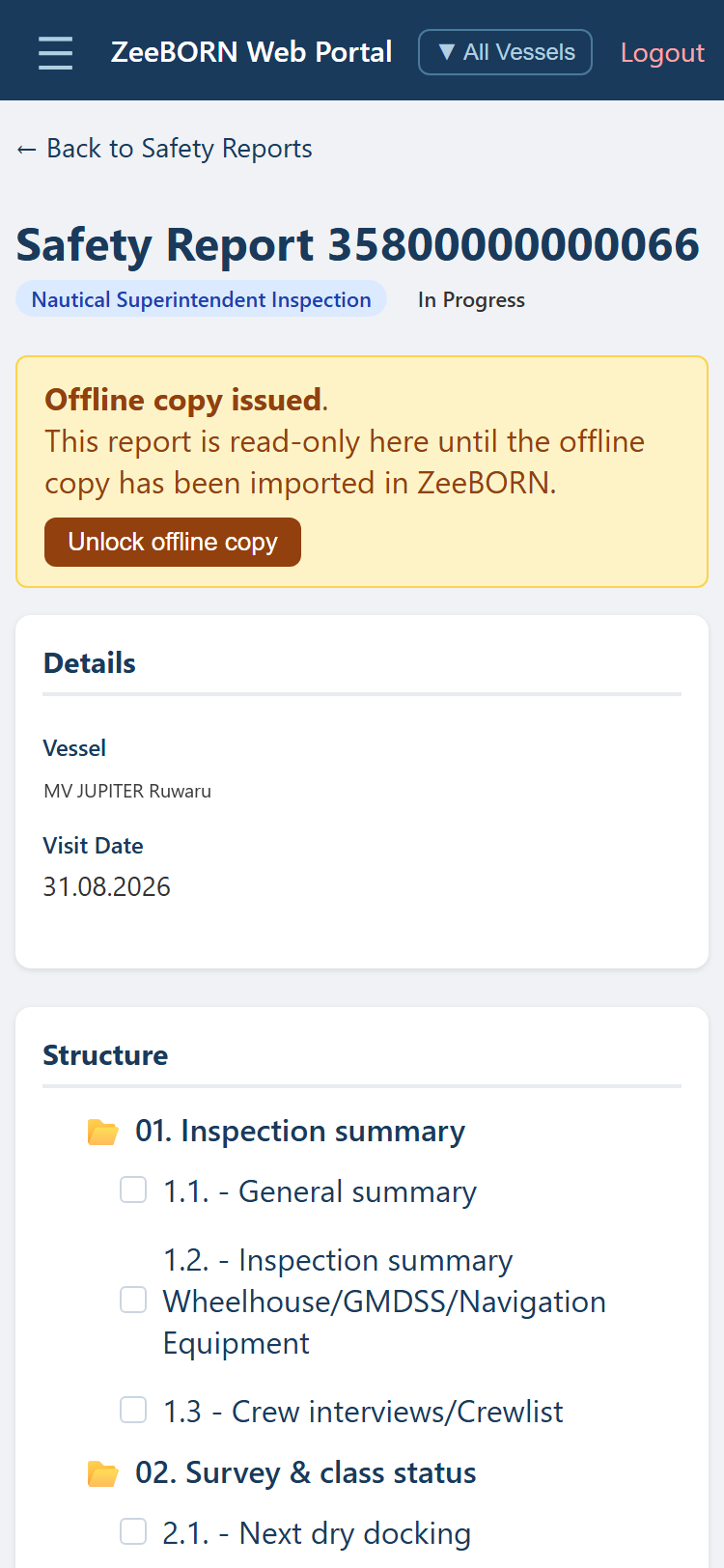
Leave Unlock offline copy alone unless the copy is really gone
The button exists for the one case where the offline copy will never come back - a lost or broken tablet, for example. Using it otherwise means the work done in that copy cannot be imported any more.
The offline copy itself is described under Offline Editing - it is a separate way of working and has nothing to do with the portal.
Approvals on the phone
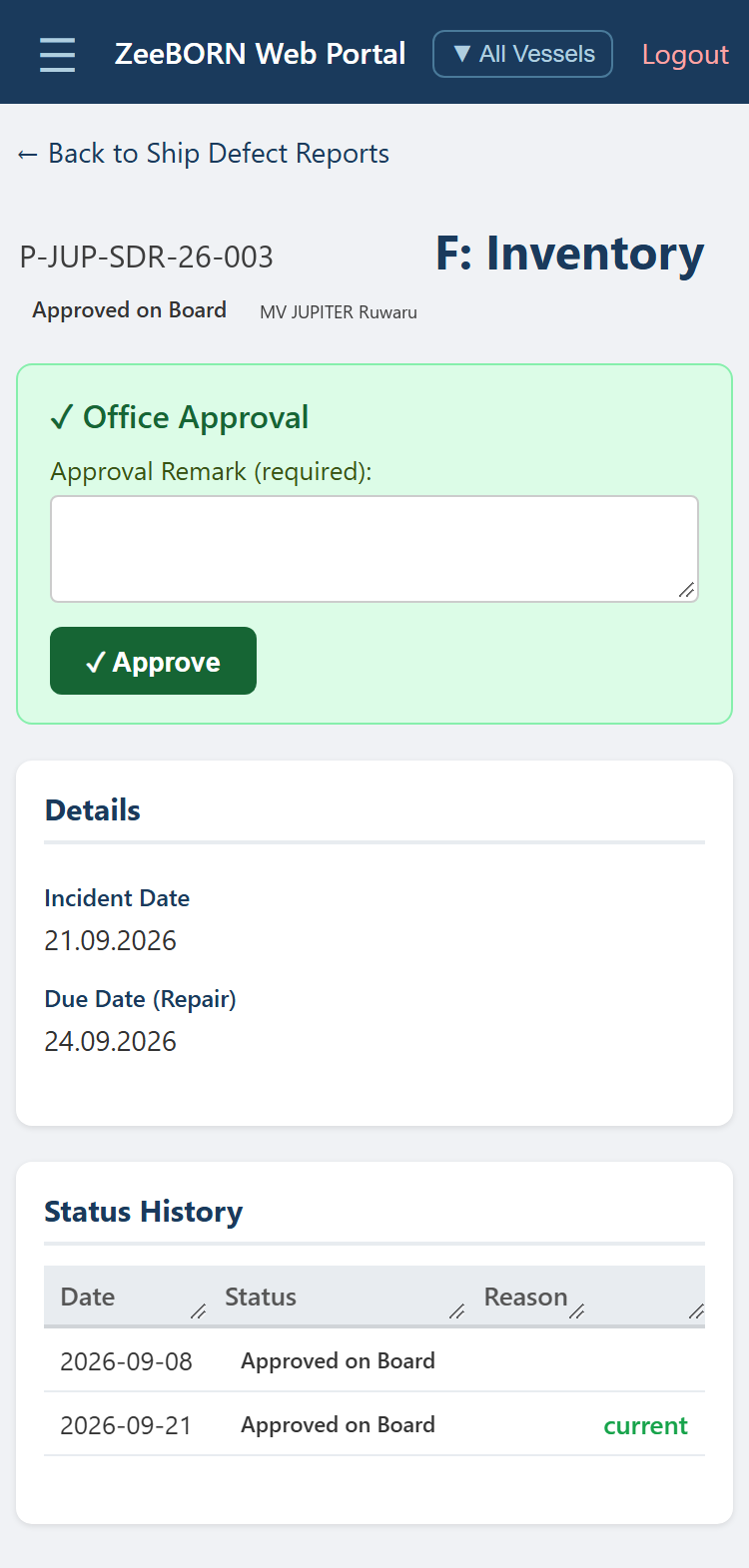
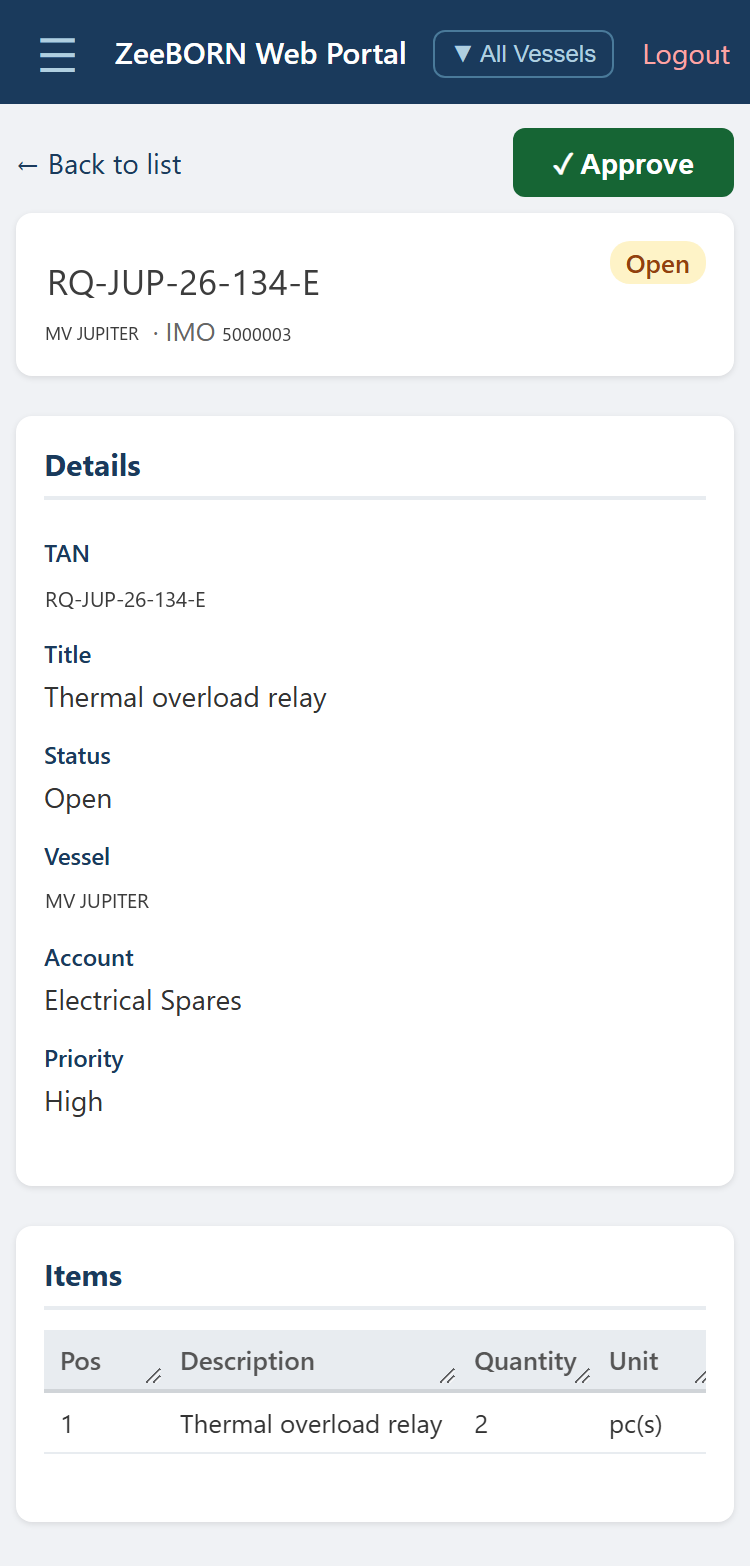
All of these work in the browser, on a phone just as on a desktop: open the item from the menu, scroll to the coloured box, tap the button. Every approval asks for confirmation first, and once given it cannot be undone.
Two shapes recur. Either the approval sits in a coloured box inside the document, usually with a remark that has to be filled in first:
Or the button sits at the top of the page, next to the title:
What you can approve depends on your permissions
The list above is what the portal offers, not what every user sees. If a button is missing, the permission is missing - the page says so rather than simply hiding it. Your ZeeBORN administrator can add a permission where it is needed.
The office approval of an analysis is a separate permission from the one used on board.
Which way to use when
For safety reports there are three ways to work, and they are meant for different situations: