Manual
Add Inspection Report
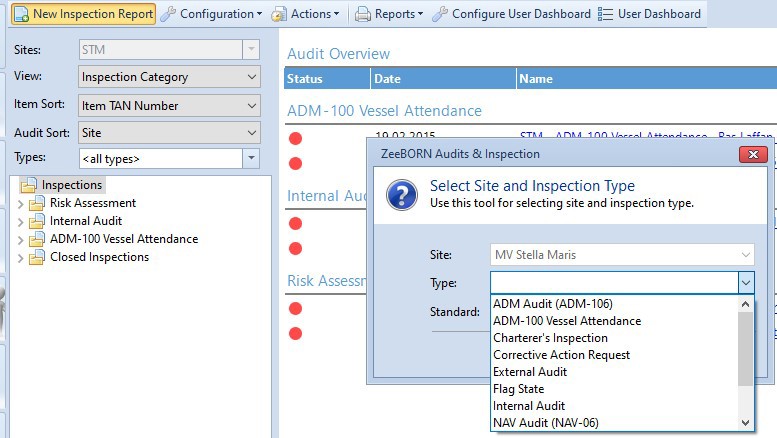
Use button New Inspection Report and choose type of inspection/audit
and the standard you wish to report.
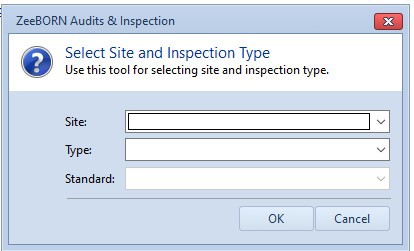
In office you have to choose the vessel at first and then the report type and standard.
Select correct Audit Date, fill fields for Port or Location, Auditor, Report NumberandMaster. Use button Get Title` and
system will create correct report title based on the given information
[Ship -- Type of Report -- Port -- Date].
Optionally a description can be inserted into, or attachments can be added.
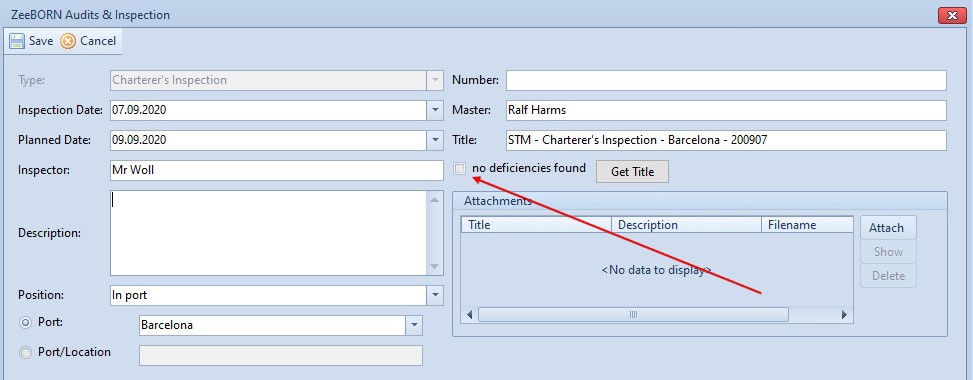
Note: Inspections without any findings shall be reported in the
system too. In this case select checkbox no deficiencies found and
the inspection will be closed. Above window can only be saved if
either this checkbox is selected, or inspection items are added.
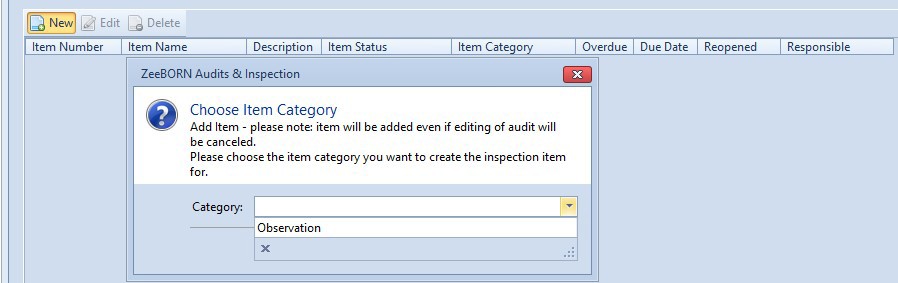
Add Inspection Items
Use New to add a new deficiency and choose correct item category.
For every inspection type the system will show you the applicable item
categories.
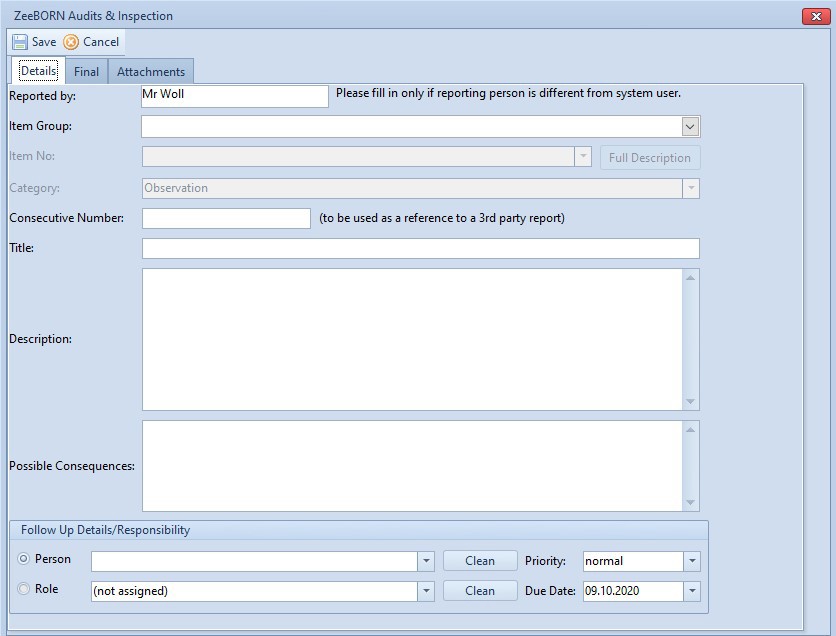
With choosing the item group the available item numbers are visible.
Choose the correct one. Add a title and a description. The
Consecutive Number is arbitrary with number and letter as in your
company defined. Optionally attachments can be added.
With Save item will be saved. Title of this item is built as
follows:

Item Category -- Ship -- Creation Site (O for Office and S for Ship) -- Year -- Running Number
Follow-Up
Depending on your access rights you can also assign the responsible person and the due date. This assignment is usually done by office site.
Status of Items
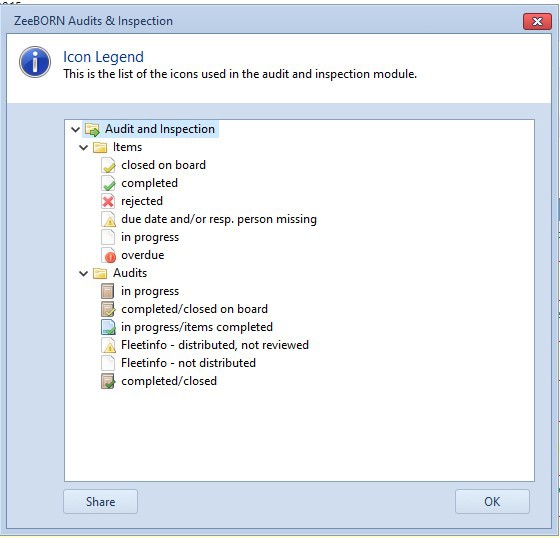
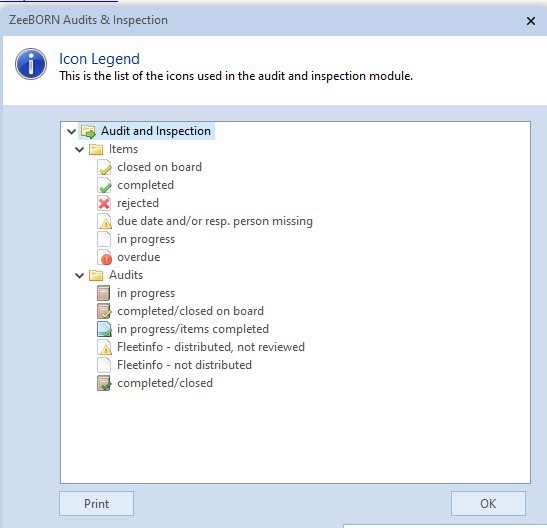
Status of each item is indicated by symbol and colour. You find legend
under button Actions.
Follow up for Inspection Items
-
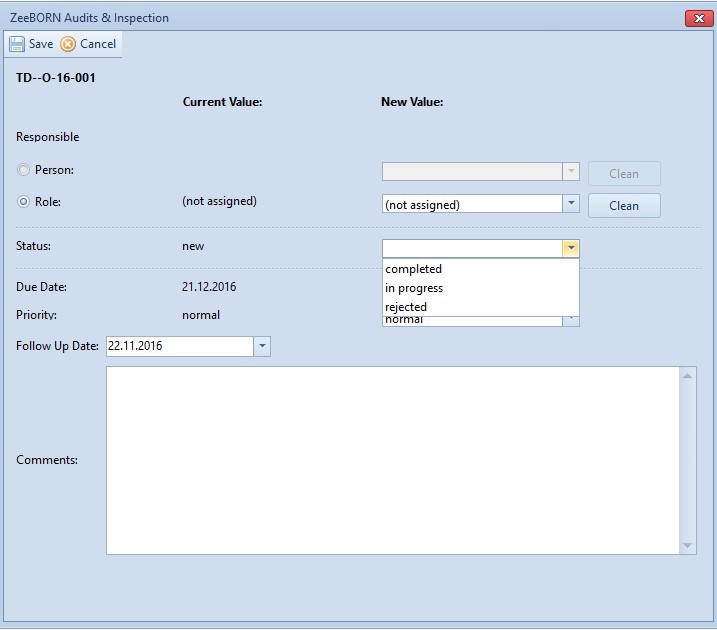
Use
Follow Upfor making any changes on item. -
With status
completedthe item will be closed. -
With status
in progressthe item will be opened for further actions. -
With status
rejectedthe item will be rejected, no further actions are needed.
It is mandatory to add a comment to save the changes in the item.
Note: If no responsible person and due date are assigned by the time of completion, system will set current user and date instead.
Confirm Inspection Reports
All inspections with status completed on board must complete in
office too. After this the inspection moves to folder Final Verification.
Useful Functions
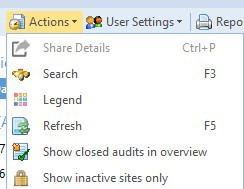
Search
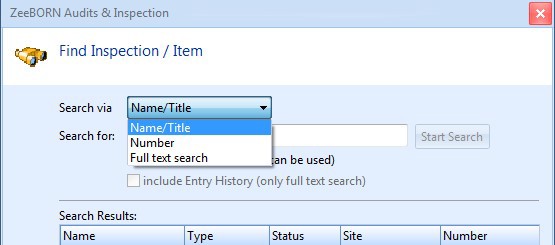
You may either search via Name/Title, Number or a full text search
(also including the description of items). Use OK and you will be
guided to the selected inspection or item.
Refresh
The module will be refreshed, and all actual data will be shown.
Show closed audits in overview
All closed audits/inspections will be shown in HTML view.