Drill Plan
Overview
In the open Drill Plan module you can see all Drills. It is possible to change the view. Select single groups to see only all drills of a group or select special types to see only all drills of this type. Predefined is the view of all drills.
The folder “To be executed” is separated in three different folders:
- Previous – all drills had to be executed in the past
- Actual - all drills of this month plus two weeks
- Next – all drill have to be execute in the future
Only folder with drills inside will be visible.
Drills that have been reported, approved and closed are not listed here — they appear under Closed only. If the folder looks considerably shorter than you remember, that is the reason: entries that used to be shown in both places at once now appear in one. Nothing has been deleted — those drills are all still there under Closed.
Select my Ships
(see Select-my-Ships) Function is only usable in Office.
Manage Drill Plans
You can configure annual drill plan. This means to determine which drills will be executed within one year. Use “Manage Drill Plans” to display the drill plan.
At first please enter New Drill Plan. Then select site and execution year.
You will receive an error message (information) in case of a drill plan already exists for this year.
This function is used to select the drill in which week of the month or in which month it will be done. The overview shows all months with 4 weeks.
Hit button Save.
You can display the generated drill plan in the tree.
The generated drill plan has not been closed yet and can be further edit.
All selected drills are marked in grey because they have not been reported yet. In case of viewing drills colored in red so this means that drills are overdue.
The reporting of drills is not possible at that time because the drill plan has not been approved yet. So you have the chance to generate the drill plan for the next year in time, as the plan will be shown not before approving.
Hit button “Drill Name” for receipt of additional information per drill that were saved in the configuration.
With the following button the plan can be edited.
Action
Copy Drill Plan
-
Copy Drill Plan to same site The drill plan can be copied to next year.
-
Copy Drill Plan to other site(s) The drill plan can be copied to one or more vessels.
-
Copy Drill Plan to approved drill plan The drill plan can be copied to a approved drill plan of one vessel. The start week have to be defined.
Show History
(see Show History)
The process Assign Drills will be closed after approving.
The Drill Plan is shown below in folder „approved“ in the tree.
For approved Drill Plans the button Edit Approved is available. Only in exceptional cases it is possible to edit an approved drill plan.
Info
Note: If you delete a drill from the drill plan the box will be marked differently. It may be reproduced at any time in the future that there was a planned drill.
After approving any changes are displayed separately on the history:
Planned Drills
Choose drill from previous, actual or next folder and hit “Report Planned Drill” and fill in the details.
Tab "Details"
Please fill in execution date and time, number of present and number of absent crew. If absentees are available you have to enter their name and rank. Choose via check box in part drill details all details which are depend on this drill. “Completed satisfactorily” is chosen per default and if the drill wasn’t completely satisfactorily you have to fill in the deficiencies. Fill in additional information and description of de-briefing.
Tab "Emergency Equipment Condition"
Select the equipment you used in the drill and enter condition:
G – Good
R – Requires attention
D – Details attached
Fill in all Emergency Equipment Conditions of all used equipment. A remark per Equipment is mandatory if R or D is selected.
Tab "Attachments"
Optionally attachments can be added.
Save Report
After saving the report it will appear under the folder “Open”. As long as you not have approved the report, you can change the details.
Approve (on board)
Please note: only reports you have approved are editable in office. Once you entered all necessary details hit button “Approve (on board)”. After the approval the report will appear under the folder “approved” and will be no longer editable on board.
Closing after approval
What happens after the approval on board depends on the configuration setting CloseAfterApprovalOnBoard:
- Switched off - the drill is approved on board and closed separately by the office.
- Switched on - the drill is closed automatically as soon as it is approved on board. The button is then labelled Approve & Close instead of Approve (on board).
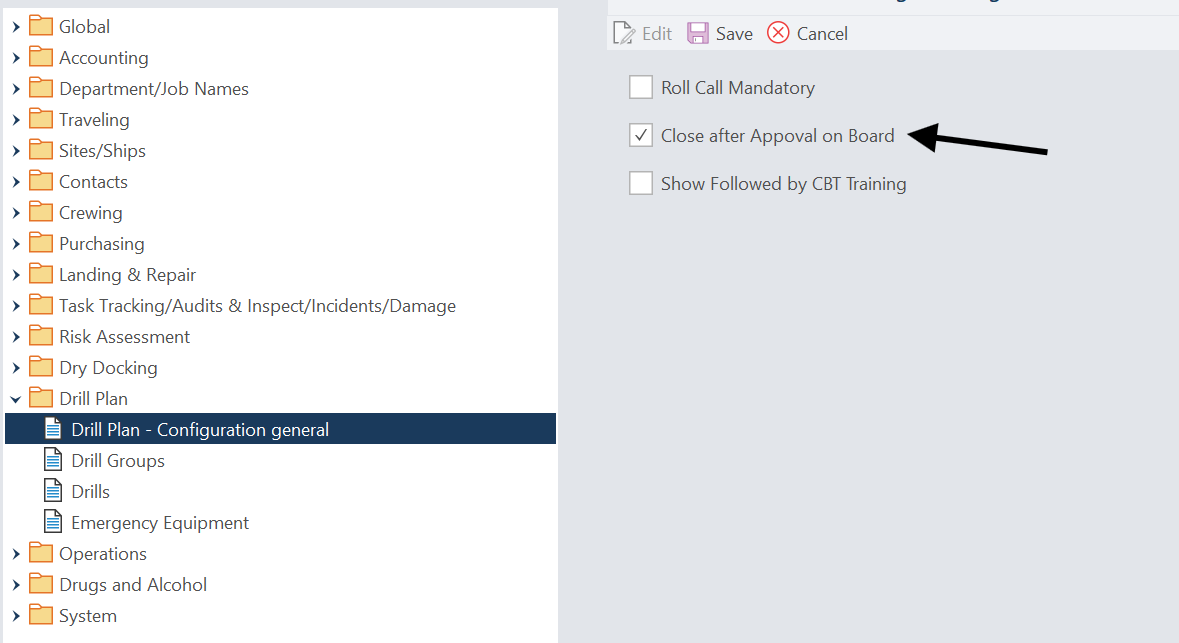
Excluding single drill types from the automatic closing
Individual drill types can be taken out of the automatic closing, so that the office still reviews them before they are officially closed - useful for drill types that need additional verification or documentation.
- Open the Drill Plan module and go to Manage Drills.
- Select the drill type you want to exclude.
- Tick Exclude from auto-close after approval.
- Save.
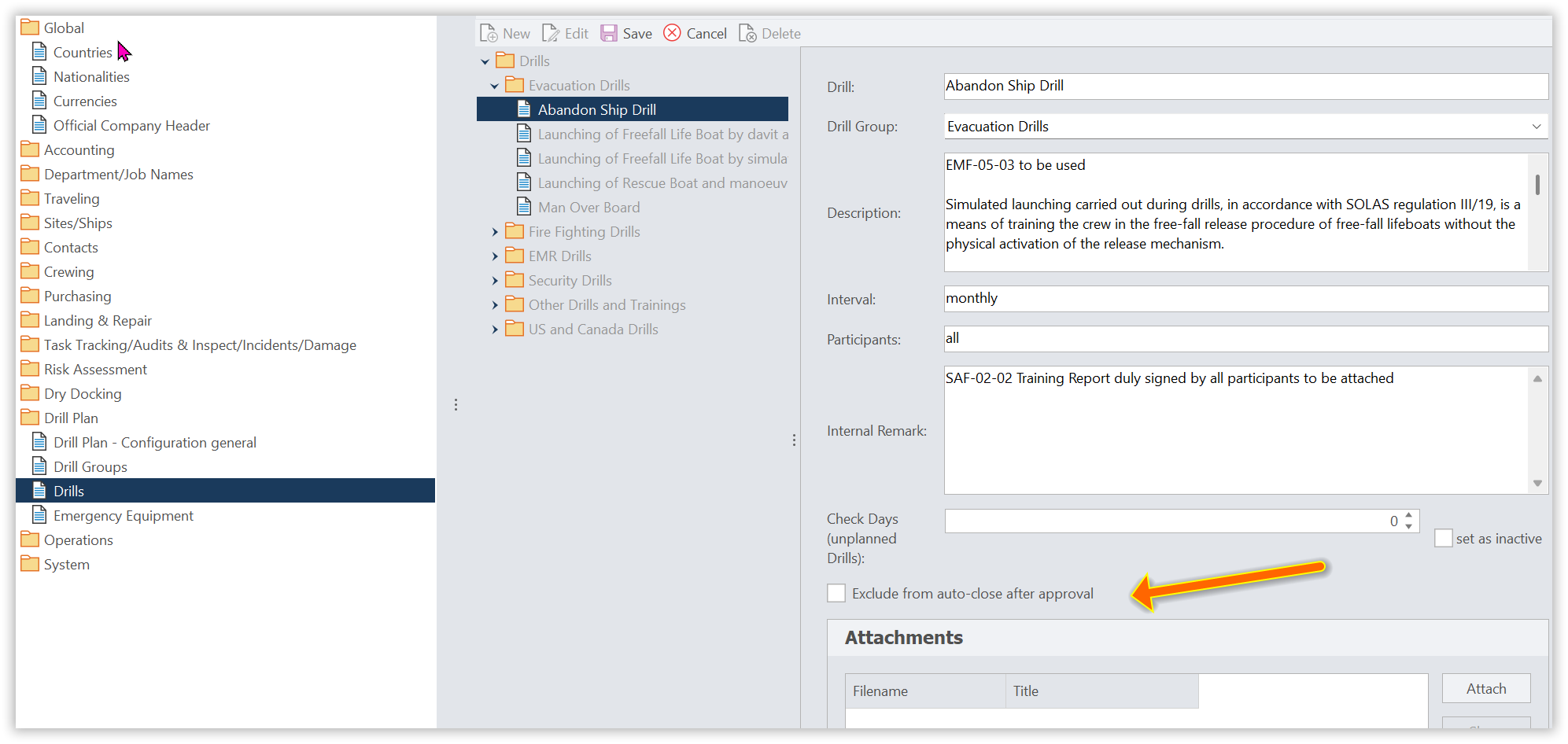
Where is the checkbox?
The option Exclude from auto-close after approval is only visible while CloseAfterApprovalOnBoard is switched on in the Drill Plan configuration. Without that setting there is no automatic closing to exclude anything from, so the checkbox is hidden.
For an excluded drill type the board approves only; the office has to close the drill separately, exactly as if the automatic closing were switched off.
Unplanned Drills
All drills, which are configured in our system, can be reported as unplanned drill. It is not mandatory that the drills are part of a drill plan.
If the crew member has the rights to report an unplanned drill, he can choose all drills sorted by Drill Group.
All inactive drills are shown in grey letter and cannot be selected.
Hit button Report unplanned drill and choose drill. All drills are sorted by drill group.