SBM Certificates
Configuration
The general configuration of the certificates is agreed and implemented in the office (Admin Tools / Configuration).
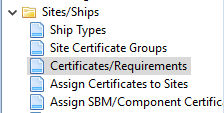
This includes:
-
Setup of certificate groups
-
Adding new certificates and sub-certificates to the system including certificate code
-
Assignment of ship and component certificates to the respective vessels, i.e. defining which certificates need to be available on the vessel.
Certificates/Requirements
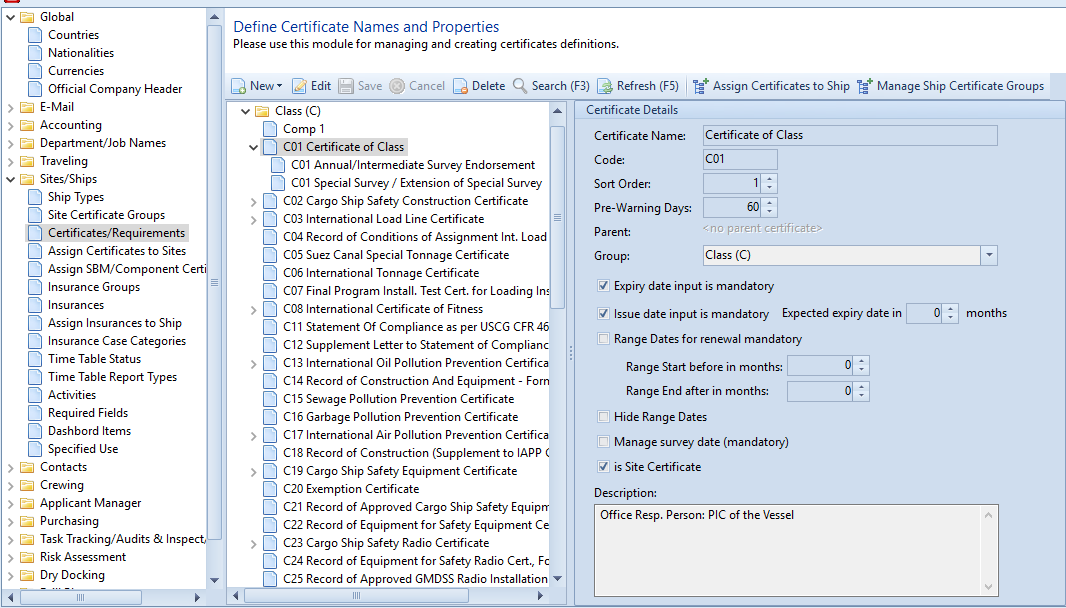
For all certificates the needed requirements can be defined: e.g. pre-warning days (per default 60 days).
If dates are mandatory, please set checkbox. When the issue date is mandatory, the expected expire date can be given in months. For all SBM certificates the checkbox "is Site Certificate" has to be unchecked.
When a range date is possible, the corresponding checkbox has to be set. Additionally, the start and the end of the range date can be defined in month. These dates are calculated exactly from the expired date.
When the range date is not needed, please set checkbox "Hide Range Dates".
Both checkboxes cannot set at the same time.
If checkbox "Manage survey date (mandatory)" is set, a survey date will be displayed and has to be given.
Assign SBM Certificates to Sites
All certificates and sub-certificates will be shown in line. Choose all
needed certificates and with "save" selection will be
recorded.
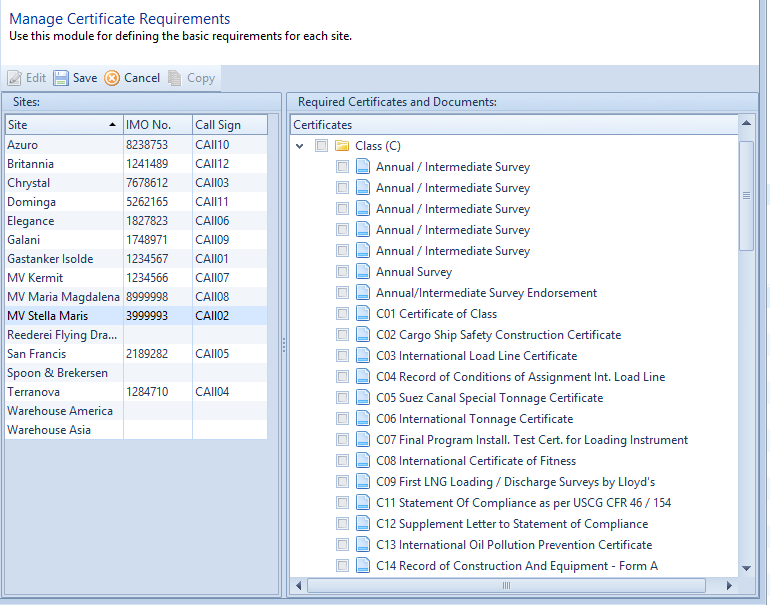
When the selection of one vessel is finished, it is possible to copy this selection to other vessels.
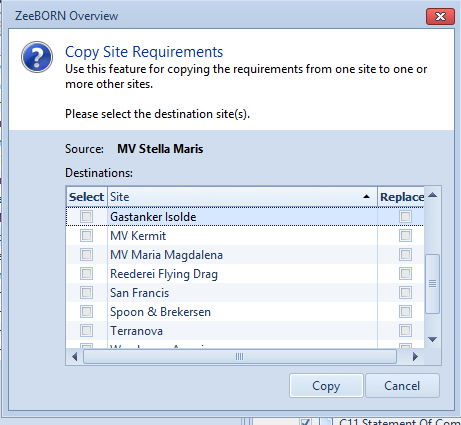
Assign SBM / Component Certificates to Sites
All certificates and sub-certificates which are not marked as Site Certificates will be shown in line. Choose all needed certificates and with "save" selection will be recorded.
It is also possible to copy the selection to other ships by clicking "copy".
Site Certificates
Tab "Certificates Overview"
Module Overview - Ship/Site Status. Under the Tab "Site Certificates" you will find the certificates.
Three views are available, per default the Overview is set.
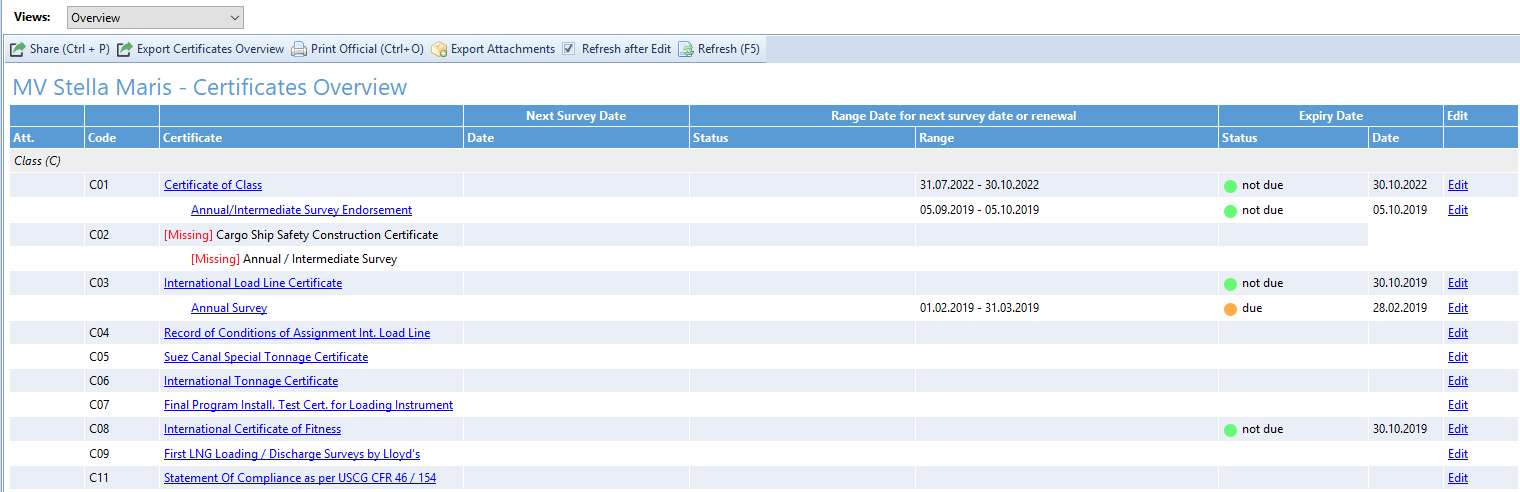
All assigned certificates are listed including their expiry dates. A click on the certificate will open the details (Issue Date, Document Number etc.).
With "edit" a single certificate can be edited directly in overview.

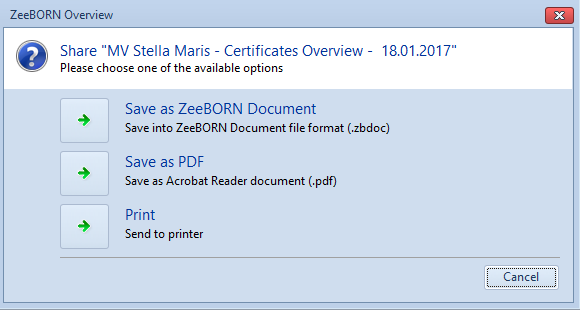
Share (Ctrl + P) The overview can be print
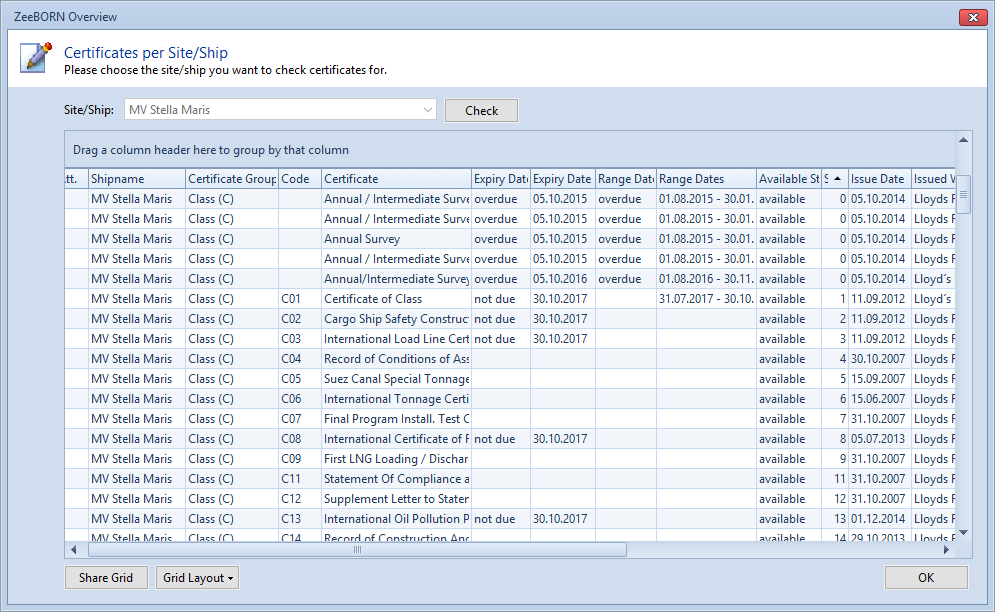
Export Certificates Overview: Overview of all data will be exported and can be print out with "Share Grid". Layout of the grid can be personalized.
Print Official (Ctrl + O): Overview can be print with Official Header
Export Attachment: All attachments can be exported in an RAR file
Refresh after Edit: If checkbox is selected, the screen will be refreshed after each edit.
Refresh (F5): For a refresh of the screen, button "Refresh" or function button "F5" can be used.
Tab "Details"
The Tab "Details" is split in three areas:
-
On left sites all inserted certificates sort by certificates group will be shown (1)
-
On right site all details of selected certificate will be shown (2)
-
On bottom all missing certificates will be shown (3)
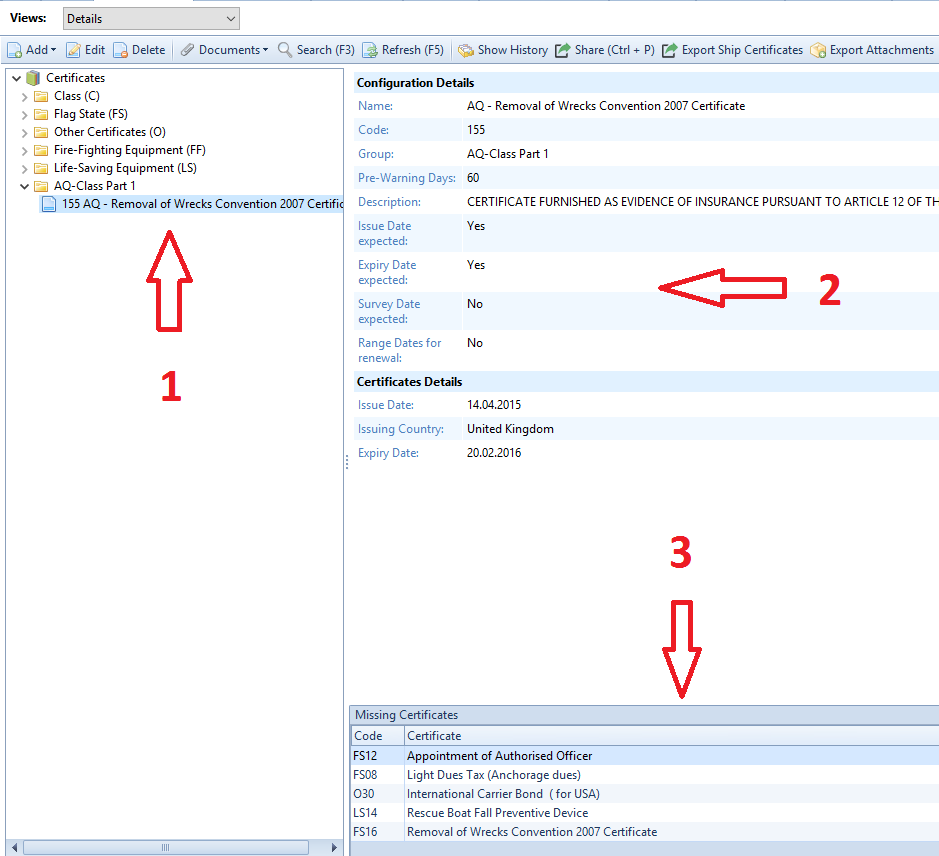
Under the view Details you can work on the certificates, add new ones or attach copies of certificates (depending on your access rights).
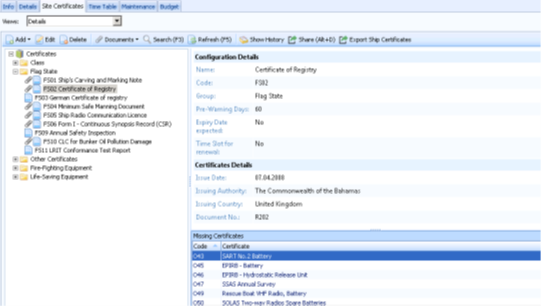
Add a Missing Certificate
All certificates which were earlier assigned to the vessel in the configuration can be selected by right-click on the certificate on the lower right side of the screen. Alternatively choose "Add/required Certificates only". For a complete list of all available certificates choose "Add/all Certificates", however, it should rarely be the case that certificates need to be added which are not assigned to your vessel.
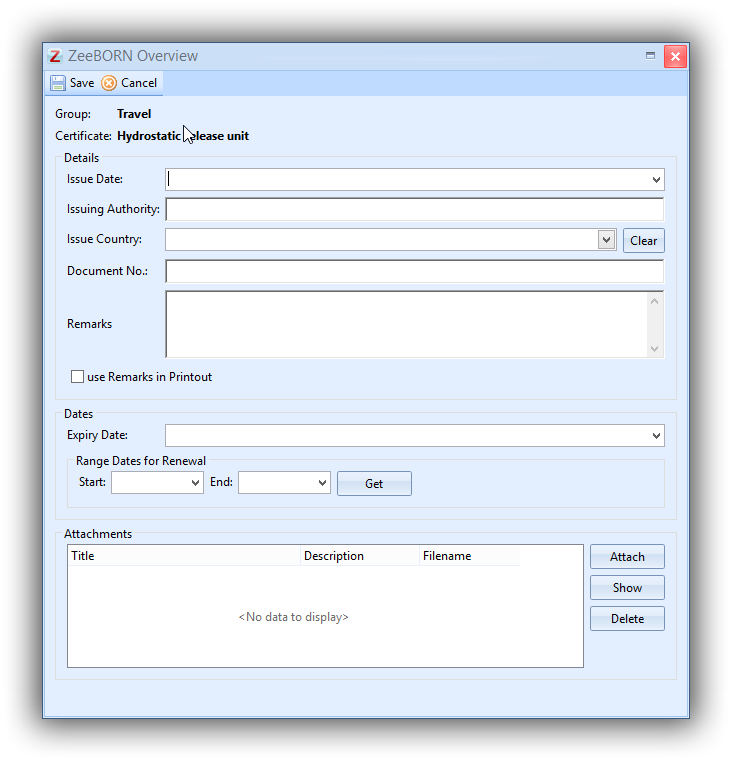
All relevant details have to be inserted, e.g. Issue Date, Issuing Authority, Expiry Date. If a time slot is to be set, the start-and end date has to be added here as well.
A copy of the certificate can be added under button Documents. Please don't add high-resolution attachments as this will drastically increase the size of the data transfer.
Renew a Certificate
If a new certificate was issued, hit "Edit" to adjust the details, fill in a new issue-and expiry date and replace the attachment by removing the outdated certificate copy and adding the new one.
Other Functions

For each certificate documents can be added, deleted or shown.
In all certificates can be searched for words or phrases.
The history of the selected certificate can be shown.
And the functions "Share", "Export Ship Certificates" and "Export Attachments" are also available.
Tab "Missing or overdue certificates"
All missing and overdue certificates will be shown. With "edit" a single certificate can be edited directly.
With "Share (CTRL + P)" the list of missing and overdue certificates can be print.
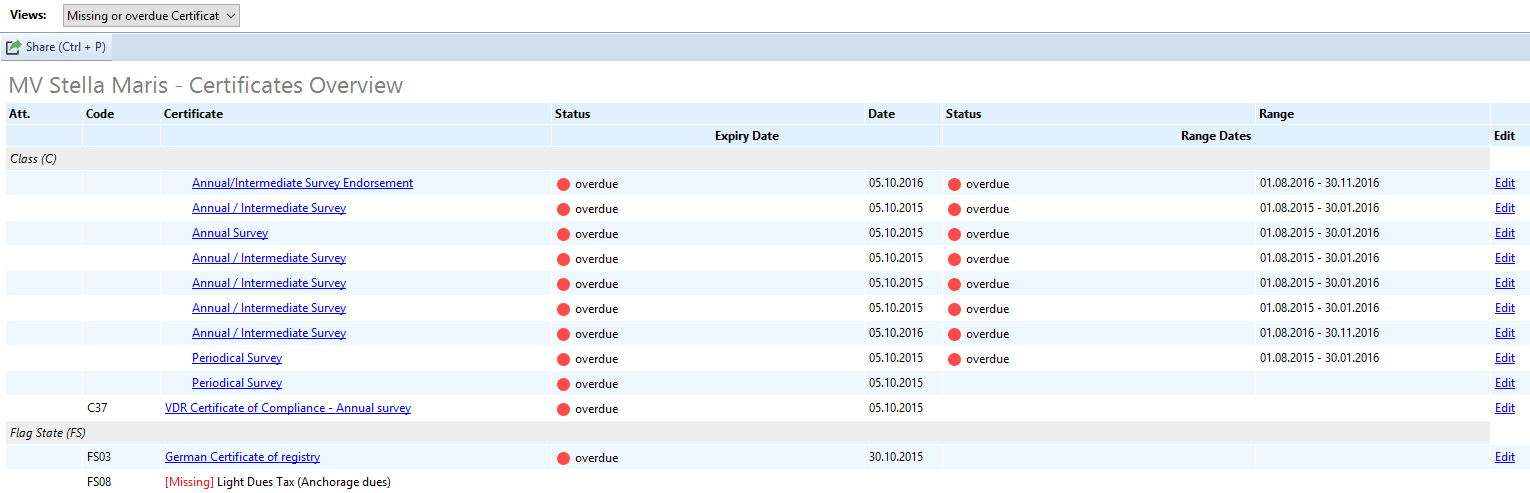
When the link "show Details" in Tab "Info" will be followed, the system jumps to Tab "missing or overdue certificates" directly and will not be shown Tab "Overview".
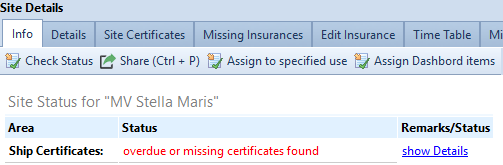
SBM / Component Certificates
Tab "Certificates Overview"
Module Overview - Ship/Site Status. Under the Tab "SBM & Component Certificates" you will find the certificates.
Three views are available, per default the Overview is set.
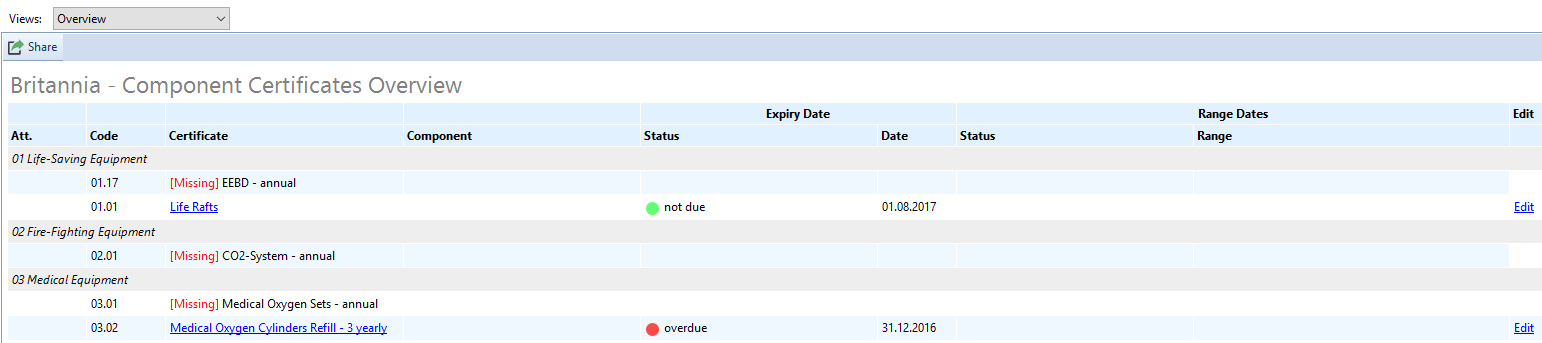
All assigned certificates are listed including their expiry dates. A click on the certificate will open the details (Issue Date, Document Number etc.).
With "edit" a single certificate can be edited directly in overview.
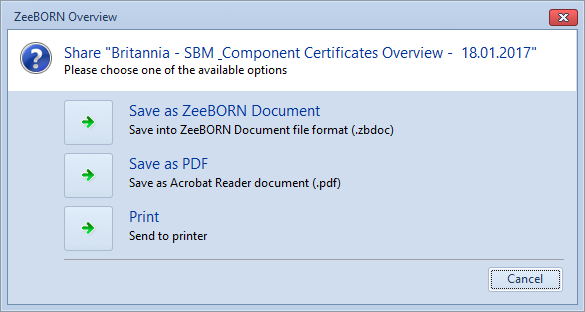
Share (Ctrl + P) The overview can be print
Tab "Details"
The Tab "Details" is split in three areas:
-
On left sites all inserted certificates sort by certificates group will be shown (1)
-
On right site all details of selected certificate will be shown (2)
-
On bottom all missing certificates will be shown (3)
Under the view Details you can work on the certificates, add new ones or attach copies of certificates (depending on your access rights).
Add a Missing Certificate or other Certificate
All certificates which were earlier assigned to the vessel in the configuration can be selected by right-click on the certificate on the lower right side of the screen. Alternatively choose "Add" and then "required Certificates only".
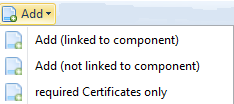
All not required certificates can be chosen by clicking "Add". With (linked to component) the certificate will linked to a component and with (not linked to a component) the certificate will be shown only in Tab "SBM / Component Certificates".
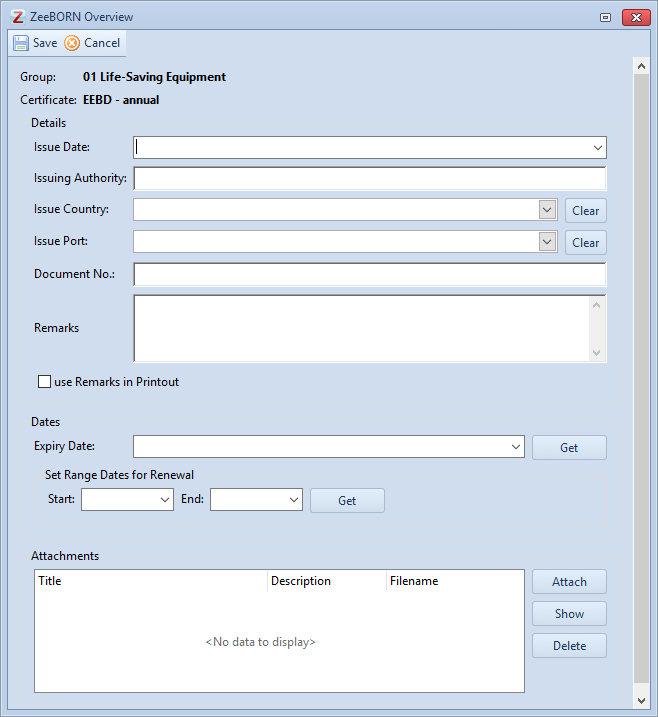
All relevant details have to be inserted, e.g. Issue Date, Issuing Authority, Expiry Date. If a time slot is to be set, the start-and end date has to be added here as well.
A copy of the certificate can be added under button Documents. Please don't add high-resolution attachments as this will drastically increase the size of the data transfer.
Renew a Certificate
If a new certificate was issued, hit "Edit" to adjust the details, fill in a new issue-and expiry date and replace the attachment by removing the outdated certificate copy and adding the new one.
other functions

For each certificate documents can be added, deleted or shown.
The functions "Share" is also available.
Tab "missing or overdue certificates"
All missing and overdue certificates will be shown. With "edit" a single certificate can be edited directly.
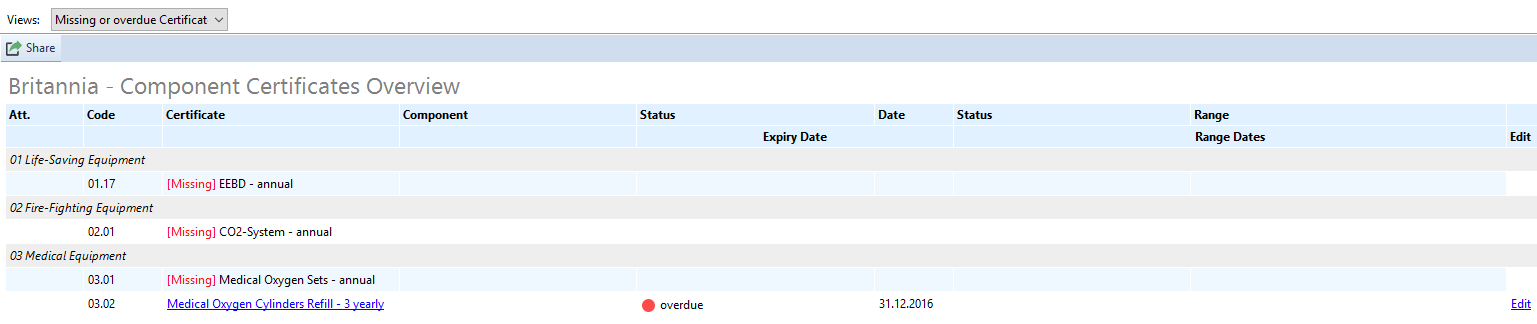
With "Share (CTRL + P)" the list of missing and overdue certificates can be print.
Reports
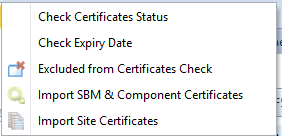
Check Certificates Status
Calls up a report of all certificates which can be sorted as desired and exported or printed. Same report can be called up from office side for the whole fleet (→ Ship/Site Status -- Reports / Certificates / Check Certificates Status).
Check Expiry Date
Under Ship/Site Status -- Reports / Certificates / Check Expiry Date
Exclude from Certificates Check
The function "exclude from Certificates check" will be insert in system in the next year.
Import SBM & Component Certificates
It is possible to import an excel sheet with filled data of SBM / Component Certificates in database. The excel sheet has to be prepared by ZeeBORN and can be filled in from ships or Office.
Import Site Certificates
It is possible to import an excel sheet with filled data of Site Certificates in database. The excel sheet has to be prepared by ZeeBORN and can be filled in from ships or Office.
Add a Certificate to a Component
If desired, you can establish a link between a certificate and a component. For this purpose, hit the button Certificates under the respective component.
Site Certificates
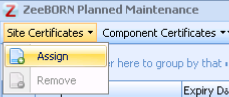
Select button 'Site Certificates' in order to link a site certificate to this component.
Note: Only certificates which were already assigned in the certificates modules can be selected here.
Component Certificates
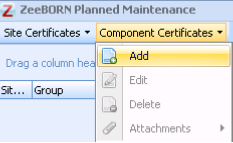
Select button Component Certificates in order to add a component certificate to this component.
Note: Only certificates which are not considered site certificates (not having the check-mark in the configuration) can be selected here. Before adding any component certificate here, same has to be implemented from office side under the configuration (see section 1).
Helpful Things
Explanation of Icons/Terms
- Attachments: If available this is marked by the icon of a paper clip
- Certificate Status:
- green → not due
- yellow → due (within a configurable number of days)
- red → overdue
- Status + (nr): Certificate is not required, i.e. not assigned to this vessel in the configuration
- [Missing]: A certificate is assigned to a vessel (i.e. it is required), however, details for same are missing
- Time Slot: Interval in which a certificate can be renewed. Note: A certificate/annual survey can be overdue while it is still in the allowed time slot for renewal - time slot status will be yellow
- Time Slot Status: yellow → Interval started, or certificate is within interval/ blank → Interval has not yet started / red → time slot has passed

Print functions
- Share: will open the regular print-and save functions
- Print Official: calls up the official printout of the certificates including Company header