Dry Docking
Configuration
General
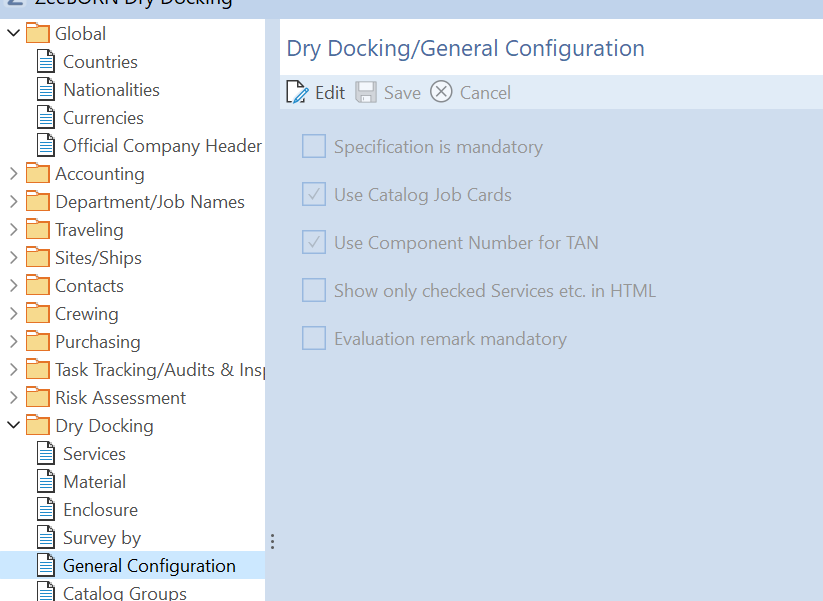
Specification is mandatory
If the checkbox is checked, the specification must always be inserted.
Use Catalog Job Cards
The configuration specifies whether templates/catalog job cards should be used or not.
Use Component Number for TAN
If a numbering for component is in use in "Maintenance" all job cards from one component have 3 digits of component number and will be consecutively numbered.
Show only checked Services etc. in HTML
If this checkbox is marked, only selected services etc. will be shown in job cards HTML view, in other case all available services etc. will be shown with information, whether if assigned or not.
Evaluation Remark mandatory
If checkbox is checked, explanation for rating is necessary.
Services
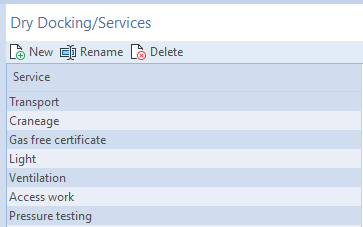
Services can be created and edited. Only unused services can be deleted.
Material
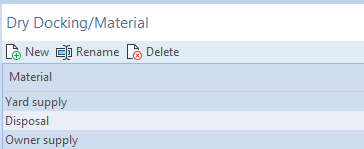
Material can be created and edited. Only unused materials can be deleted.
Enclosure
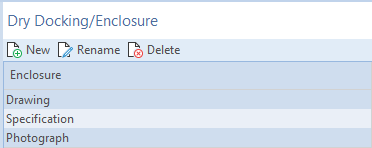
Enclosure can be created and edited. Only unused enclosure can be deleted.
Survey By
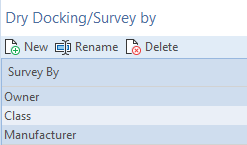
"Survey By" can be created and edited. Only unused "Survey By" can be deleted.
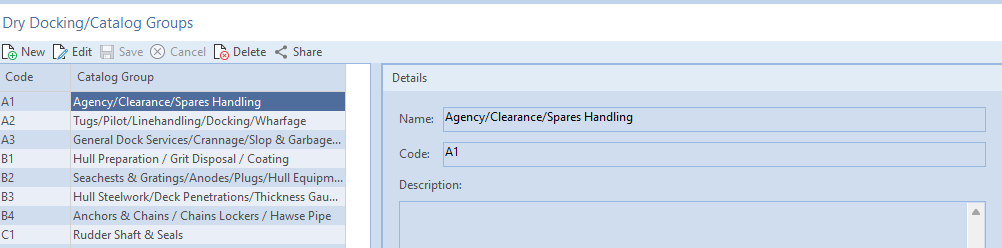
Catalog Groups
Catalog groups can be defined and edited. Only groups without assigned job cards can be deleted.
Catalog Job Cards
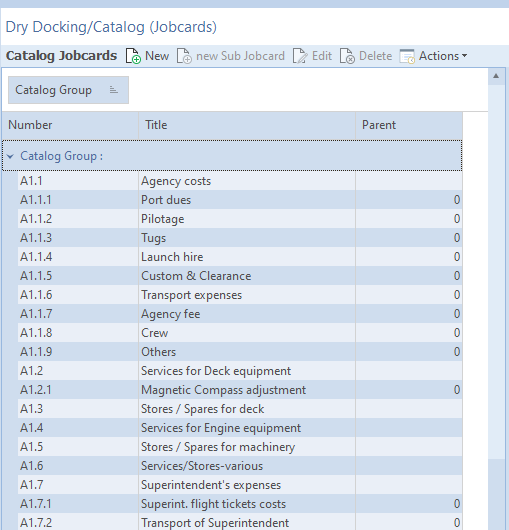
Job cards can be created and edited. Only unused job cards can be deleted. A sub job card can be created for each job card.
Additional Cost Types
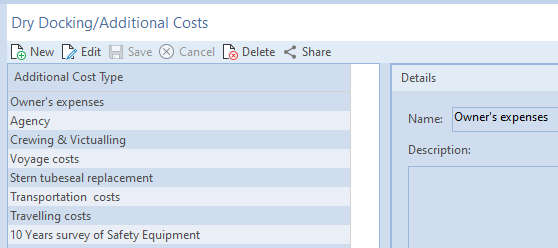
Additional cost types can be created and edited. Only unused additional costs can be deleted.
User Settings
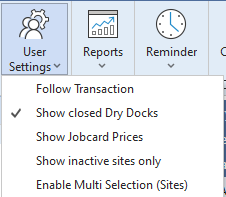
All selected function will be shown with a check mark in front.
Follow Transaction
When the function is selected, the system jumps after the processed operation.
Show closed Dry Docks
Closed Dry Docks are also displayed in the tree.
Show Job Card Prices
The prices of the Job Card are also displayed.
Show inactive sites only
Only Dry Docks of inactive ships are displayed.
Enable Multi Selection (Sites)
If function is not in use, only one vessel can be selected.
Use Module
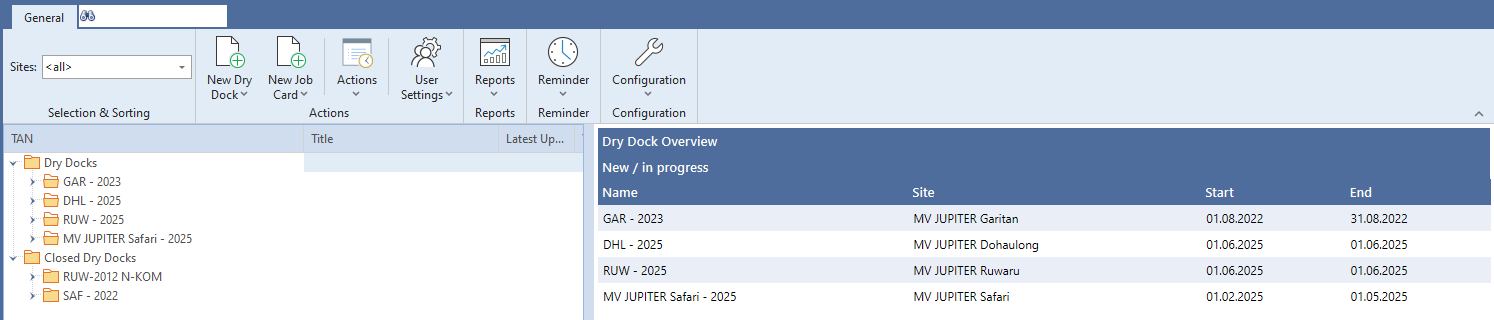
Create Dry Dock
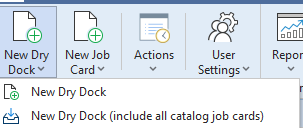
With "New Dry Dock" a new Dry Dock can be created and with "New Dry Dock (include all catalog job cards)" a new Dry Dock can be created and all configured catalog job cards will be inserted.
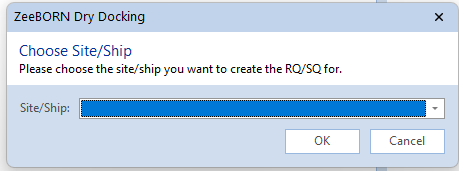
If no vessel is selected, at first the vessel has to be chosen.
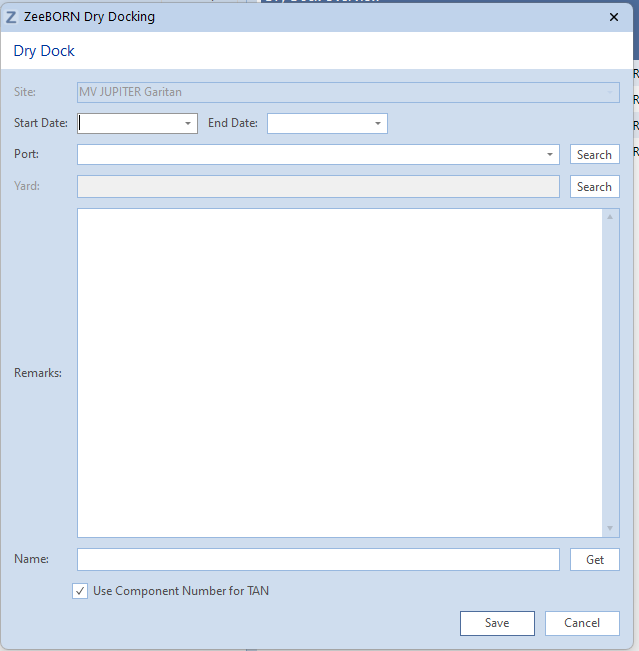
- Site
- The ship must be selected before and cannot be changed.
- Start Date
- Enter the Start Date
- End Date
- Enter the End Date
- Port
- Port is selected from the configured ports or can be searched in list.
- Yard
- As far as known, the shipyard can be selected from the address book.
- Remarks
- Comments can be entered.
- Name
- The Dry Dock name is formed from the abbreviation of the ship and the year. If a different name is needed, the Dry Dock can be renamed.
- Use Component Number for TAN
- If there is a component code, e.g. SFI code, it can be used as a TAN for the job cards. If this function is marked in general configuration, the checked box is automatically checked.
New Job Card
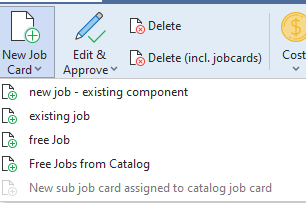
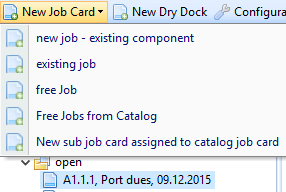
There are different options to add a job card to the Dry Docking module.
For all jobs the form of the job card will be turned up.
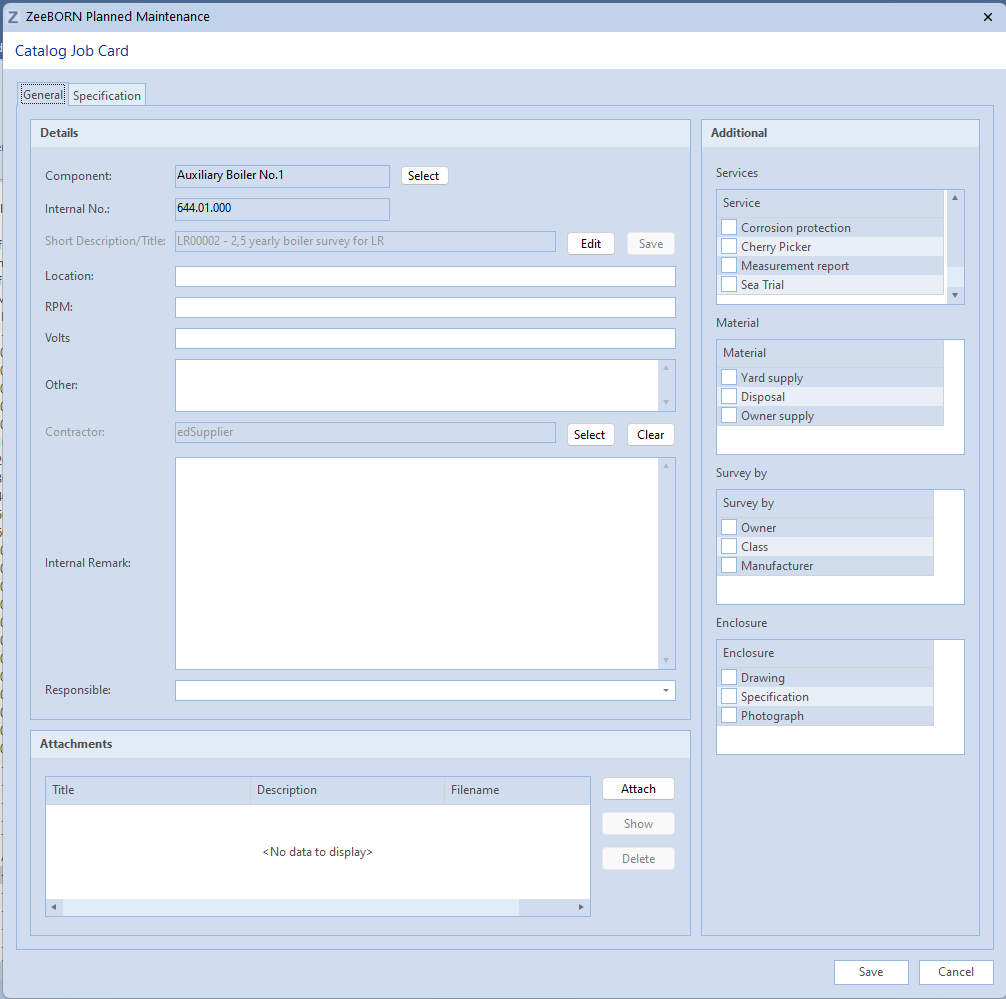
Any job from Maintenance module which is converted into a job card will have the Dry Dock end date as due date and is not shown any longer in the Maintenance Schedule List.
Delay a Job until Dry Dock
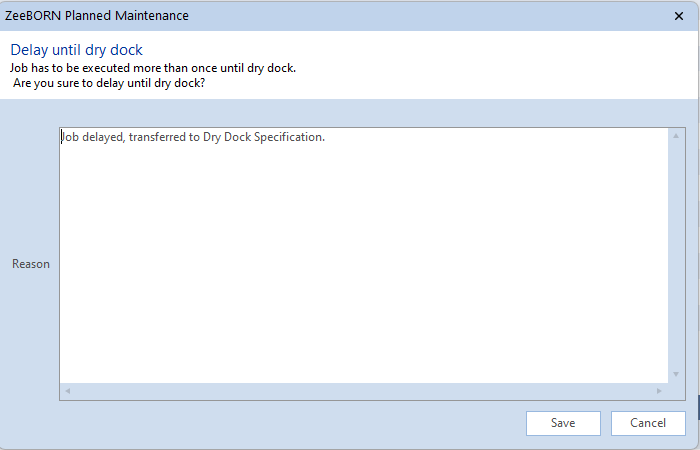
With Save the job will be delayed till end of Dry Dock and with
Cancel the job has the next due date.
existing job:
Component must be chosen from the component tree and one of the linked jobs to be selected.
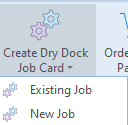
You may also create a job card from the Maintenance module: Go to the respective component and click "Create Dry Dock Job Card". Select option "existing job", confirm the correct Dry Dock and select one of the linked jobs. Same applies when creating a job card from the Maintenance Schedule List.
Note
Title of component and job is fixed and cannot be changed at a later stage. Also, no other component can be linked to this job card - this is only possible when creating a job card for a new job.
If the job is not yet existing in the Maintenance system, please select one of the following options:
new job - existing component:
Component must be selected from the component tree, job to be added manually. The new created job will be available as on demand job in Maintenance module for selected component.
Alternately you may create a job card from the Maintenance module: Go to the respective component and hit "Create Dry Dock Job Card". Select option "New Job", confirm the correct Dry Dock and enter the job title of the new job.
Note
Component title is fixed and cannot be changed at a later stage. However, if necessary, the job card can be linked to another component. It is possible to modify job title.
Free Job:
Component as well as job is manually added and there is no link to the Maintenance module.
Free Jobs from Catalog:
Several jobs are imported in Dry Docking module in a catalog. After clicking button the following form will appear.
Please select all needed jobs by clicking the related checkbox and
click Select.
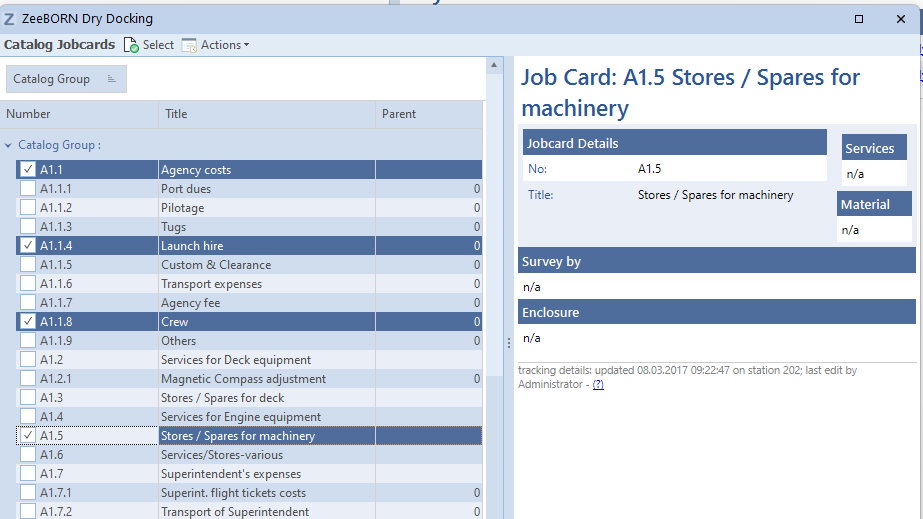
New created job cards will appear in the Dry Dock tree under folder "open" and can be edited there for further specification.
Once a catalog job card is assigned to selected Dry Dock, it can't be assigned twice.
New sub job card assigned to catalog job card:
Sub job card is manually added and there is no link to the Maintenance module or catalog. The job will show as sub job under existing job card and will get the number of parent job card plus a character in alphabetical order (e.g. A1.1.1.A, A1.1.1.B etc.).
Note
For all free jobs (catalog and sub catalog job cards too) applies the following rule: Once you select a component from the component tree as "on demand job" will be created for component. Job card is linked to this new created job and the report will be saved for this component in Maintenance module.
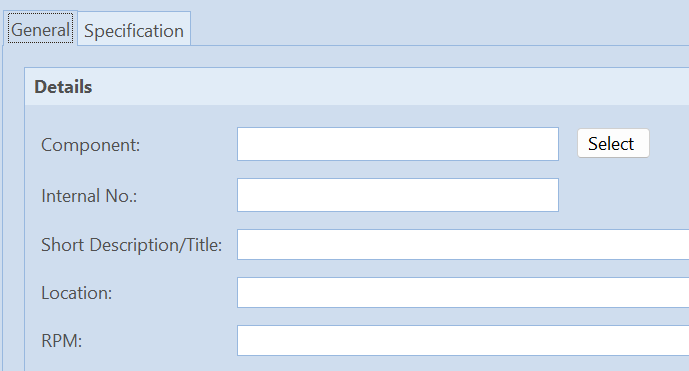
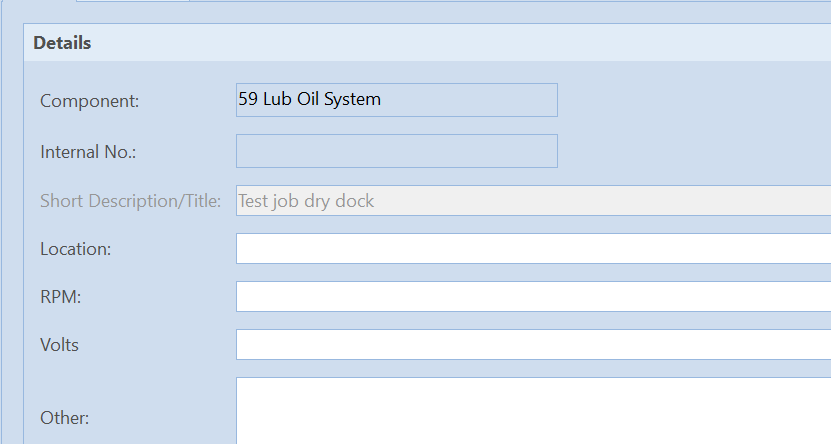
After selection component details are blocked and button "Select" will be invisible.
If you do not want to create new job for component, please enter component details instead of using "Select" component.
If the component is preselected, editing is disabled.
Add Job Card in Maintenance module
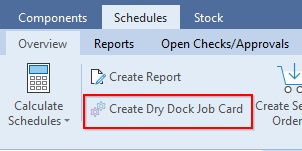
A job card can be created directly in schedules list. Choose the job and click "Create Dry Dock Job Card".
It is also possible to create a job card in Tab „Component". Here you can create a job card for an existing job or for a new job for the selected component.
Add Job Card in Purchase module
All Service Orders can be moved to Dry Dock via Actions -> Dry Dock -> Move to Dry Dock.
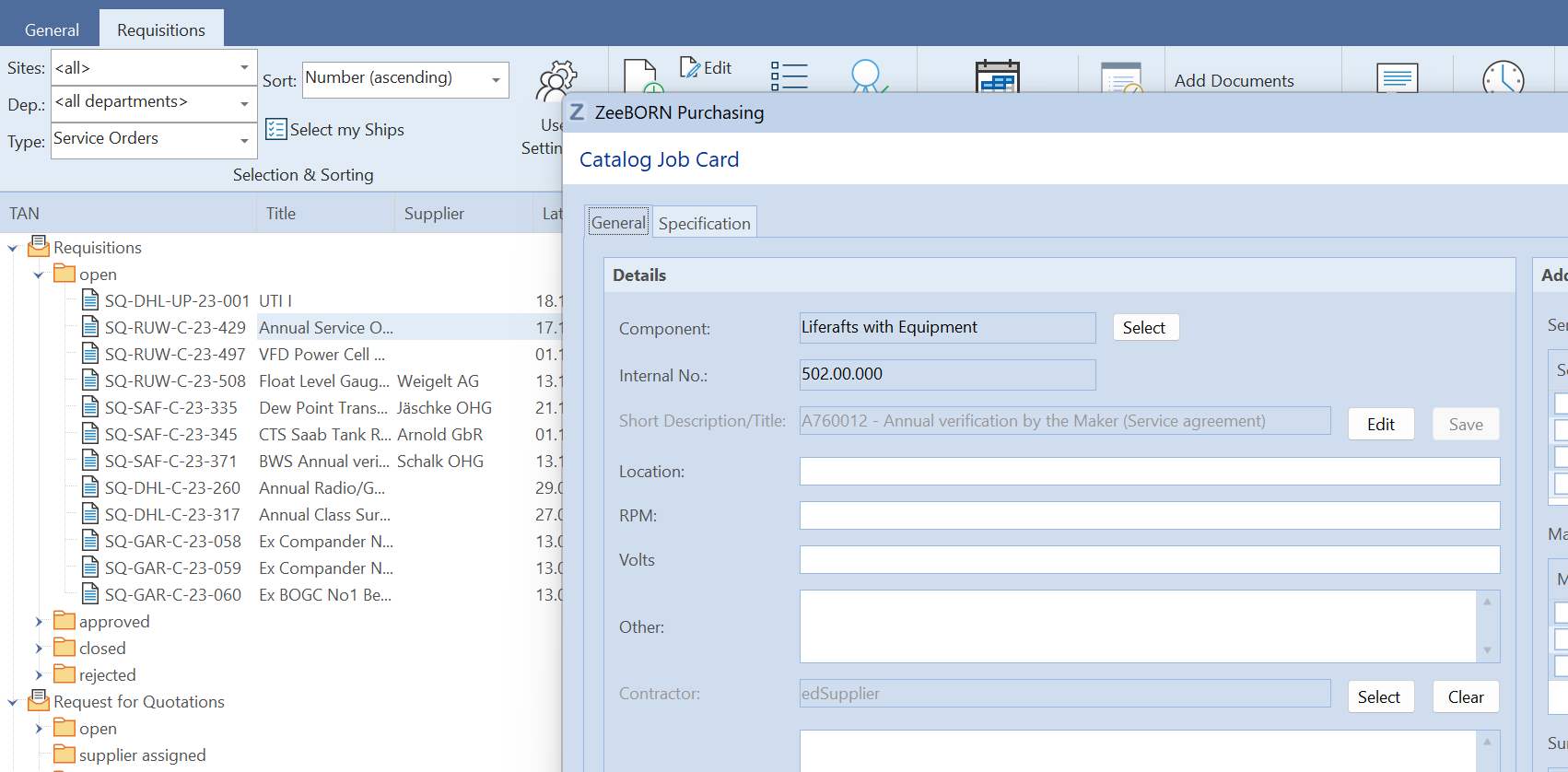
Please note: SQ will be closed in purchase module after moving to Dry Dock.
Link RQ/PO to Dry Dock Job Card
To have a connection between a requisition/purchase order and a job card (for instance for spare parts), you can link a requisition to an existing job card. The requisition/purchase order will be handled in Purchase module, but a link exists between RQ/PO and job card, so you are able check whether needed spare parts are ordered and received or not.

Note
A Requisition never can be moved to Dry Dock and a Service Order never can be linked to a job card.
TAN-Structure
All job cards from catalog already serially numbered. All other job cards are numbered by catalog group and a consecutively letter in order where job cards are created.
Approve a Job Card
Upon approval of a job card by the vessel (if created on board), the job card will move to folder "approved on board" and can't be edited any longer by ship's side. In the office this job card will be allocated under folder "open". Job cards created in office are automatically in folder "approved on board".
Note
If office may decide to return a job card to the vessel (button "Resend to ship") in case the content has to be further modified by the vessel - only in this case the job card will move back to "open" folder.
Once the job card is approved from office side, it will move to the folder "approved/for reporting" and can be reported/closed by the vessel upon start of the Dry Dock.
Activate a Job Card for Purchasing
If a job has to be done by a third party, office may activate an approved job card for purchasing, i. e. create a service order out of it.
Links (blue-underlined) are available between job card and SQ/SO. The basket in front of the TAN refers to a job card that was activated for purchase.
Office will issue an official SO which is sent to supplier. Only then the job card can be closed by vessel.
Note
If a job card was activated for purchasing and afterwards is rejected/deleted or deactivated for purchase (button "Undo Activate for Purchasing"), the corresponding SQ/SO will be shown in red color in the Purchasing module along with a statement about the changed status of the job card. Now either the SQ/SO has to be rejected as well or kept valid in the Purchasing system (button "Keep Active").
Add Spare Parts to a Dry Dock Service Order
Once having activated a job card for purchasing, you have the option to add spare parts to this SQ in case the service provider is also supposed to supply needed spare parts - Purchasing module: "Edit SQ/Add Spare Parts". Upon completion of the job/service, the job has to be reported (closing the job card) and the spare parts have to be 'received' in the Purchasing module.
Activate a Job Card for Yard
Approved job cards can be activated for yard. This is usually done by the office and indicates that the job card was submitted to the shipyard. This function has no further consequences within the database and just serves as information to the Superintendent.
Activate a Job Card for Crew
Approved job cards can be activated for crew. This is usually done by the office and indicates that the job card was submitted to the own crew. This function has no further consequences within the database and just serves as information to the Superintendent.
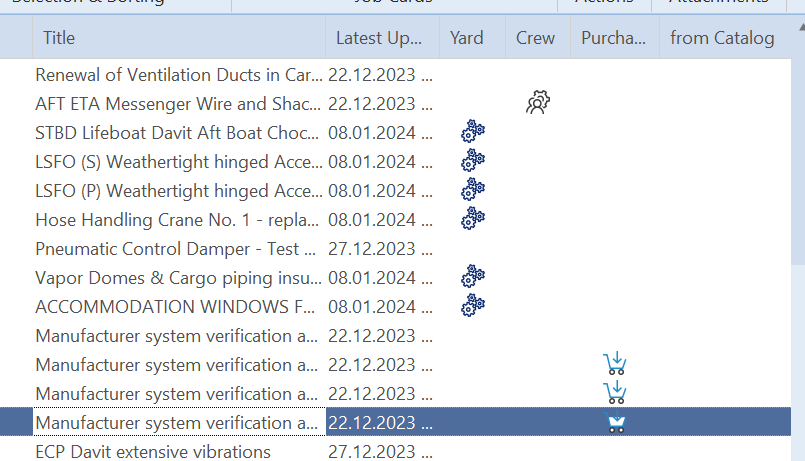
Status of activation will be shown in tree.
Batch functions
There are several functionalities which allows the user a quick and multiple activation of several job cards.
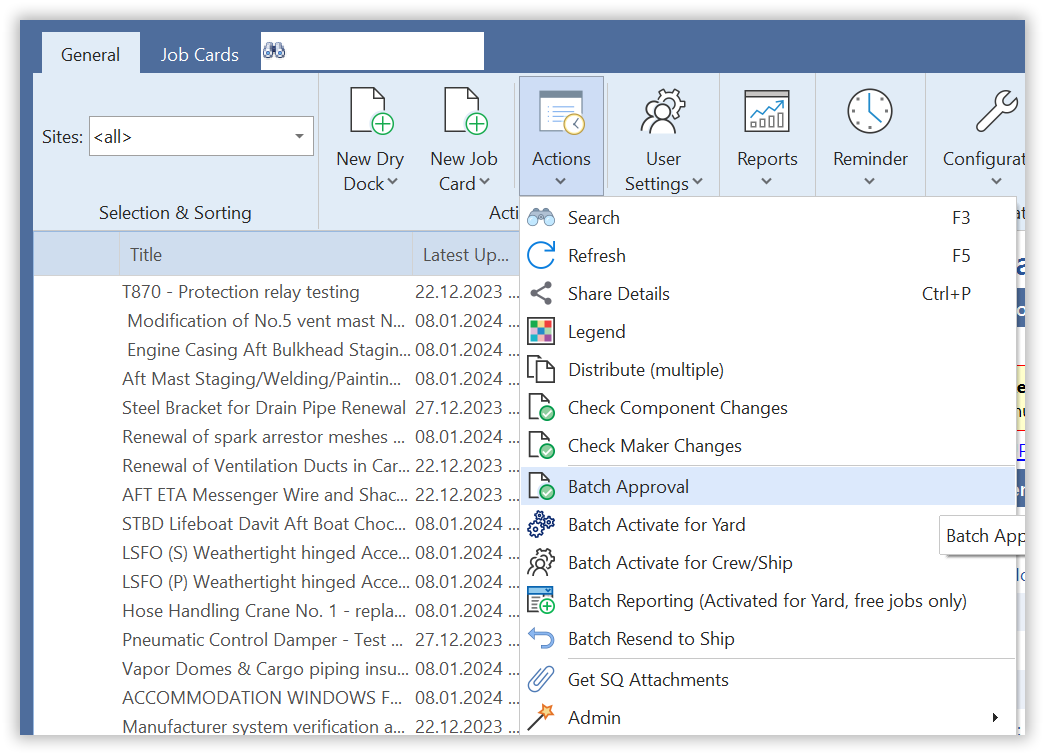
Create Request for Quotation/Yard Tender
For each process a RfQ can be created for several yards. All quotations will be sent to yard as Excel sheets. All job cards activated for yard will be part of the RfQ. If no job card is activated for yard, creation of RfQ is not possible. If there are open, not approved jobs, you will get a warning.
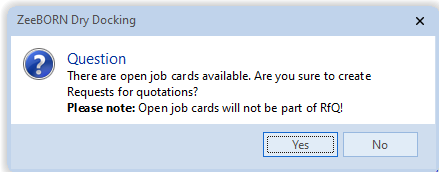
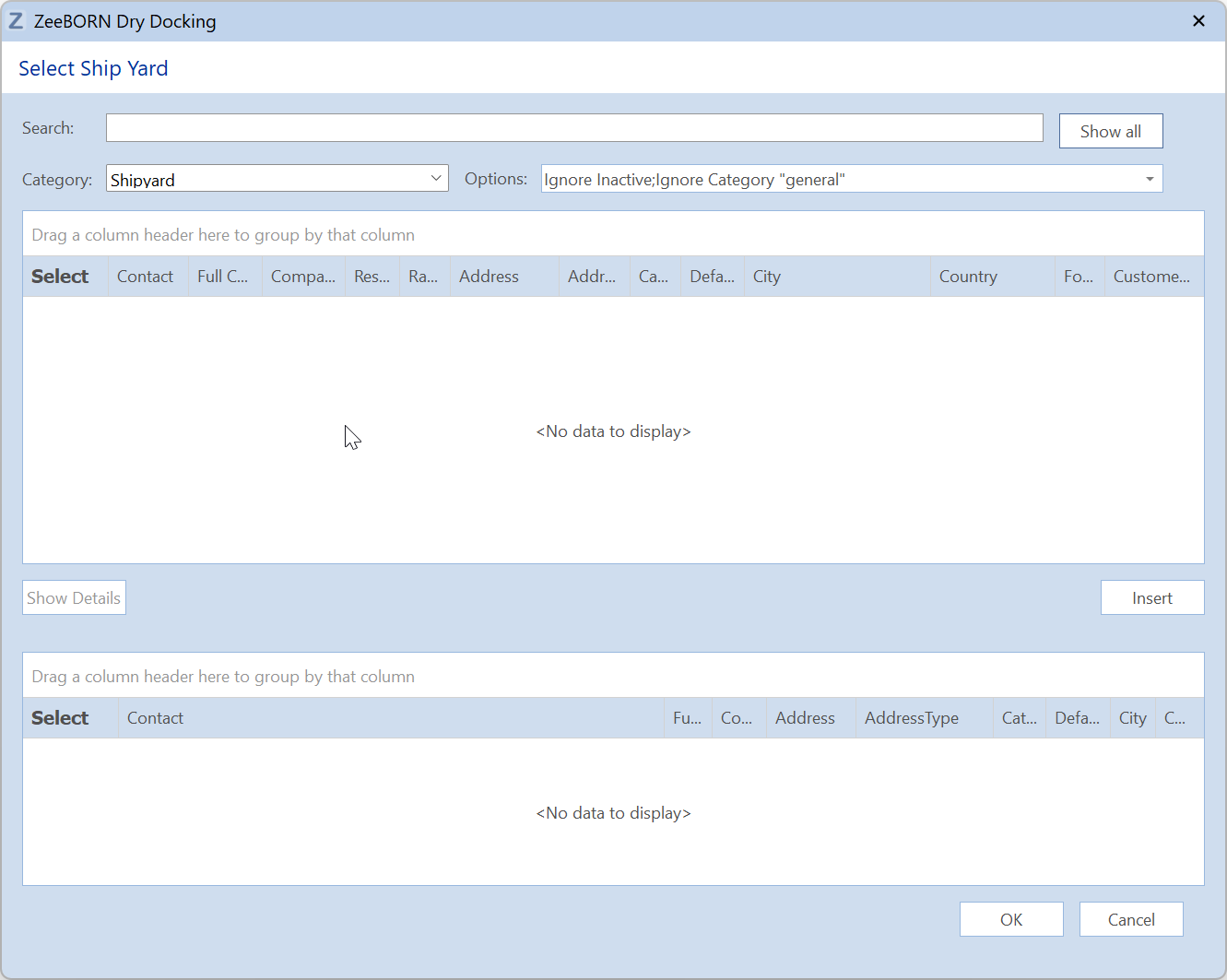
Please select yard(s) you want to create RfQs for.
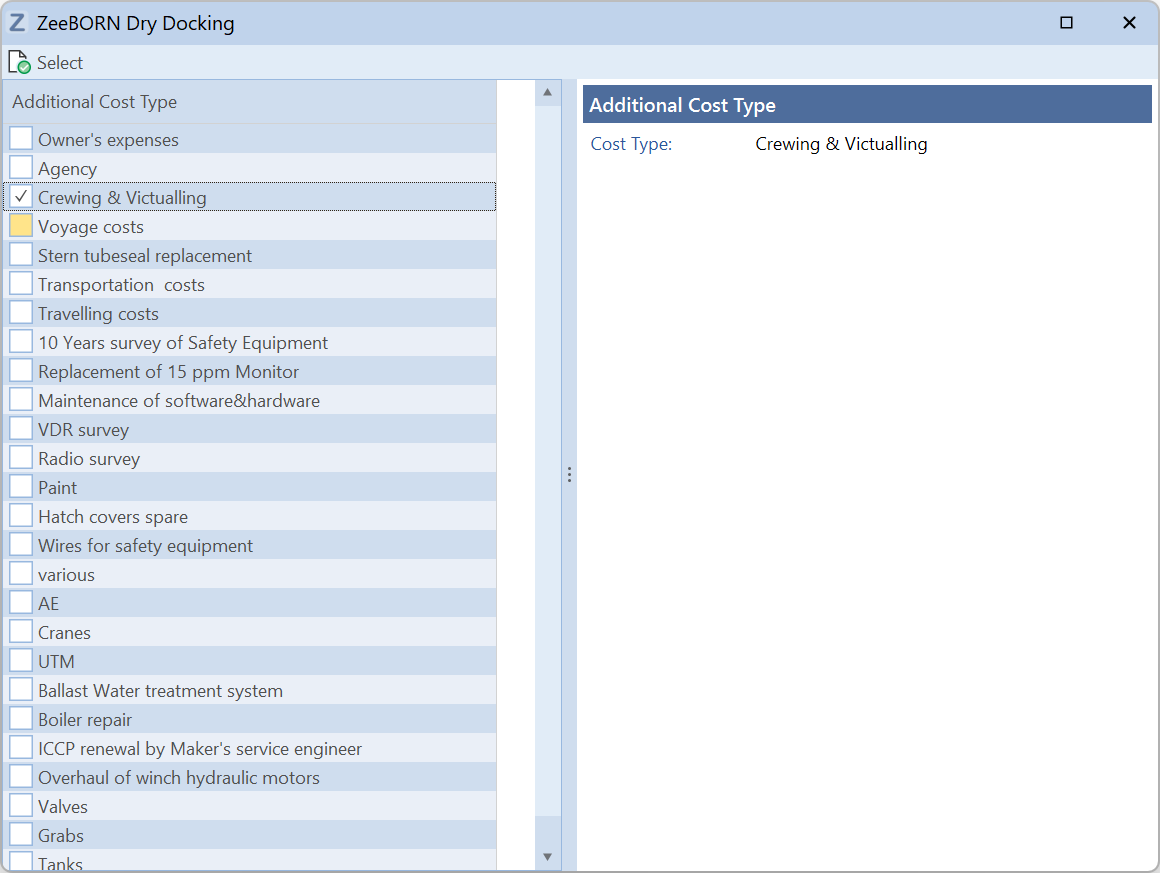
In the next step you can select additional cost types which shall offered from yard.
All created quoations will be shown under Folder "Quotations" and can be forwarded to the yard(s).
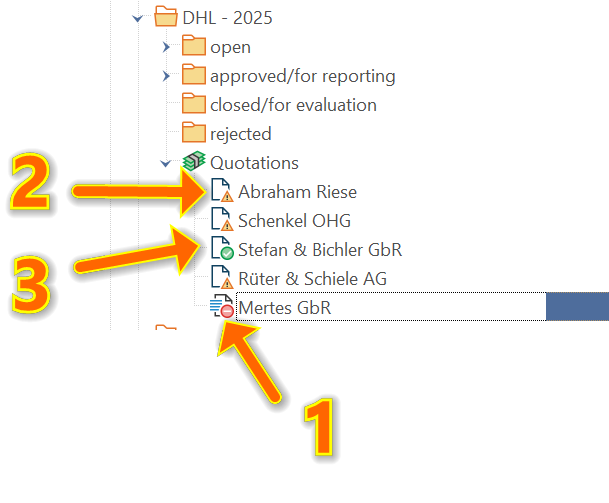
(1) Quotation created, not sent yet.
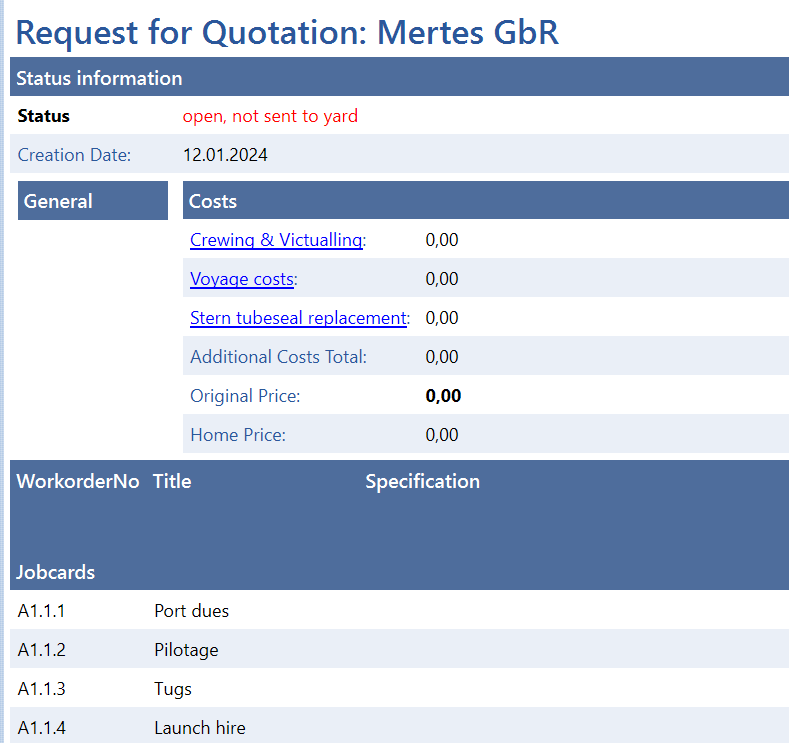
With Actions > Send to yard an Excel file will be created -- this
can be forwarded to the yard.
After receiving the offer from the yard the filled in Excel sheet can be imported.
With Edit all prices can be added manually. Imported quotation =
(2)
With Show complete Cost Overview all imported yard quotations can
be compared, and one yard can be selected. (3)
Report / Close a Job Card
Upon completion of the job in Dry Dock the corresponding job card has to
be closed. Click Report and the typical window for Maintenance job
reporting or a window for the free job card shows up. Please fill all
details accordingly.
Is a job card linked to Maintenance module the report will also be saved
in Maintenance module. All free and all catalog jobs can be reported
with Batch Reporting.
Evaluation
For each job card an evaluation can be added.
You can either evaluate a single job via Actions -> Assign Evaluation for selected job or select the Dry Dock in tree and hit actions -> Job Cards Evaluation to use batch evaluation. Batch Evalutation can also be assigned via Reports -> Evaluation Overview.
The rating must be filled in and an evaluation remark can be given. Corresponding to your configuration this remark is mandatory.
Recording the real costs
After receiving the corresponding invoices the real costs can be assigned. Please select Dry Dock in tree and hit Costs -> Assign real costs.
Close Dry Dock
Once all jobs are reported, the dry dock can be closed. Please select dry dock and hit Actions -> check status. The dry dock will be shown under folder "Final Verification". With the corresponding user right the dry dock can be closed/finally verified via Edit&Approve -> Final Verification.
Reports
Dry Docks Overview
An overview of all Dry Docks for selected period will be shown.
Job card per Dry Dock
All selected job cards of a Dry Dock will be shown.
Evaluation Overview
All job cards for selected Dry Dock with their evaluations will be shown.
Job card activated / linked to Purchase
All job cards linked to or activated for Purchase for selected Dry Dock will be shown.
Job card activated / linked to Purchase - complete
All closed job cards linked to or activated for Purchase for selected Dry Dock will be shown.