Office
Create a SDR in the module „Maintenance"
Please select the vessel in "Maintenance" and then select the component.
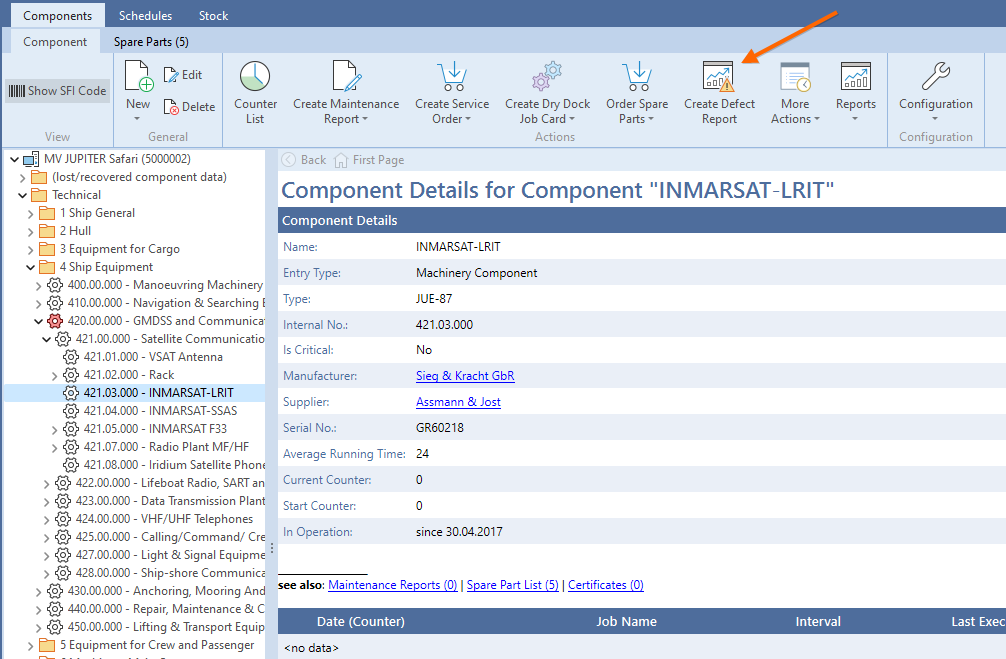
If the component is selected the SDR is created with Create Defect Report.
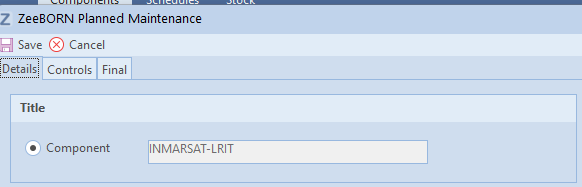
If the SDR was created in the module Maintenance the selected
component is already entered.
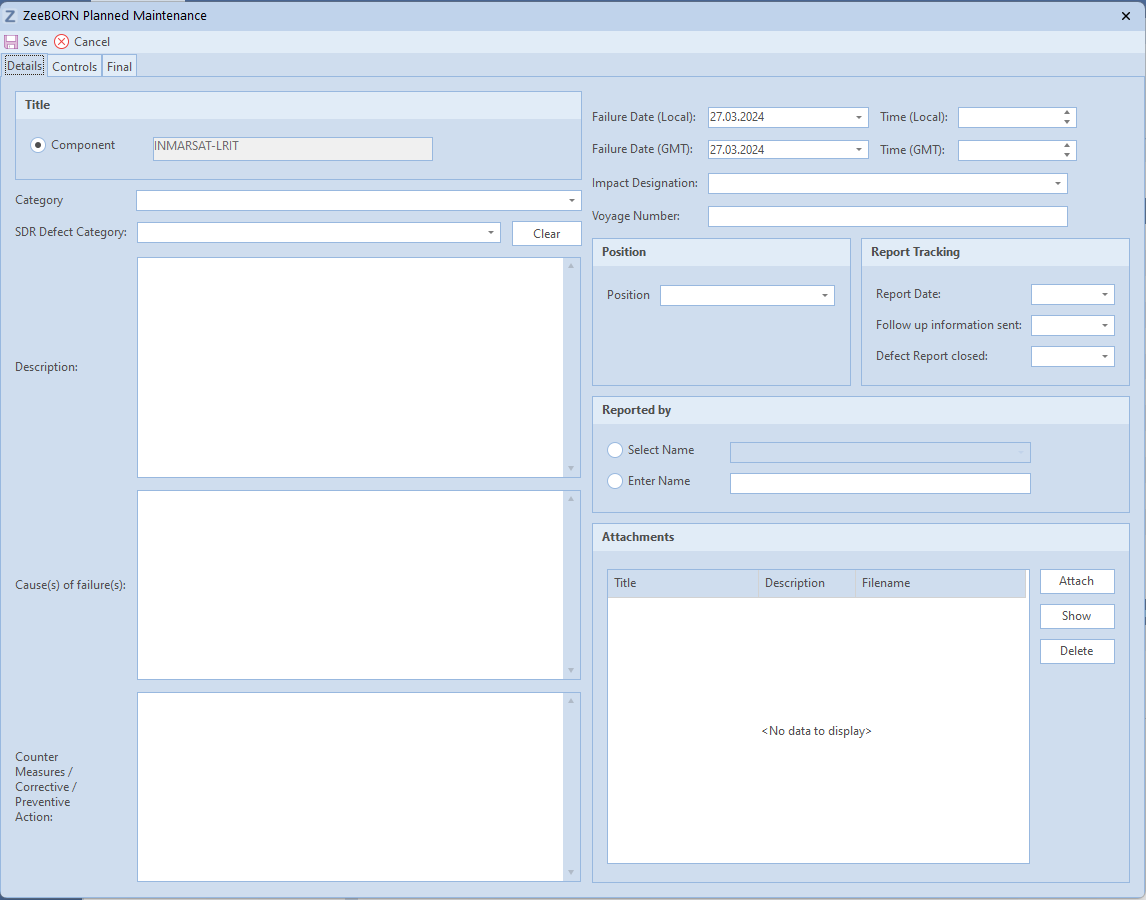
A Description, Root Cause Category and Cause(s) of failure(s) must be entered. All other information can be given.
The created Risk Assessment must be attached for each SDR.
With Cancel the report is rejected.
With Save the report is created and is visible in the module
Ship Defects.
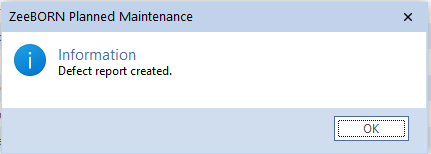
Any further processing or changes of the report takes place exclusively
in the module Ship Defects.
Create a SDR in the module „Ship Defects"
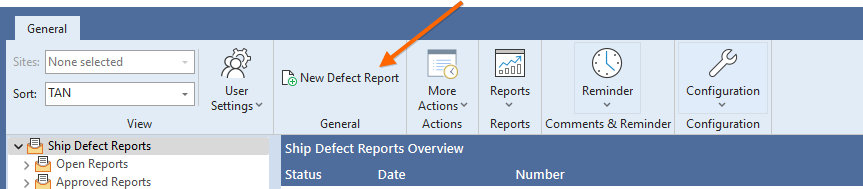
A new SDR can be created with „New Defect Report".
A component has to be selected or a title must be entered (title can be entered only if the special form was chosen in Configuration).
In addition, a Description, Root Cause Category and Cause(s) of failure(s) must be entered. An appropriate risk assessment, toolbox meeting or safety meeting protocol must be attached. All other information can be given.
The report is created with "Save" and with "Cancel" the report is rejected.
Edit a SDR on board
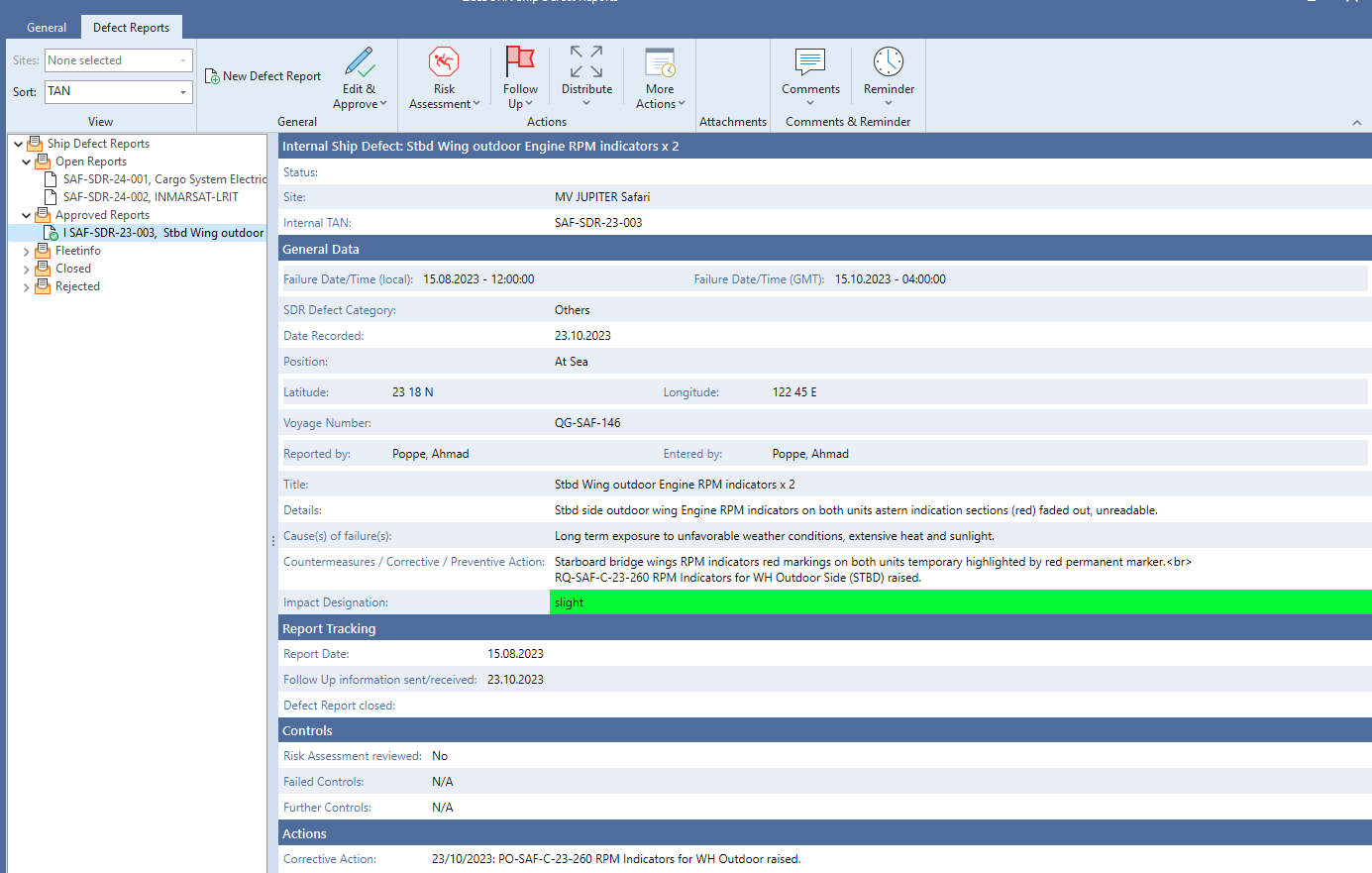
The SDR can still be edited with "Edit", if the user has the appropriate right, it can be deleted with "Delete" and the corresponding actions can be added with "Add Corrective / Preventive Action".

If the title or component has been changed, the name of the SDR will be
corrected with Update Internal Number.
For each SDR an extra data transfer with Create Data Transfer (SDR only) can be created.

With Show History you can look at the history. Comments can still be
added to the SDR using the button Add General Comment. With
"Documents", documents can be used to attach, display or delete. An
official SDR report can be printed or saved. With Save (with Attachments) the SDR can be saved.

If the SDR is confirmed as complete with Approve (on board), the SDR
will change to the folder Approved Reports and cannot be edited
anymore.
A SDR can only be confirmed on board when all attached actions have been
completed with Completed on board.
Edit a SDR in the Office
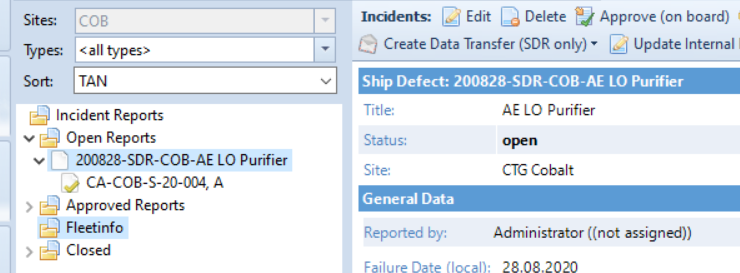
The SDR can still be edited with Edit, if the user has the
appropriate right, delete with Delete, with Reject the report
can be rejected and with Add Corrective / Preventive Action the
corresponding actions can be added. Edit (Administrative Tasks) is
only visible if the user has the appropriate right and all changes made
using this function are not recorded in the history.

If the title or component has been changed, Update Internal Number
corrects the name of the SDR.
With Show History you can view the history. Comments can still be
added to the SDR by using Add General Comment. Documents can be used
to add, to display or delete documents. An official report of the SDR
can be printed or saved. With "Save (with Attachments)" can be used to
save the SDR.
Tab Job Details
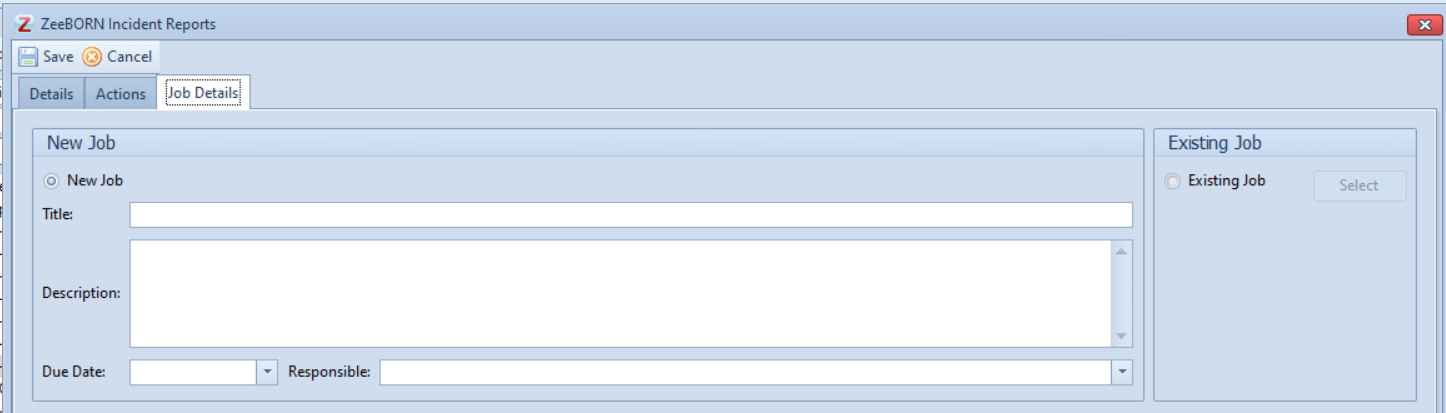
An existing job or a new job can be linked to the SDR.
If you want to add an existing job, click on the corresponding checkbox.
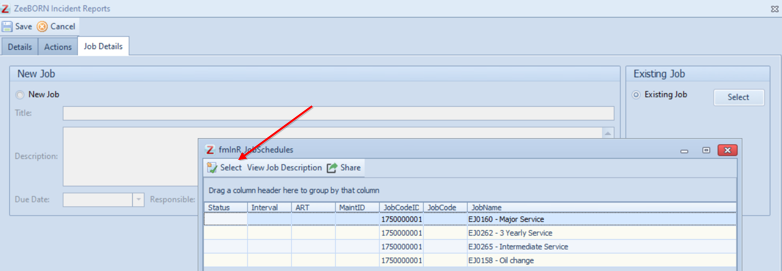
Then all jobs of the components are displayed. The corresponding job can
be selected and Select confirms the selection.
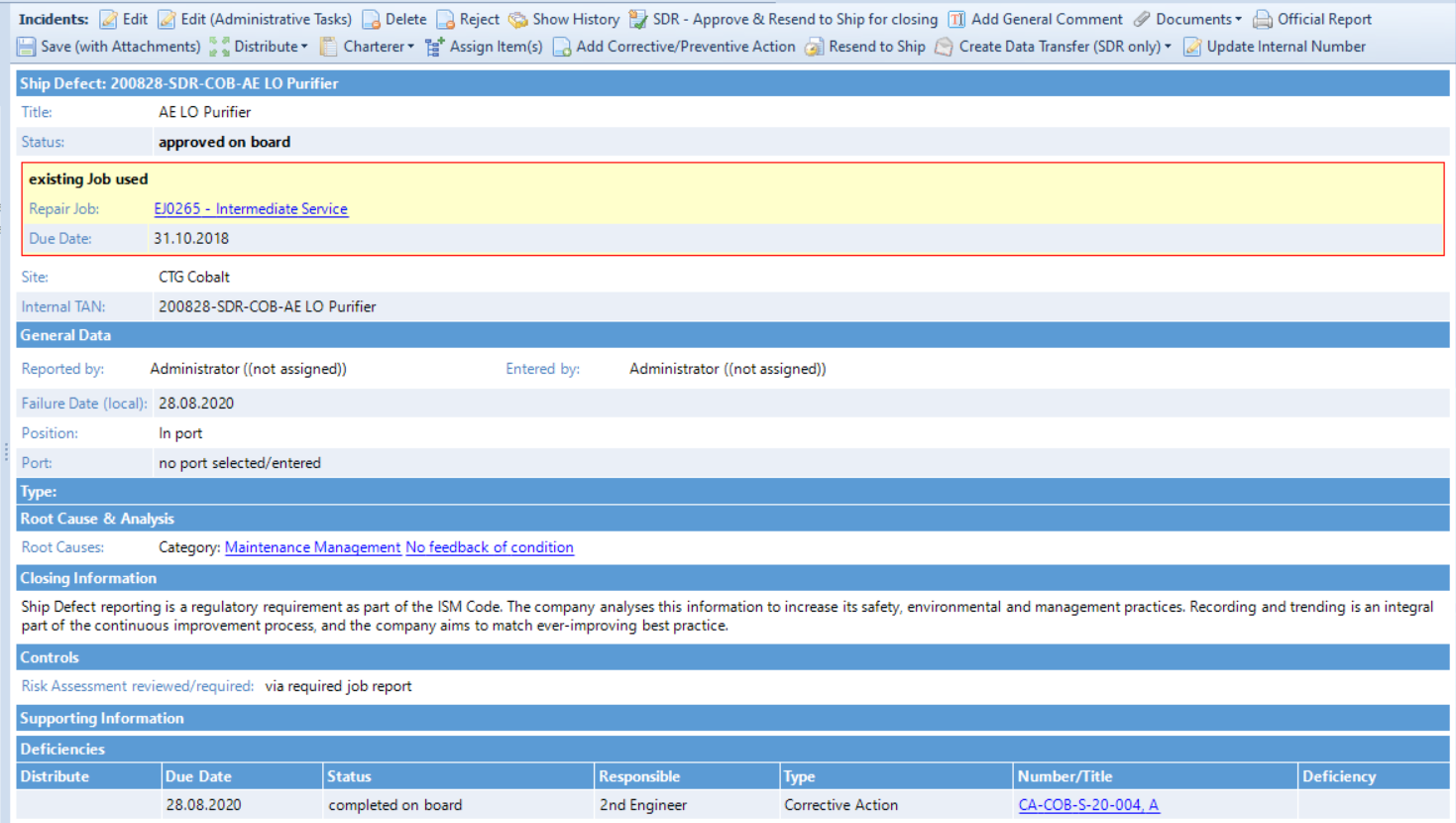
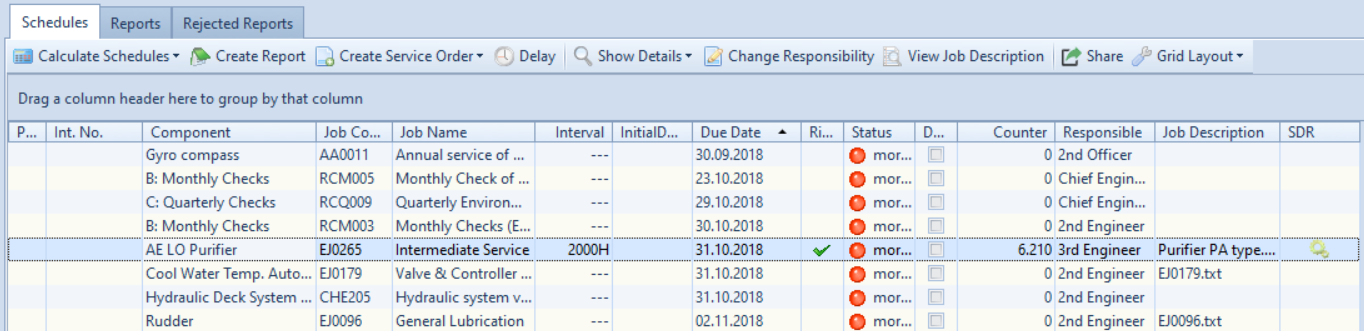
The selected job appears in the SDR with the next due date. In the Maintenance module, the job appears in the Schedules list with the character in the SDR.
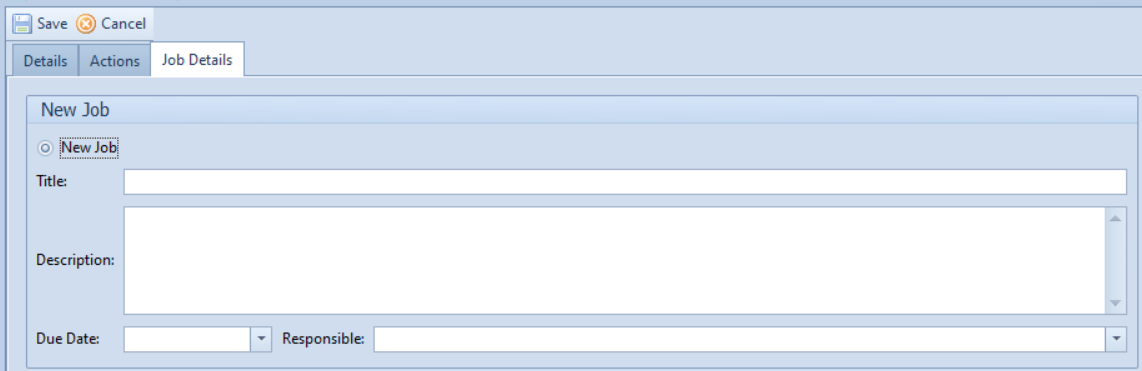
A title, description and due date must be entered for a new job. Responsible can be entered.
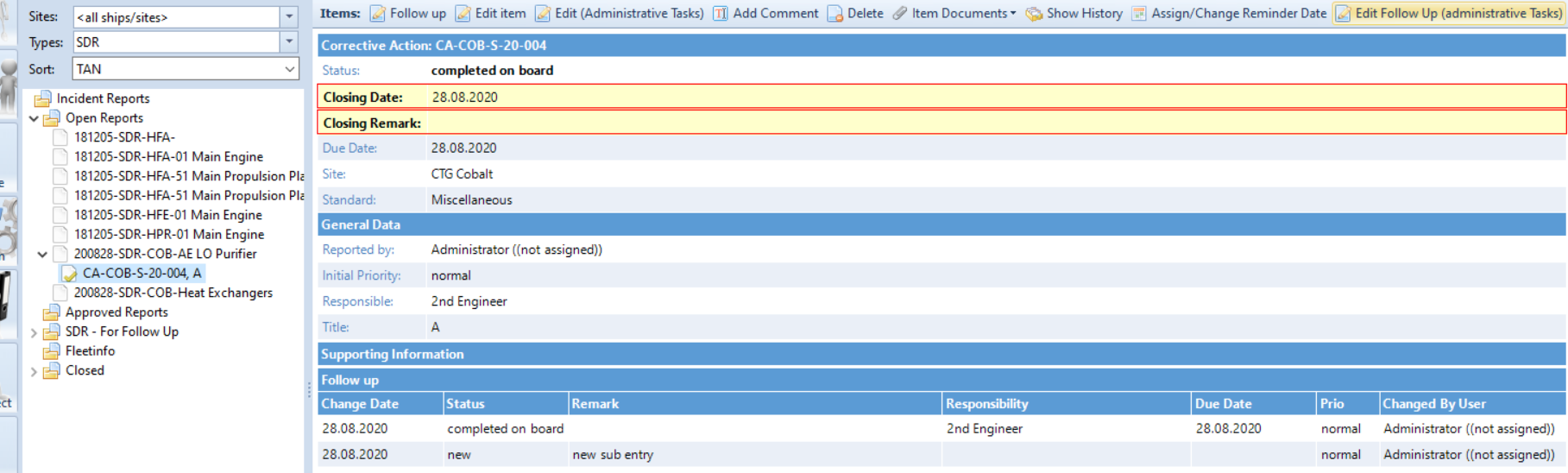

With SDR -- Approve & Resend to Ship for closing the SDR is
transferred to the ship with the new data.
If the ship has not attached the document, the superintendent must attach the document. Without the corresponding and attached document, the SDR cannot be confirmed.
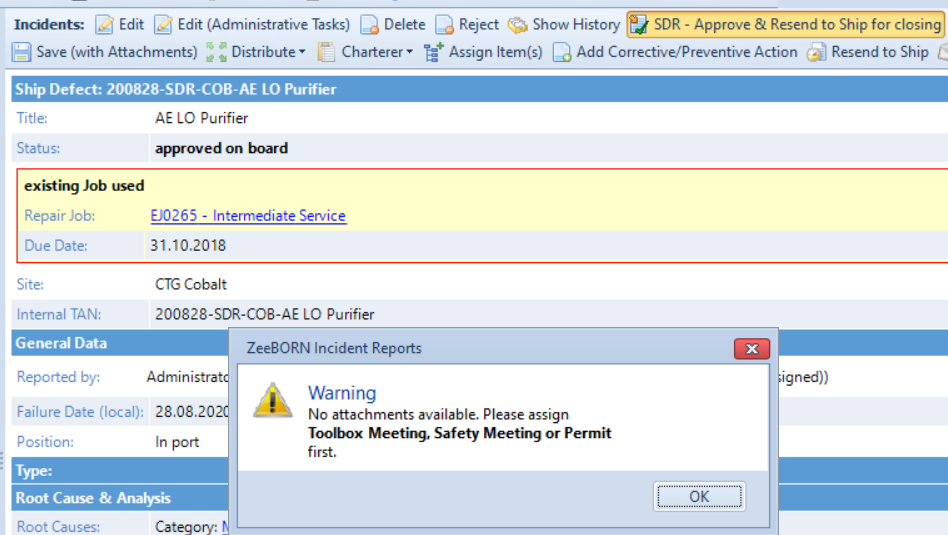
If the SDR is confirmed, the ship has to do the appropriate job for the SDR to close or switch to the folder "SDR -- For Follow Up".
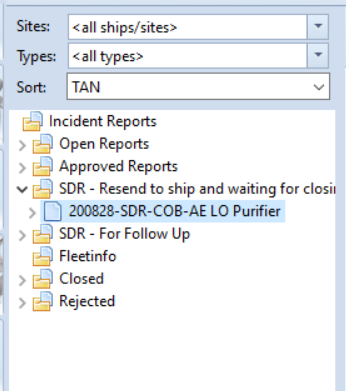
Report a SDR
On board, the SDR appears in the SDR - Waiting for closing folder in
the module "Incidents". The SDR cannot be edited here.
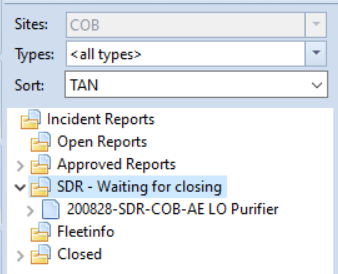
On board, the SDR is only closed by reporting the corresponding job.
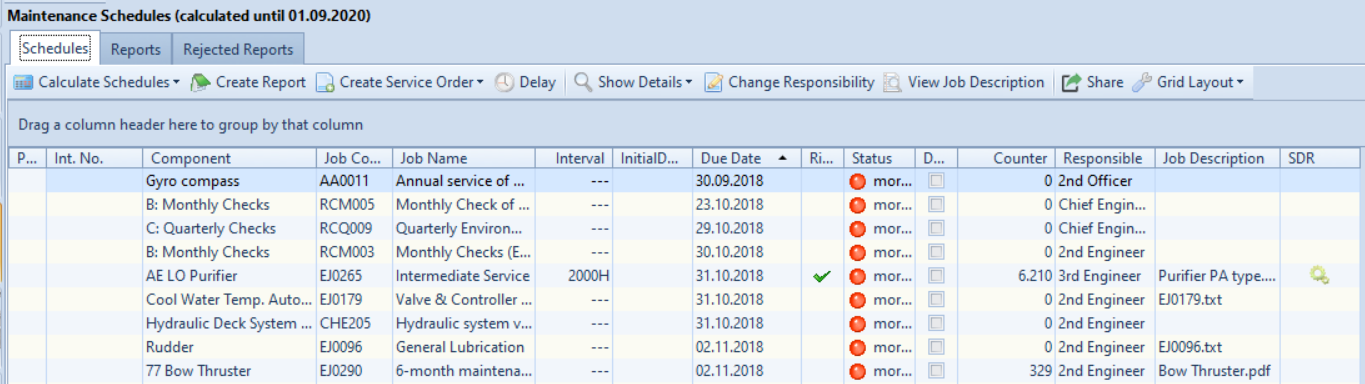
A Risk Assessment must be carried out for each job that is linked to an SDR.
For that, the corresponding template is selected and filled in.
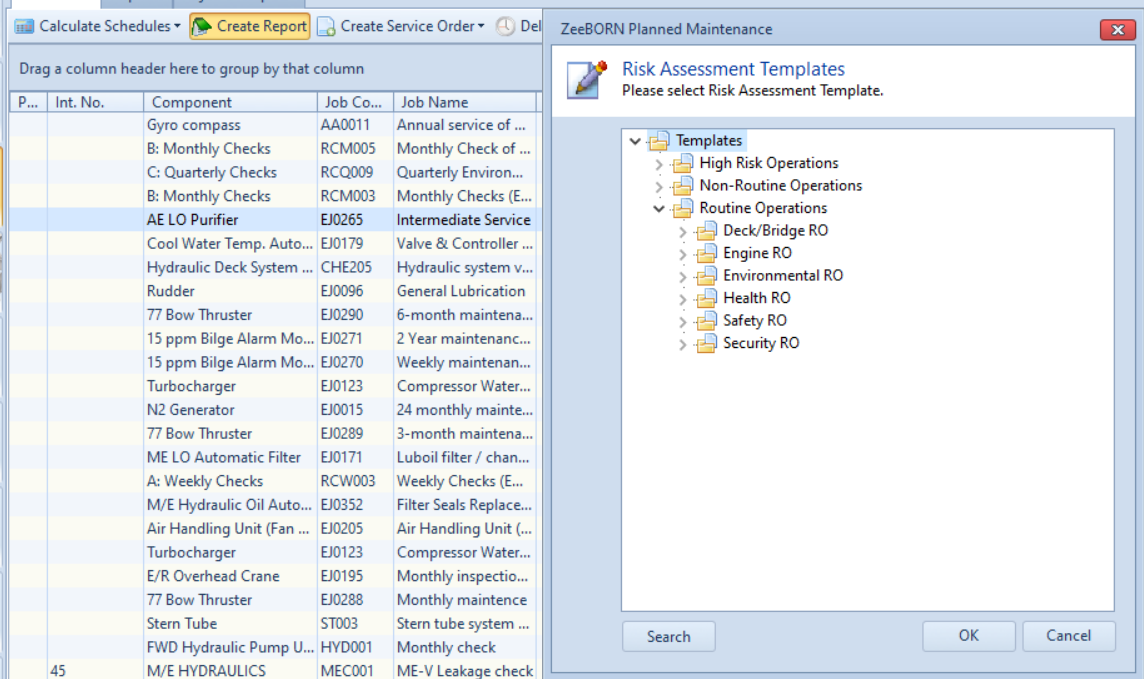
The job can then be reported.
On board, the SDR is closed and can be found under Closed in the
corresponding year and month.
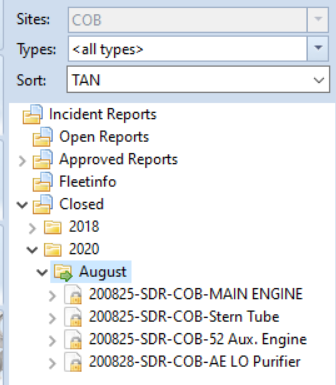
SDR in the Office
When the SDR are closed on board, the Office moves them either to the "Closed" folder or to the folder "SDR - For Follow Up".
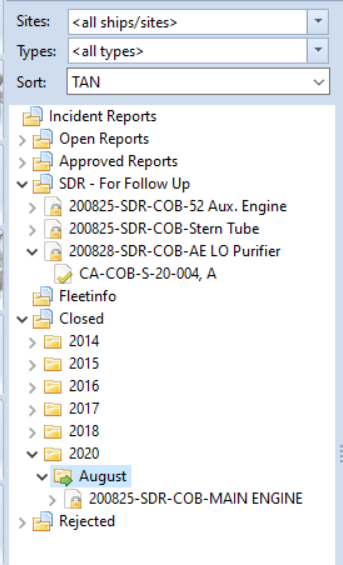
All SDR without action and with action with the status Completed are
moved to the folder Closed.
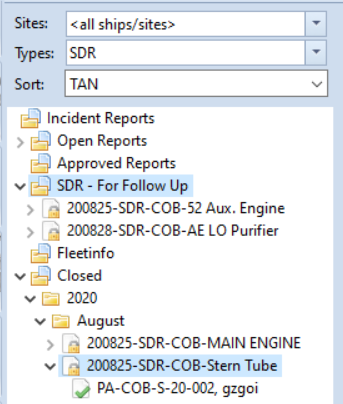
All SDR with action with the status Completed on board are moved to
the folder SDR - For Follow Up.
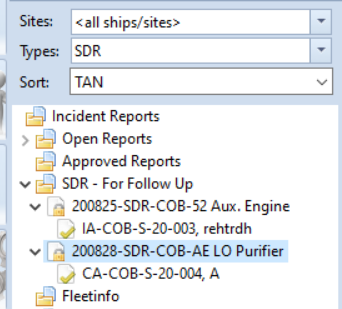
If the actions are closed in the Office, these SDR are also moved to the "Closed" folder.