PMS - Initial Tasks
The ZeeBORN Planned Maintenance module is usually made available on board with an initial set of component data and maintenance job data. In most cases those data have been migrated from a previously used system.
1. Update Counter List
For a proper calculation of maintenance job due dates, the system needs to be updated with the latest known running hour values for all maintenance relevant components. As the ZeeBORN software has an automatic distribution of counter value updates within the system, only the running hour counters of main components need to be entered.
The updating of the counter list is started by clicking on the Counter List button on the toolbar in the Planned Maintenance module.
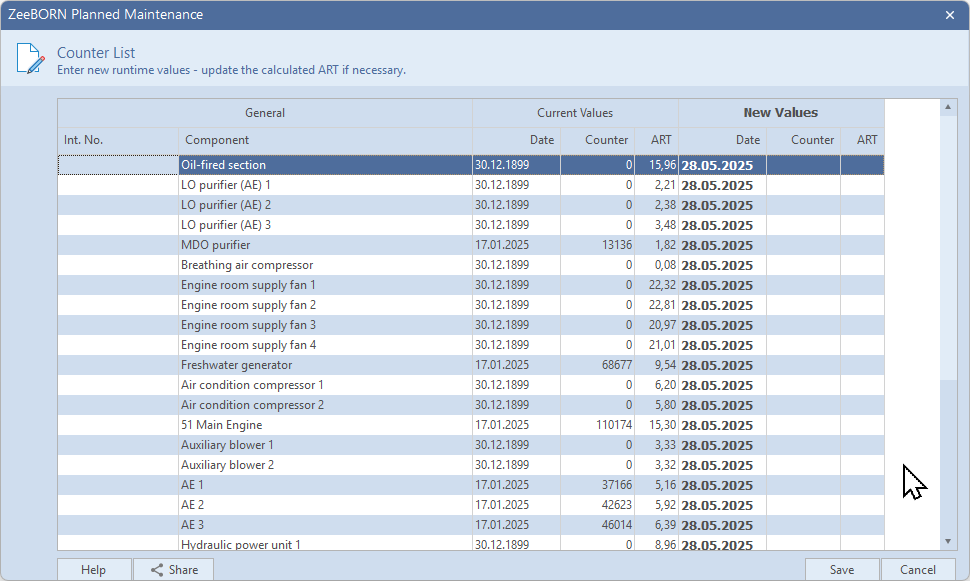
New counter values can be entered in the main column New Values in column Counter. While entering the new counter value, the new average running time per day (ART) will be calculated based on the counter history and the new data. Please check if the calculated ART matches reality.
By default the counter list assumes you enter running hours for the current day. If the available counter values are already older, you will also need to set the appropriate date in column Data.
2. Re-calculate Schedules List
After entering the counter list, the due dates of all maintenance jobs need to be re-calculated.
- Switch to the module
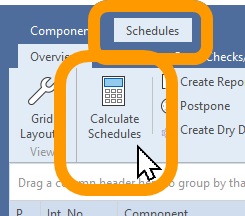
Schedules - Click on the button
Calculate Schedules
After re-calculating the due dates, the overview will show all maintenance job sorted by due date.
The color indicator indicateds the status of the maintenance job:
red- the job is overdueorange- the job has reached the pre-warning status; the execution of the job should be prepared by checking the job description for required tools and spare parts and other things that need to be prepared.green- the job is in good condition and is currently not due for execution
For more information see Documentation - Schedules
3. Create Job Reports
After re-calculating the due dates, the reporting of already overdue maintenance tasks should be started.
The status of each job can be found in the Schedules list, as described above.
A report can be created by selecting a job in the list and clicking the Create Report button in the toolbar.
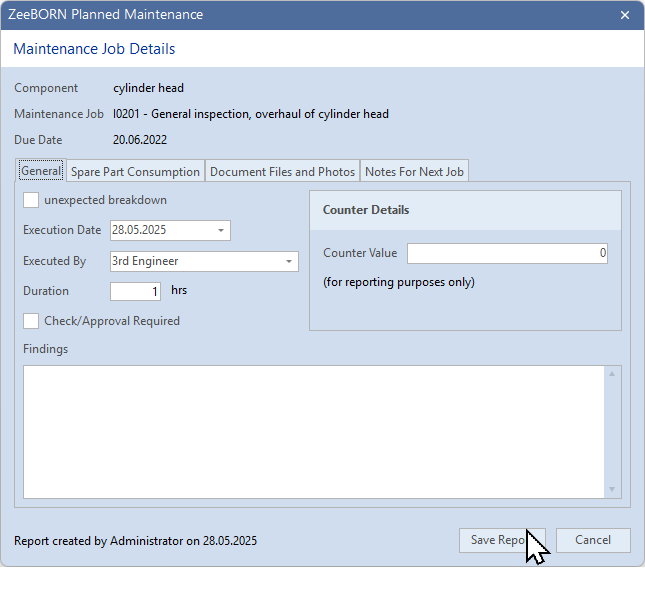
While the maintenance report offers many options, there are only a few mandatory details to provide:
- unexpected/breakdown: mark this checkbox if the job needed to be executed outside of the normal schedule due to a necessary repair or other problems.
- Execution Date: enter the date when the job was actually executed. This is also the option for adding job reports to the system for jobs that have been executed already but have been documented outside of the ZeeBORN system.
- Counter Value: This value will be added to the report for information; it will not be used for updating the counter list.
- Findings: write a short statement with findings or confirm that everything was OK.
For more details please see Documentation - Maitnenance Reports