Audits & Inspect, Incidents, Task Tracking, Damage
All Hazard Categories are arbitrary. For adding and changing the Hazard Categories use New and Edit. For each Category a Code can be given. Used Categories can be set inactive with mark the checkbox Inactive. Only Hazard Categories which are not in use can be deleted. The Hazard Categories can be exported to Excel with Export to Excel.
Audit/Inspection Configuration
Complete Last Item -> Send Audit automatically to Final Verification
This point is only needed for Office.
If the checkbox is marked, the audit will be switched to folder Final Verification without approving.
Split Module
If the checkbox is marked the module will be divided into 4 areas: Audit, Inspection, Management of Change and Condition of Class If module is split, in the "Condition of Class" module area with checkbox "Show Annual Class Window in CoC module" the Annual Class Window will be shown.
Assigned Certificate
A certificate can be assigned to Condition of Class. With "clear" certificates can be removed.
Task Tracking Configuration
For Module Task Tracking, items in Audit and items in Incident can be configured, that the due date can be changed also in a past date by marking the checkbox Assigning Due in past is allowed.
Audit/Inspections Type Groups
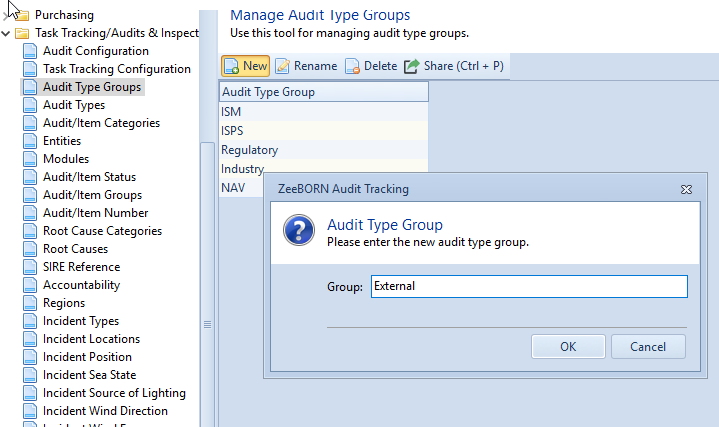
All Audit Types can be sorted by Groups. All Groups are arbitrary. For adding and changing the Groups use New and Rename. Only Groups which are not in use can be deleted.
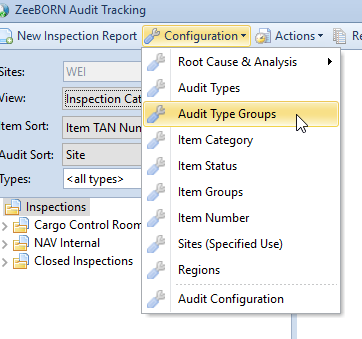
The groups are reached in the Audit & Inspect module under Configuration > Audit Type Groups.
Use New and give the group a name that says what it stands for — External and Internal are the usual ones.
Audit Types
The Audit Types sit in the same menu under Configuration > Audit Types.
Use New and give the type a name.
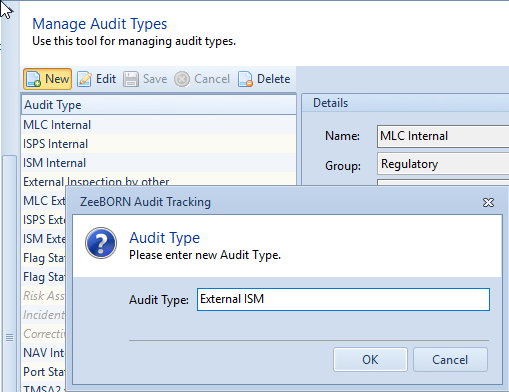
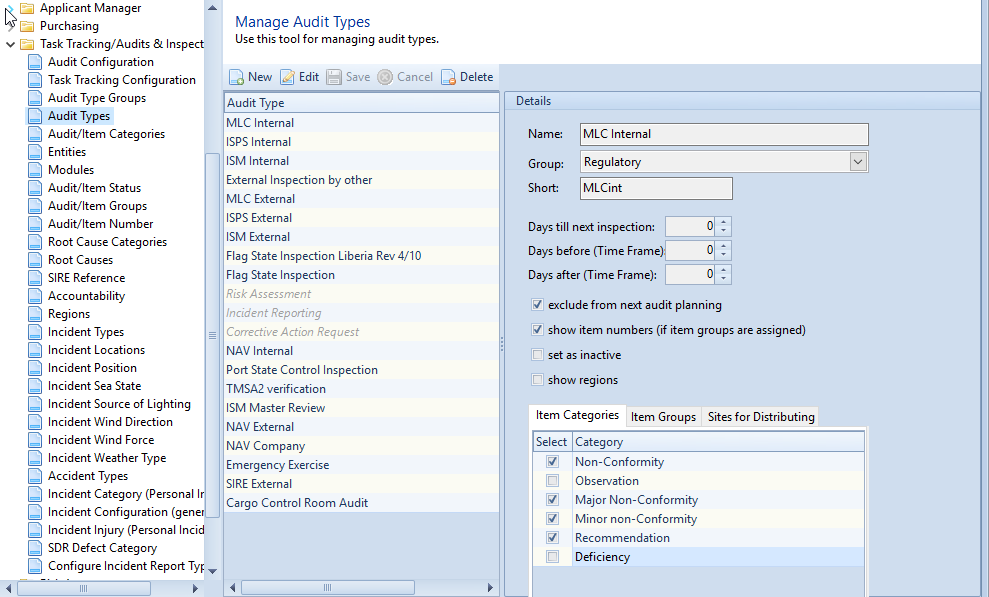
Once confirmed, the type is created and opened for editing straight away. The first thing to set is the group it belongs to.
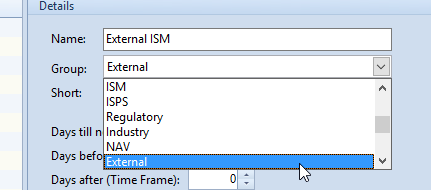
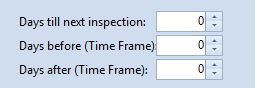
If audits of this type are to be planned by the system, three values decide when.
Four options follow underneath; they are explained in the table below.
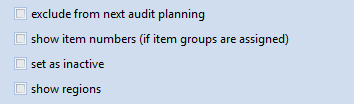
There are three predefined system audit types. All other audit types are arbitrary. For all types it is possible to predefine distributing sites, Item Categories and Item Groups. Also, it is possible to configure the visibility of the item number. For every type a time frame and the period between two inspections can be defined. All types of use in the Audit Check Report have to be marked in the configuration. If type doesn’t need to be planned, it has to be marked too.
For adding a Type use New. All Audit Types in gray are system types and cannot be renamed or deleted. Only Audit Types which are not in use can be deleted.
Item Categories, Item Groups and Sites for Distributing can be selected for each Audit Type when edit is in use by clicking on the corresponding Tab and clicking on needed Category, group or site.
Item Categories decides which categories are offered when an audit of this type is carried out — only the ones ticked here.
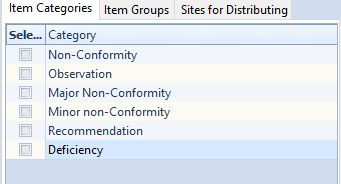
Item Groups decides which groups, and with them which item numbers, are offered. It only takes effect when Show item numbers (if item groups are assigned) is ticked.
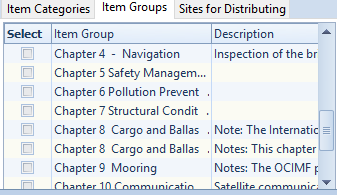
Sites for Distributing holds the vessels an audit of this type normally goes to. The assignment can still be changed for an individual audit; storing it here saves doing so every time.
Audit/Item Categories
For adding a Category use New, name and Abbreviation has to be given. All Audit/item Categories in gray are system types and cannot be renamed or deleted.All other Item Categories are arbitrary. Only Categories which are not in use can be deleted.
The Item Categories are also available in Task Tracking and Incident Report if predefined.
Mark checkbox is inspection category, if the category has to be available in module Audit & Inspection. If checkbox use in Inspection Check Report is marked, the category is included in Inspection Check Report.
Mark checkbox is incident report category, if the category has to be available in module Incidents.
Mark checkbox Possible consequences mandatory that in reports the possible consequences has to be filled in.
Corrective/ Preventive Action
The auto-close setting belongs to the category, wherever that category is used. If the same category serves several modules — inspections and incident reports, for example — the behaviour applies in all of them.
Closing a whole inspection at once
The global setting Close Completed On Board Tasks/Actions/Findings (in case of approval in office e.g.) in the Task Tracking configuration also covers inspections.
With it switched on, and every finding of an inspection at least completed on board, the office can finish the inspection in one go: choose Approve, confirm the question that all findings should be closed together with their actions, and enter the approval reason.
Nothing changes until both dialogs are answered. Cancelling either the question or the reason leaves every finding open and the inspection exactly as it was.
Where the configuration completes an inspection automatically as soon as the last finding is closed, the Approve button is normally hidden because it is not needed. It appears in one case regardless: when all findings sit at completed on board, so nothing would complete on its own.
Risk Assessment on tasks and actions
Two settings per category decide whether a task or an action can carry a risk assessment:
The review requirement is enforced in the office only — on board a task can be closed without it. Assigning a different risk assessment resets the reviewed mark, because a new review cycle begins.
Removing an assignment removes the link only; the risk assessment itself stays in the system. Every task and every action carries its own assignment — an action does not inherit the one from its parent task.
Root Cause & Analysis
Due Date
Entities
All modules can be sorted by entities. All Entities are arbitrary. For adding and changing the entities use New and Edit. A short to each entity has to be given. Only entities which are not in use can be deleted.
Modules
All modules are arbitrary. For adding and changing the entities use New and Edit. A description of each module can be given. Only modules which are not in use can be deleted.
Audit/Item Status
These are all system statuses. The visibility of the statuses can only be defined and changed.
Audit/Item Standard
Use item standards for grouping and versioning item groups and numbers, for instance VIQ 6, VIQ 7. Please find more detailed information under: https://docs.zeeborn.info/tutorials/english/viq-standards/
Audit/Item Groups
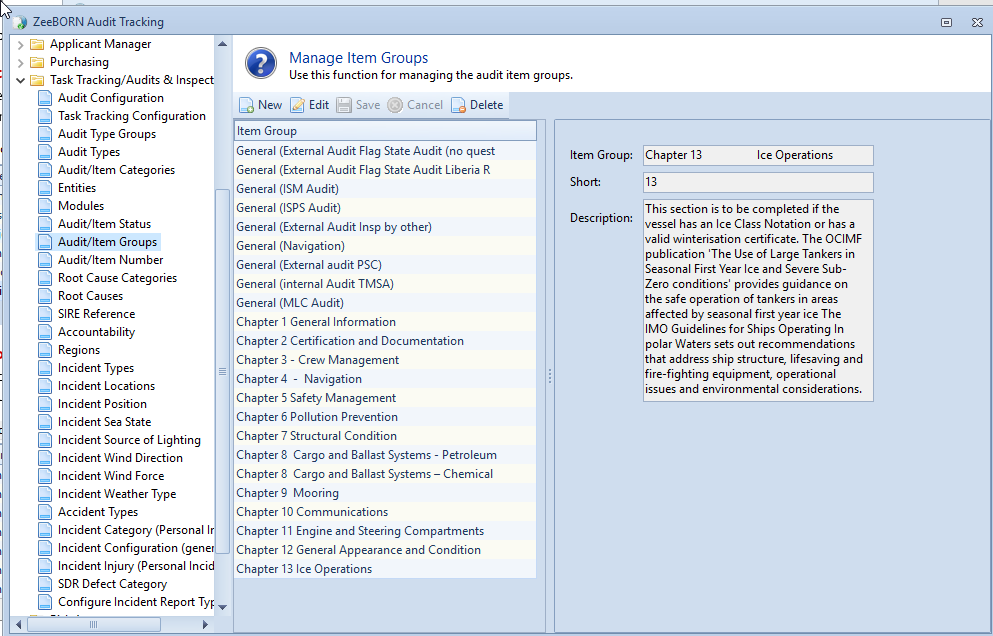
Item Groups are arbitrary. Descriptions for Item Groups are needed.
Audit/Item Number
Item Numbers are arbitrary. The Item Number has to be allocated to an item Group.
All item numbers will be sorted by Item groups. With New a new item number can be added. For all item numbers a title and description can be inserted. With Edit on all item numbers can be worked. Only item numbers which are not in use can be deleted.
Questionnaires and Item Numbers
Standard Groups Item Number
Audit/Item Number Types
Item numbers can be sorted by type. The types are arbitrary: New adds one, Rename changes the name, and only types that are not in use can be deleted. The list can be printed and saved with Share.
Port State Control Codes
The deficiency codes used by Port State Control. They are kept in groups — New Group creates a group, New Item a code beneath it.
Where many codes have to be marked at once, Select all, Select none and Invert selection save going through them one by one.
Root Cause Categories
All root causes are sorted by Root Cause Categories. All root cause categories are arbitrary. For adding and changing the categories use New and Edit. A description to each category can be given. Only root cause categories which are not in use can be deleted.
Root Causes
All root causes are sorted by Root Cause Categories. All root causes are arbitrary. For adding and changing the root causes use New and Edit. A description of each root cause can be given. Only root causes which are not in use can be deleted.
SIRE References
All SIRE references are arbitrary. For adding and changing the SIRE references use New and Edit. A description of each SIRE reference can be given. Only SIRE references which are not in use can be deleted.
Additional Root Cause Categories 1
Beyond the root cause and its category, two further classifications can be kept — this is the first of them. Each entry has a name and a description; New, Edit and Delete maintain the list, and Set as inactive retires an entry without removing it, so existing records keep their value. Set as Active brings it back.
Info
Where the configuration requires it, this category is a mandatory field on incident reports and on tasks — a record cannot be saved without it. It is worth setting the list up before switching that requirement on.
Additional Root Cause Categories 2
The second additional classification. It works exactly like the first and is maintained in its own list.
Accountability
All Accountabilities are arbitrary. For adding and changing the accountabilities use New and Rename. Only accountabilities which are not in use can be deleted.
Regions/ MoU
All Regions are arbitrary. For adding and changing the regions use New and Rename. Only regions which are not in use can be deleted. The regions can be printed and saved with share.
Additional Categories
A further free list for classifying tasks, alongside the item categories. The entries are arbitrary: New adds one, Rename changes it, and only entries that are not in use can be deleted.
Incident/Accident Types
All Incident /Accident Types are arbitrary. For adding and changing the Incident /Accident Types use New and Edit. A description of each Incident /Accident Type can be given. Only Incident /Accident Types which are not in use can be deleted. The Incident /Accident Types can be printed and saved with share.
Incident/Accident Locations
All Incident /Accident Locations are arbitrary. For adding and changing the Incident /Accident Locations use New and Edit. Only Incident /Accident Locations which are not in use can be deleted. The Incident /Accident Locations can be printed and saved with share.
Incident/Accident or Audit Position
All Incident /Accident or Audit Positions are arbitrary. For adding and changing the Incident /Accident or Audit Positions use New and Edit. For each Incident / Accident or Audit Position has to be marked, if position is a port, on sea or both. Only Incident /Accident or Audit Positions which are not in use can be deleted. The Incident /Accident or Audit Positions can be printed and saved with Share.
Incident/Accident Sea State
All Incident /Accident Sea States are arbitrary. For adding and changing the Incident /Accident Sea States use New and Rename. Only Incident /Accident Sea States which are not in use can be deleted. The Incident /Accident Sea States can be printed and saved with Share.
Incident/Accident Source of Lighting
All Incident /Accident Source of Lightings are arbitrary. For adding and changing the Incident /Accident Source of Lightings use New and Rename. Only Incident /Accident Source of Lightings which are not in use can be deleted. The Incident /Accident Source of Lightings can be printed and saved with Share.
Incident/Accident Wind Direction
All Incident /Accident Wind Directions are arbitrary. For adding and changing the Incident /Accident Wind Directions use New and Rename. Only Incident /Accident Wind Directions which are not in use can be deleted. The Incident /Accident Wind Directions can be printed and saved with Share.
Incident/Accident Wind Force
All Incident /Accident Wind Forces are arbitrary. For adding and changing the Incident /Accident Wind Forces use New and Rename. Only Incident /Accident Wind Forces which are not in use can be deleted. The Incident /Accident Wind Forces can be printed and saved with Share.
Incident/Accident Weather Type
All Incident /Accident Weather Types are arbitrary. For adding and changing the Incident /Accident Weather Types use New and Rename. Only Incident /Accident Weather Types which are not in use can be deleted. The Incident /Accident Weather Types can be printed and saved with Share.
Accident Types
All Accident Types are arbitrary. For adding and changing the Accident Types use New and Rename. Accident Types marked As system type are system type and cannot be deleted or edited. All accident Types, which are in use can be set as inactive or can be set as active. Only one of the buttons will be visible. An active type only can be set inactive, and an inactive type only can be set active. Only Accident Types which are not in use can be deleted. The Accident Types can be printed and saved with Share.
Personal Accident
All Personal Accidents are arbitrary. For adding and changing Personal Accidents use New and Rename. Only Personal Accidents which are not in use can be deleted. The Personal Accidents can be printed and saved with Share.
Incident Configuration (general)
If checkbox Types in closed Folder is marked, all reports will be shown under Incident type. Default the reports will be shown in closed folder sorted by year and month. For Incident a help manual can be added and shown in module.
Accident Injury (Personal)
All Accident Injuries are arbitrary. For adding and changing the Accident Injuries use New and Rename. Only Accident Injuries which are not in use can be deleted. The Accident Injuries can be printed and saved with Share.
SDR Defect Categeory
All SDR Defect Categories are arbitrary. For adding and changing the SDR Defect Categories use New and Rename. Only SDR Defect Categories which are not in use can be deleted. The SDR Defect Categories can be printed and saved with Share.
Configure Incident Report Types
With Edit all incident reports can be prepared.
Tab Details
Corrective/ Preventive Action
Root Cause & Analysis
General
Which tabs a report ends up with, and what is mandatory on them, therefore follows from this configuration. How the report is then filled in is described under Creating a report.
Two entries that lead elsewhere
The Configuration menu of the Incident module also holds two entries whose settings are not specific to incidents and are described in their own place: