Vessel use
There are different report types. The types are arbitrary and are defined in the office.
Starting a report
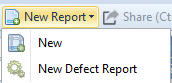
Click New Report and choose New.
Then pick the report type. The ? icon holds your company's own help file for classifying incidents and accidents.
New Defect Report is the other entry in the same menu and follows its own route — see Ship Defect Report.
Which tabs you get
A report can have up to eight tabs:
Which of them actually appear depends on your configuration, and so does whether a field is optional or mandatory. Some of them can also be merged: where the Root Cause tab is switched off, for instance, Root Cause & Analysis appears as a section on Details instead. What follows describes all of them, so expect to see fewer.
A general rule for reading the form: a black arrow at the end of a line means you pick from a list, a field showing 0 expects a number, dates come from the calendar, times are entered as hh:mm, and everything else is free text. When the report is saved, the system says which mandatory entries are still missing.
Details
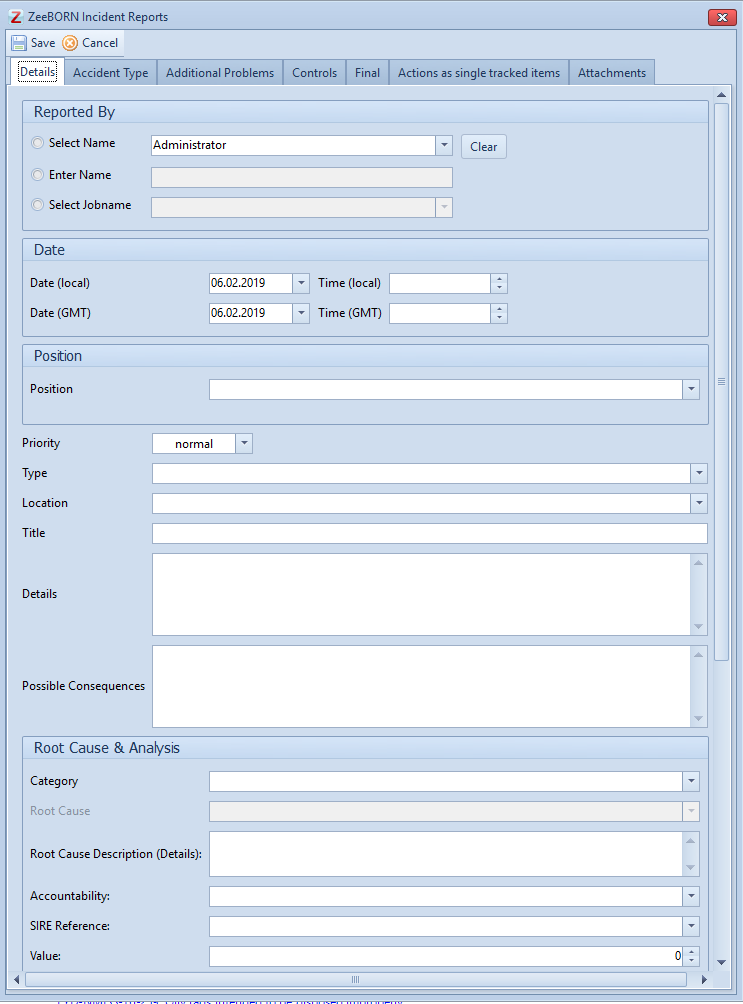
Reported by

Today's date and the logged-in user are filled in for you; both can be changed. Only one of the three ways can be used:
Date

Both the local and the GMT date are prefilled from the computer and can be corrected. The two times have to be entered.
Position
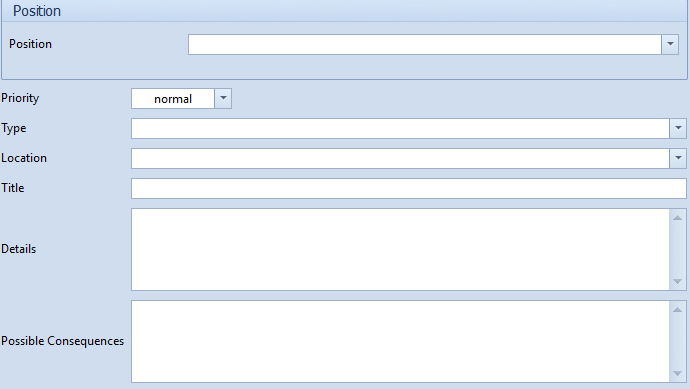
What you have to enter depends on the position chosen: either a port from the list, or latitude and longitude. Whether a position asks for a port, for coordinates, or for both is set up in the configuration. A free text field takes anything that does not fit.
The rest of the tab
Environmental data
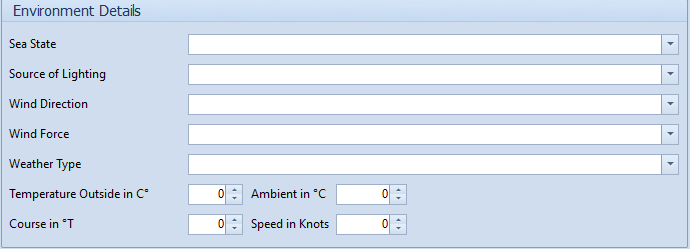
Sea state, source of lighting, wind direction, wind force and weather type are picked from the configured lists; temperature, ambient, course and speed are entered.
Root Cause
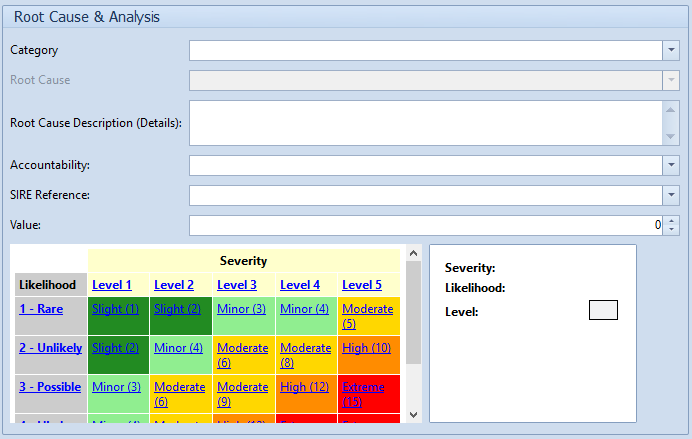
Choose the Category first — it decides which root causes are then offered. Accountability and SIRE Reference come from their own lists, and the root cause description is free text.
If the cost is known or can be estimated, enter it under Value. A level has to be picked from the risk matrix on the left.
Accident Type
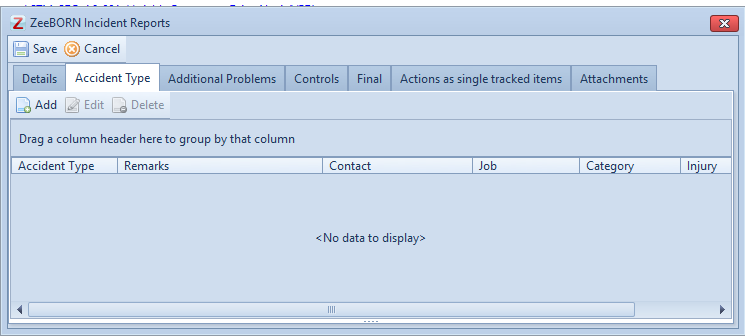
Every accident belonging to the incident is recorded here, each with its accident type.
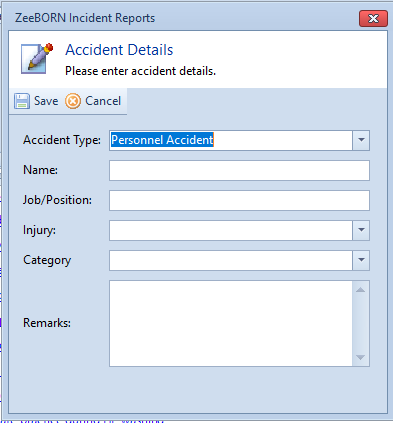
Personnel accident — name and job or position, plus the injury and the personal accident category from the configured lists. A remark can be added.
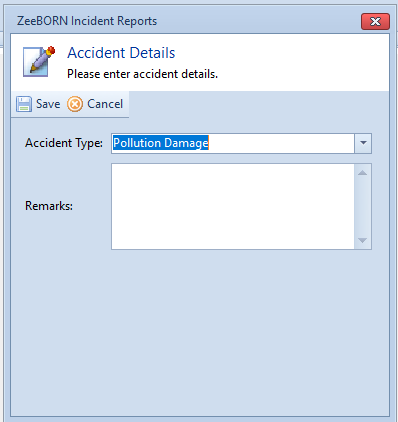
Vessel accident — the accident itself, described in the remarks.
Additional Problems
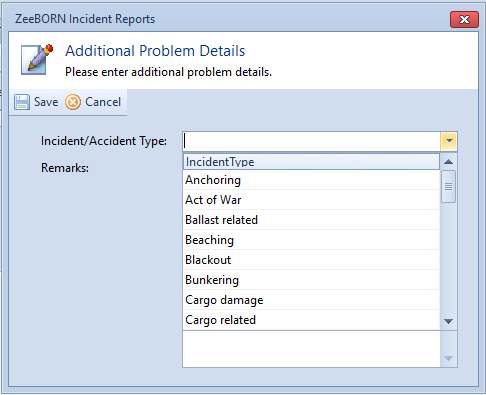
Anything that occurred alongside the main incident: pick the incident or accident type and describe it in the remarks.
Controls
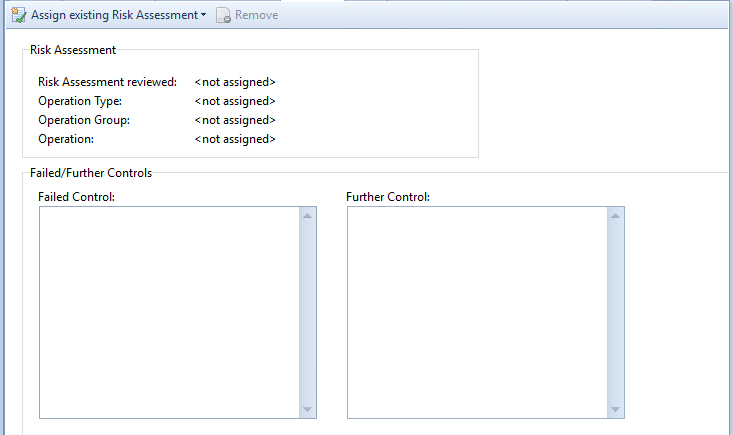
Failed Control and Further Control are free text.
Add Risk Assessment attaches the Risk Assessment concerned. There are two ways to find it:
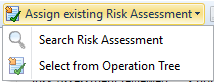
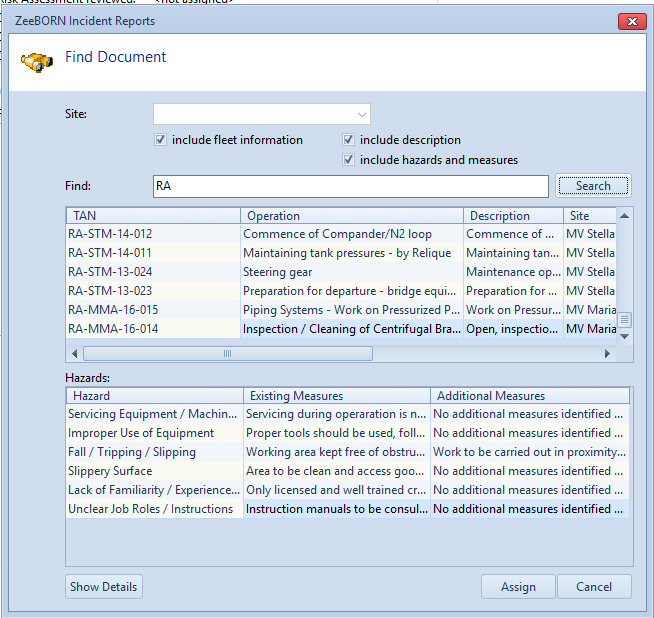
Search Risk Assessment — enter the name and click Search, then pick it from the table and confirm with Assign.
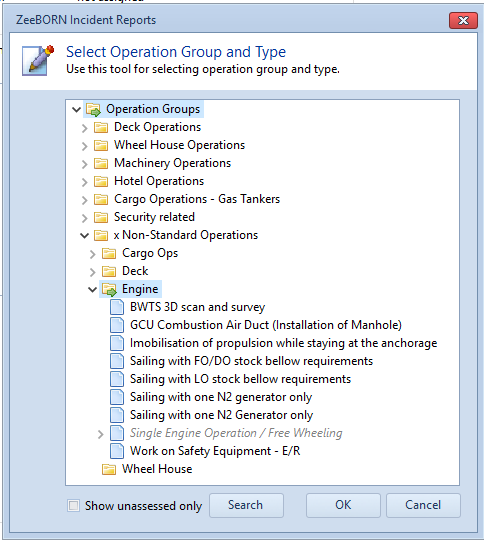
Select from Operation Tree — open the operation group and click the operation. Operations shown in grey have Risk Assessments. Choose the one you need and confirm.
Remove Risk Assessment detaches it again. See also Attach Risk Assessment.
Final
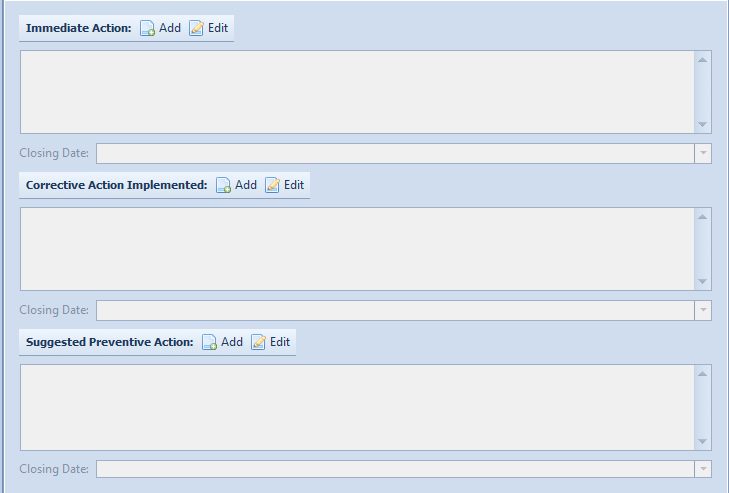
Corrective, preventive and immediate actions are recorded here as free text. Add creates one, Edit changes it. Depending on the configuration some or all of the details are mandatory. Documents can be attached to each action, and an action type picked from a list, with a comment per type.
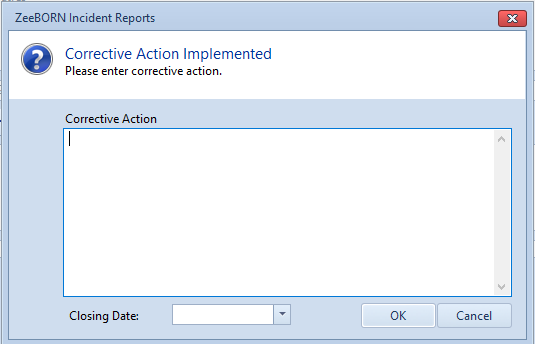
If an action has to be done by a certain date, enter it under Closing Date.
Corrective/Preventive Actions
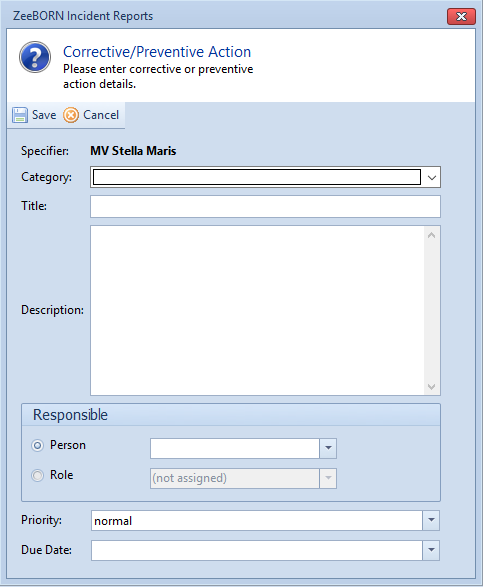
The same actions can instead be tracked individually. Choose the category of the action and fill in the details; the Due Date is the date by which it has to be finished. Which of the two routes applies — free text on Final or single tracked items here — is a matter of configuration.
Single tracked items behave like tracked actions elsewhere in the system, see Actions.
Attachments
Documents and photographs are added with Attach or by drag and drop, and can be edited and deleted afterwards. See Attachments.
Approval on board
Once everything is collected, the report has to be approved. After that it no longer appears in the open folder — it is now in the approved folder of the vessel, and no further changes are possible on board.
With the regular data transfer all recorded reports are transferred to the office, including those not yet approved — but those are read only and marked OoB (open on board).
See also
Ship Defect Reports are the exception: they can be sent immediately through a special data transfer, bypassing the regular one, so the office can act at once.