Risk Assessment
Hazard Categories
All Hazards are sorted by Hazard Categories. All Hazards are arbitrary. For adding and changing the Hazards use “New” and “Edit”. A description to each Hazards can be given. Used Hazards can be set inactive with mark the checkbox “Inactive”. Only Hazards which are not in use can be deleted. With “Merge Duplicates” Hazards can be merged to one. For that the hazard which will be in system has to selected and all other marked hazards will be merged into this hazard. Hit “Search” for looking after hazards.
Operation Types
All Operation Types are arbitrary. For adding and changing the Operation Types use “New” and “Edit”. For each Operation Type a Code can be given. Used Operation Types can be set inactive with mark the checkbox “Inactive”. Only Operation Types which are not in use can be deleted. The Operation Types can be exported to Excel with “Export to Excel”.
Operation Groups
All Operation Groups are arbitrary. For adding and changing the Operation Groups use “New” and “Edit”. For each Operation Group a Code can be given. Used Operation Groups can be set inactive with mark the checkbox “Inactive”. Only Operation Groups which are not in use can be deleted. The Operation Groups can be exported to Excel with “Export to Excel”.
Operations
All Operations are arbitrary. For adding an operation use “New”. For each operation, a type and a group has to be given. In addition, Operations code, can be added. The operations can be linked to components (Tab Assigned to Components) and to Job Codes (Tab Assigned to Job Codes). You can assign more than one job code and more than one component and both too. With “edit” changes can be made. Only operations which are not in use can be deleted. All other operations will be set as inactive with “Set as inactive” and can be activated with “Set as active”. Only one of these buttons will be visible in order of the status. The operations can be printed and saved with “Share”.
Risk Matrix
Hit “New” for adding a new Risk Matrix. The Risk Matrix can be added as new, can be copied from existing Matrix or can be created a new version of existing Risk Matrix. A name, severities, likelihoods, risk level and the matrix has to be given. The risk matrix can be approved with “approve” and one of the approved matrices can be set as default with marking the relevant checkbox. Old version can be closed. And in screen only active matrices will be shown, when checkbox “Show active only” is marked. Only matrices which are not in use can be deleted.
Severity
All Severities are arbitrary. For adding and changing the Severities use “New” and “Edit”. Only Severities which are not in use can be deleted. The Severities can be printed and saved with “Share”.
For all Severities, a name and sort order has to be given, and Description, Health/Safety, Environment, Operational Impact and Media Attentions can be given.
Likelihood
All Likelihoods are arbitrary. For adding and changing the Likelihoods use “New” and “Edit”. Only Likelihoods which are not in use can be deleted. The Likelihoods can be printed and saved with “Share”.
For all Likelihoods, a name and sort order has to be given, and Description can be given.
RiskLevel
All Risk Levels are arbitrary. For adding and changing the Risk Levels use “New” and “Edit”. Only Risk Levels which are not in use can be deleted. The Risk Levels can be printed and saved with “Share”.
For all Risk Levels, a name, a color and sort order has to be given, and Reassess in days and actions can be given. With “Set as High Risk Level” a risk level can be set as high level risk.
Two further settings per risk level control whether the office has to approve an assessment carrying that level. They only take effect when Close RAs depending from Risk Level is switched on in the Risk Assessment configuration:
- Closing on board allowed (no office approval required) — while this is ticked, the vessel may close such assessments itself. Unticked, the assessment goes to the office instead.
- Office E-Mail (for approval) — the address notified when an assessment with this risk level is finished on board. Each risk level can report to a different recipient, for example to the responsible department. The address is cleared automatically as soon as closing on board is allowed again, because it is then no longer relevant.
The resulting workflow is described under Office Approval.
Matrix

A matrix is created in one of three ways:
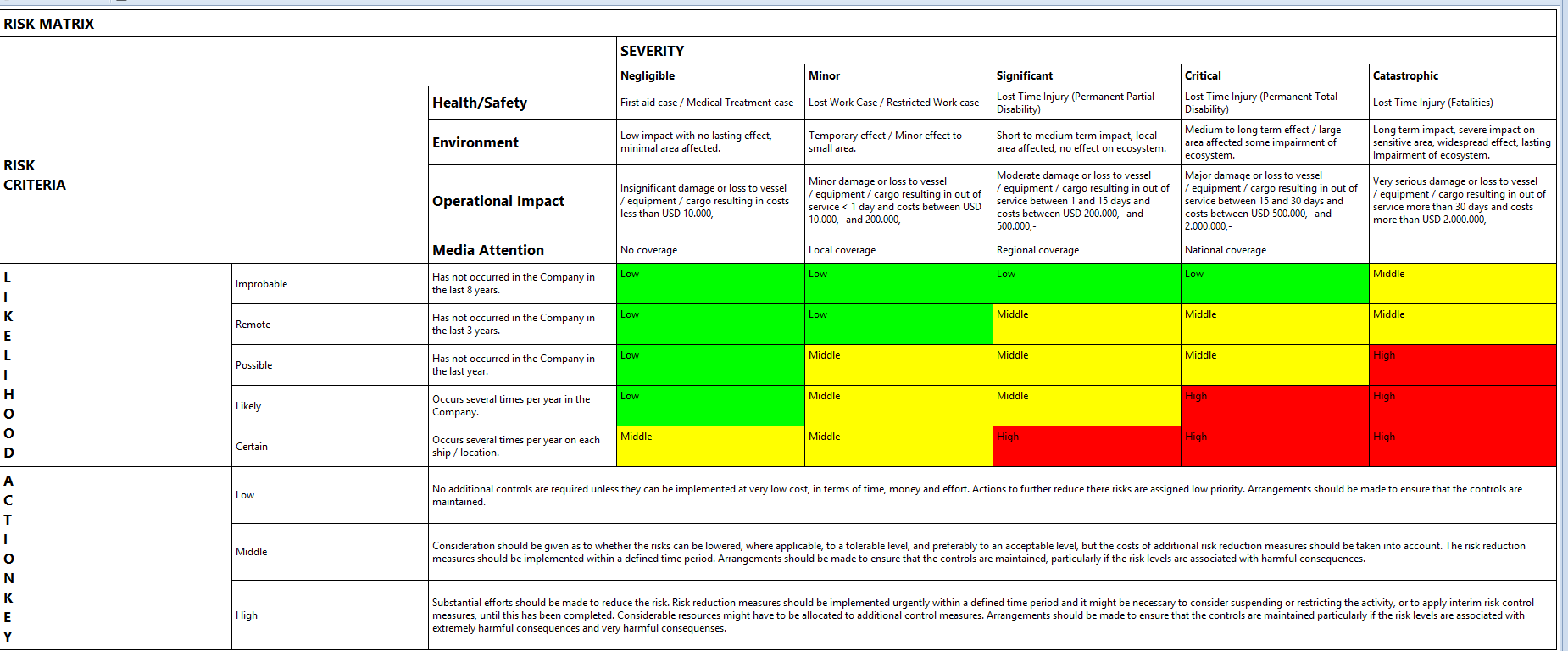
For changing the Risk Matrix use “Edit”. Approved Risk Matrices cannot be changed. Hit “Show complete matrix” to see all information to this matrix. The Risk Matrix can be printed and saved with “Share”.
Approve authorises the matrix. Only the matrix marked with Set as default is used in the system — approving alone does not put a matrix into service.
Set Severity on the left side turns the matrix round: either the severities run down the side and the likelihoods across the top, or the other way round. This is a matter of how your company is used to reading it; the ratings themselves are unaffected.
The severities carry their own descriptions for health and safety, environment, operational impact and media attention, so that the choice between two neighbouring levels can be made on something more than a name. Show complete matrix puts all of it together on one sheet — the severities with their criteria, the likelihoods with theirs, the resulting levels in their colours, and the action expected at each level.
Risk Assessment Configuration
Picking a Risk Assessment from another module
When a Risk Assessment is assigned to a maintenance job, an incident report, a ship defect report or a task, it is picked from the Operation tree. By default that picker shows only Operations that are active - Risk Assessments belonging to a retired Operation are filtered out silently. On vessels with a long history this can hide most of the existing Risk Assessments, and the picker then shows an unexpectedly short list.
The switch include inactive operations in RA selection changes that. With it active, the picker also shows inactive Operation Types, Operation Groups and Operations:
-
inactive Operations carry the suffix (inactive) in the tree,
-
inactive entries are shown in grey italics on every level, so a retired branch is recognisable at a glance,
-
everything else - selection, Show assigned only, search - behaves as before.
The switch is per installation (one setting for all modules and all ships) and is off by default, so nothing changes for existing customers until it is actively switched on.
It affects every module that picks an existing Risk Assessment - Maintenance, Incident Reports, Ship Defect Reports and Task Tracking. It does not affect the Risk Assessment module itself; creating, editing and distributing Risk Assessments follow their own rules.
Which statuses are offered. Besides Approved, Distributed/Review Required and Currently Valid, Risk Assessments with the status Closed can be selected - independently of this switch. Assessments with the status Closed (operation inactive), which were closed automatically when their Operation was retired, are only offered when this switch is active and the setting RA Status For other modules must be currently valid in the same section is switched off. While that setting is on - which is the default - those assessments stay hidden even with the switch active, although the tree still shows the inactive Operations themselves.
Switch it on if the vessel has a long operational history whose assessments you still want to reference for recurring jobs, or if Operations get retired while their assessments remain relevant. Leave it off for a picker that only offers assessments under currently active Operations.
Critical Equipment Types
All Critical Equipment Types are arbitrary. For adding and changing the Critical Equipment Types use “New” and “Rename”. Only Critical Equipment Types which are not in use can be deleted. The Critical Equipment Types can be printed and saved with “Share”.
Further Action Types
All Further Action Types are arbitrary. For adding and changing the Further Action Types use “New” and “Rename”. Only Further Action Types which are not in use can be deleted. The Further Action Types can be printed and saved with “Share”.