Site Certificates
info
General-Module Overview - Tab "Ship/Site Status". Under the Tab “Site Certificates” you will find the certificates.
The Site Certificates screen shows you all known certificates and other similar documents that are important for the selected ship(on board: for this vessel). You will also see an overview of already expired documents or documents that will expire soon.
Three views are available per default the Overview is set.
Tab “Certificates Overview”
All assigned certificates are listed including their expiry dates. A click on the certificate will open the details (Issue Date, Document Number etc.).
With Edit a single certificate can be edited directly in Overview.
Tab “Details”
The Tab “Details” is split in two areas: On the left site all inserted certificates sort by certificates group will be shown On the right site all details of selected certificate will be shown Under the view Details you can work on the certificates, add new ones or attach copies of certificates (depending on your access rights).
Add a Missing Certificate
All required certificates can be added with “Add/required Certificates only”. For a complete list of all available certificates choose “Add/all Certificates”, however, it should rarely be the case that certificates need to be added which are not assigned to your vessel. If the certificate wasn't in the list, please inform the Office for configuration. All relevant details have to be inserted, e.g. Issue Date, Issuing Authority, Expiry Date. If a time slot is to be set, the start-and the end date has to be added here as well. A copy of the certificate can be added under button Documents. Please don’t add high-resolution attachments as this will drastically increase the size of the data transfer.
Renew a Certificate
If a new certificate was issued, hit Edit to adjust the details, fill in a new issue-and expiry date and replace the attachment by removing the outdated certificate copy and adding the new one.
Instead of removing the outdated copy you can also archive it, so it stays on record - see Attachment history below.
Renewing a certificate that is already executed
A certificate that has already been executed stays in that state even if you enter new dates. When you give an already-executed certificate a new expiry or issue date and save, ZeeBORN therefore asks:
This certificate is already marked as executed. Save it as renewed (reactivate it with the new dates)?
-
Yes - the certificate becomes active again and the overview shows the new due date. A history entry "Certificate reactivated. Reason: Renewed (new expiry date)" is recorded.
-
No - nothing changes, the certificate stays executed.
The question appears only when an executed certificate gets a changed expiry or issue date. Editing other fields, for example a remark, does not trigger it, and a normal not-yet-executed certificate is saved without any prompt. This is deliberate: a plain correction on a genuinely finished certificate should not silently reactivate it.
No additional permission is needed - the right to edit site certificates is enough.
Attachment history
Instead of deleting an outdated certificate document, you can archive it: it disappears from the active document list but stays accessible in a separate History view, together with the date it was archived. This applies to Site Certificates only - SBM and Crew certificates are not affected.
The feature has to be switched on first
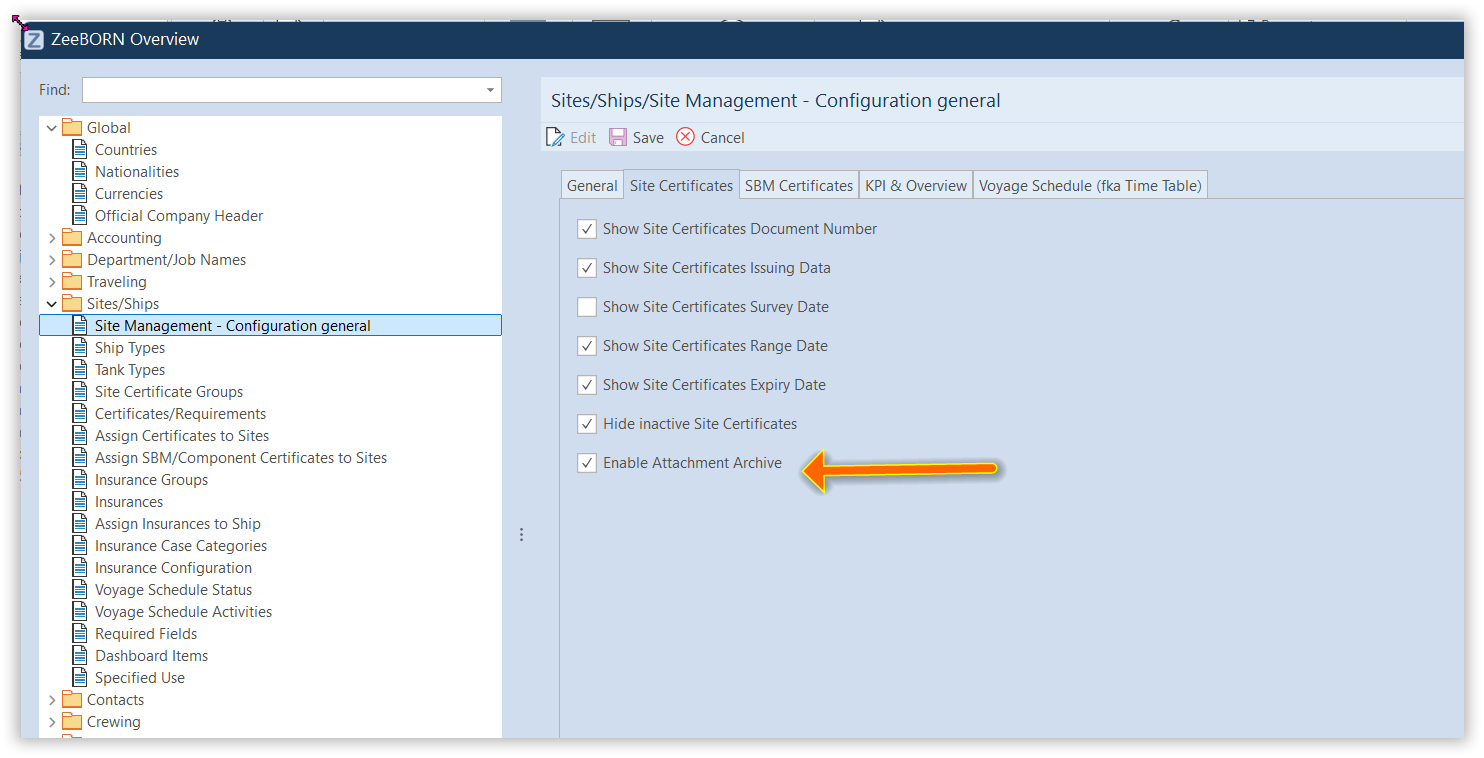
The attachment archive is off by default. While it is off, the Archive button, the History tab and the Archived Documents section stay hidden and everything behaves as before. To switch it on for the whole installation: in Site Management click Configuration, open Sites/Ships → Site Management - Configuration general in the tree, click Edit, tick Enable Attachment Archive on the Site Certificates tab, and Save. Reopen any certificate dialog that is still open.
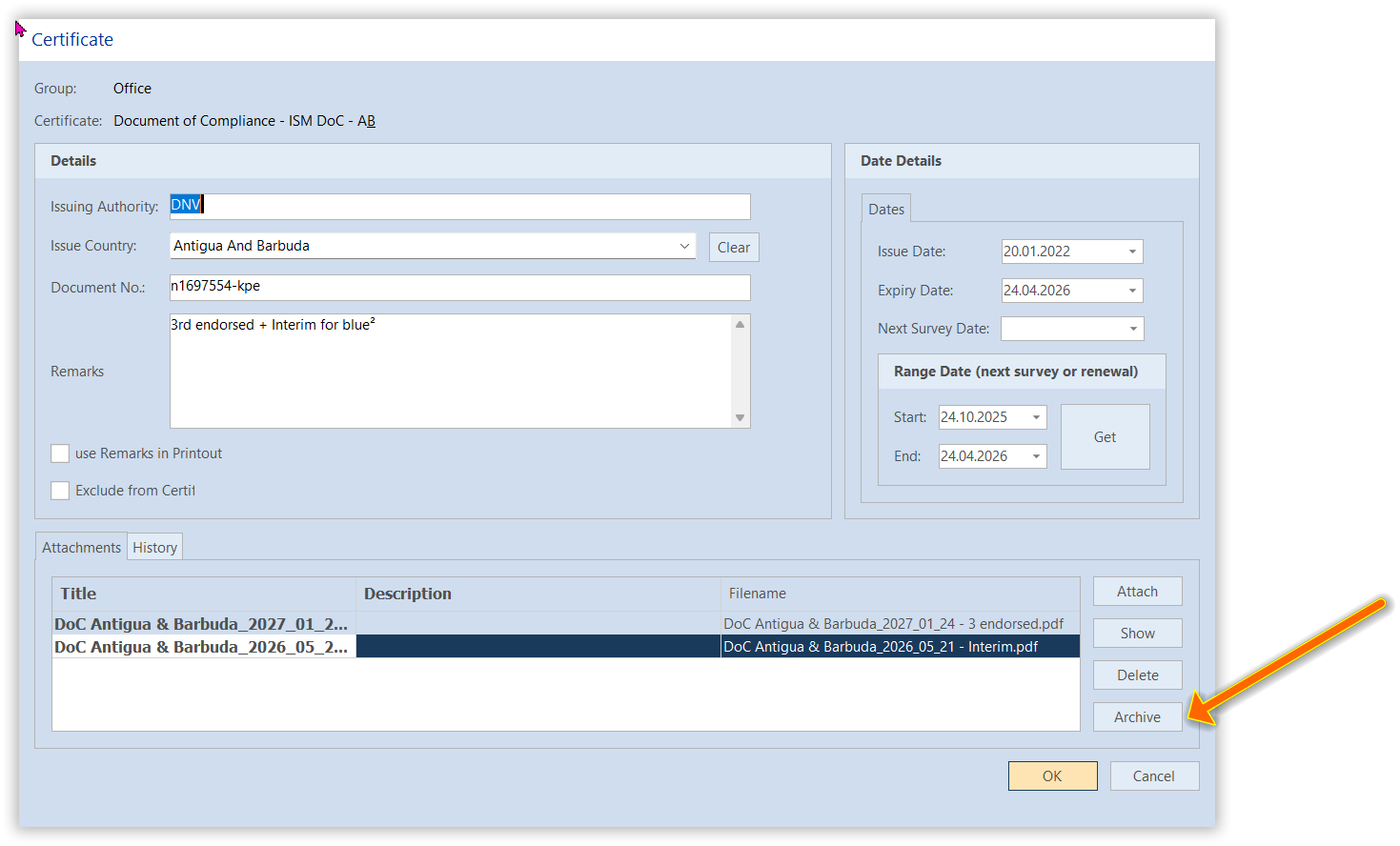
Archiving a document. Open a Site Certificate for editing. The Attachments group has an Archive button next to Attach / Show / Delete. Select the attachment and click Archive, then confirm with Yes. The attachment disappears from the Attachments tab and moves to the History tab with today's date.
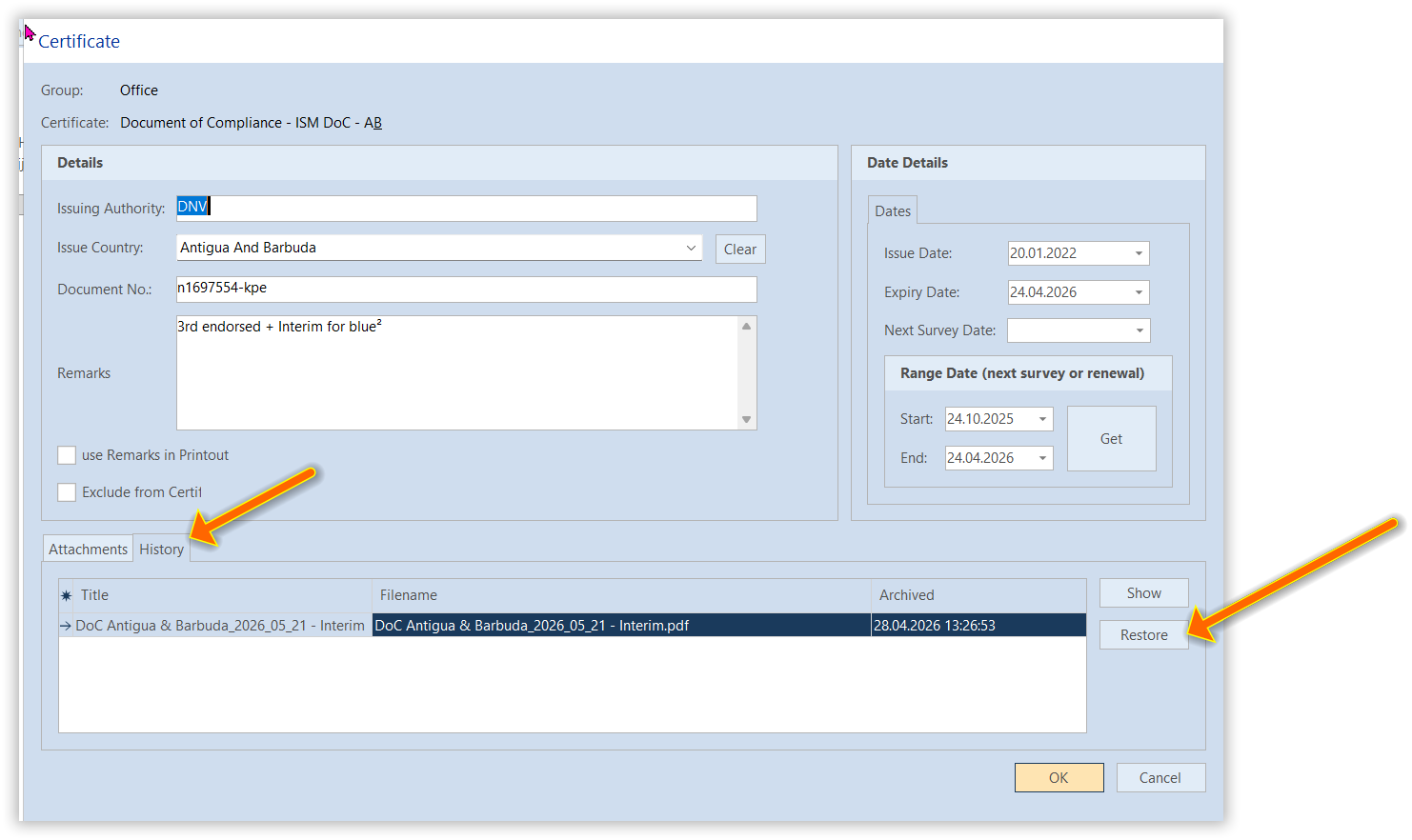
Restoring a document. Open the certificate for editing, switch to the History tab, select the entry and click Restore. The attachment moves back to the Attachments tab and the archive date is cleared; from then on it behaves like any other active attachment.
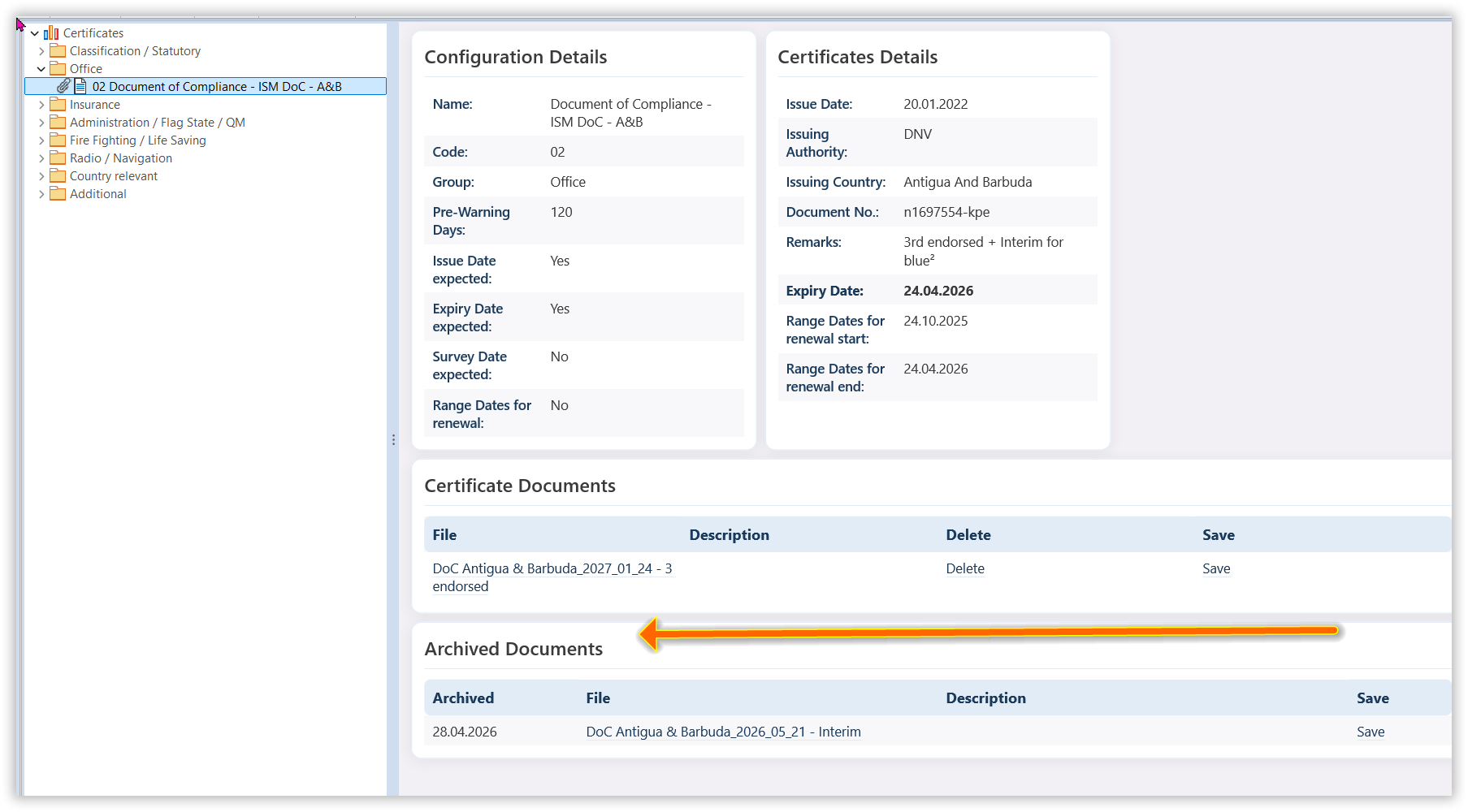
On the certificate page the detail view on the right shows two separate sections: Certificate Documents with the active attachments, and Archived Documents with the archived ones and their archiving date. In both, clicking a file name opens it. The archived list is read-only here - to restore something, open the certificate for editing.
Please note:
-
Archive and Restore only take effect when you click OK on the certificate dialog, like every other change there. Cancel discards them and the attachment stays as it was.
-
Nothing is deleted when you archive. The file stays in the certificate's storage, only its archive mark changes. Delete, in contrast, still removes an attachment permanently - so use Archive whenever the file should remain on record, for example a previous endorsement or an interim certificate that has been replaced.
-
Each attachment carries its own archive date, so several documents can be archived independently and restored in any order.
-
No additional permission is required - whoever may attach or delete certificate documents today can also archive and restore them.
-
The switch is installation-wide: on for everyone or off for everyone, not per site or per user.
Tab “missing or overdue certificates”
All missing and overdue certificates will be shown. With Edit a single certificate can be edited directly.
When the Hyperlink (Name of the certificate) will be clicked, the system opened the form "ZeeBORN Overview". When the form will be closed, the system jumps to Tab “missing or overdue certificates” directly and will not be shown Tab “Overview”.
Explanation of Icons/Terms
- Attachments: If available this is marked by the icon of a paper clip
- Status + (nr): Certificate is not required, i.e. not assigned to this vessel in the configuration
- [Missing]: A certificate is assigned to a vessel (i.e. it is required), however, details for same are missing
- Time Slot: Interval in which a certificate can be renewed. Note: A certificate/annual survey can be overdue while it is still in the allowed time slot for renewal - time slot status will be yellow
- Time Slot Status: yellow → Interval started or certificate is within interval/ blank → Interval has not yet started / red → time slot has passed
- Certificate Status:
Charts
The Charts entry in the view selection at the top left replaces the lists with pie charts, for a quick look at how a vessel stands rather than at individual certificates.
The chart at the top covers all certificates of the selected vessel, split by status:
Below it, one chart per certificate group makes it possible to see which group is causing the problem instead of only that there is one.
Dashboard - Show Problems Only
User Settings > Dashboard - Show Problems Only in the Site Management module reduces the status indicators on the Ship/Site Status overview to what needs attention: only warnings (orange) and problems (red) are shown, while everything that is fine or unchecked is hidden.
The setting belongs to the user and is kept between sessions — so if a colleague sees more indicators than you do on the same vessel, this switch is the reason.
More Actions
Share
(see Share)
Refresh
(see Refresh)
Search
(see Search)
Show History
(see Search)