Participants and Signatures
A Risk Assessment can record the people who took part in creating or reviewing it, together with their digital signature. Each participant appears on the Risk Assessment report with name, role and — once signed — the signature and the date it was given.
A signature can either be written on a connected signature pad or loaded from an image file. For ZeeBORN users who already have a signature stored in their user profile, it can be taken over automatically.
Making the function available
The function is switched on per installation and is hidden until it is enabled — if none of the ways described below are there, this is the first thing to check.
- Go to Risk Assessment > Configuration > Risk Assessment Configuration.
- Scroll to the Participant Signatures section at the bottom of the page.
- Tick the options you need:
- Close the Risk Assessment module and open it again, otherwise the entries do not appear.
Opening the participant list
Three ways lead to the same window — use whichever is closest to hand. All of them require the right to edit Risk Assessments.
Two exceptions are worth knowing. Templates have no participants, so neither the card nor the tab appears on them. And on an assessment that is being created for the first time, the tab appears only after the first save — abandoning a new assessment discards it altogether, participants included.
Adding participants
Open the participant list as described above. There are three ways to add someone, and they can be mixed in the same assessment:
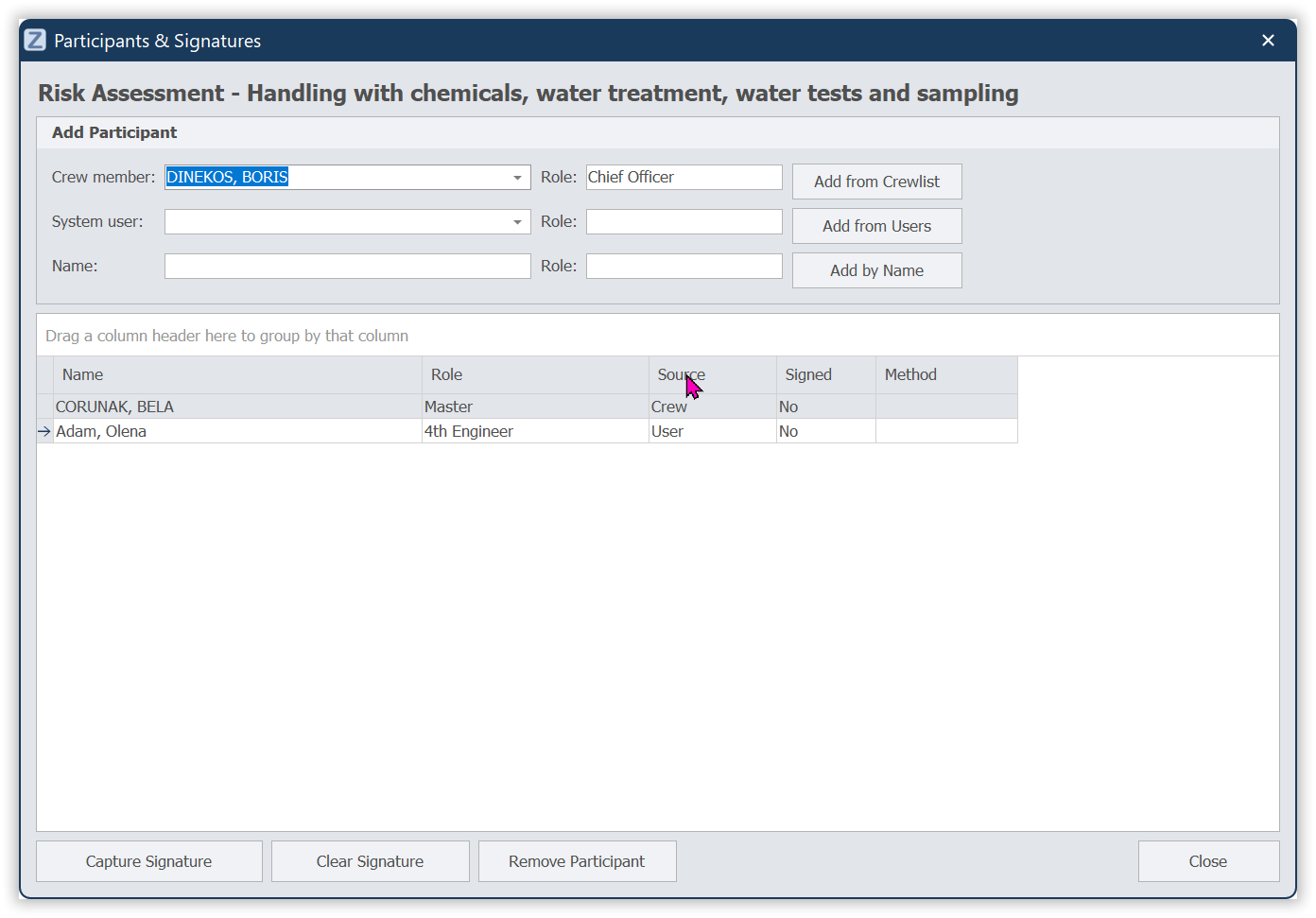
Recording a signature
Select the participant in the list and click Capture Signature. The signature window offers both ways:
- On a signature pad — click
Capture from pad, hand the pad over, and finish withStop & Save.Abortcancels the attempt. - From an image file — click
Load from file...and pick the image. Use this on workstations without a pad. A PNG with a transparent background gives the best result; if the image has a solid background, the signature is taken out of it automatically.
A signature loaded from a file is stored in exactly the same way as one written on the pad. For which pads are supported, see Signatures.
When Capture from pad stays greyed out
The button says itself what is wrong: hover over it, and the reason appears. There are three of them, and they call for different things:
It depends on the workstation, not on the user or the vessel. The same person finds the button working on a different machine. Nothing has to be changed in ZeeBORN for it - no setting, no restart of the server: once the software is in place, the button is active the next time the signature window is opened.
The pad is looked for when the window opens, so a pad that is plugged in afterwards is only found after closing and reopening the window.
Greyed out and missing are two different things
This distinction costs the most time when it is not known:
- The button is there but grey - the configuration option is switched on, and something about the pad software is missing on this workstation. Everything above applies.
- There is no button at all, and no participant list either - then the option Enable participant signature capture for Risk Assessments is switched off. See
Making the function available at the top of this page; the pad has nothing to do with it.
So a greyed-out button is not a sign of a wrong configuration - it is proof that the configuration is right.
Correcting an entry
On the report
The Risk Assessment report shows a Participants card listing every participant with name, role, signature and signing date. Participants who have not signed are marked as not signed.
See also
Worth knowing
When Risk Assessments are approved in a batch after an import, the rule requiring at least one signed participant is deliberately not applied. If the rule has to hold for every approval without exception, approve those Risk Assessments individually.