Incident Reporting
The incident reporting module is the central place for managing near misses, accidents and so on.
The internal number in the incident reporting module will be created as follows:
[AddOn] – [Vessel] - [AccType] – [Year] – [runningNumber]
or
[ReportDate] – [AccType] – [Vessel] – [Title]
[AddOn] – if created in Office, than ‘P’ or ‘O’, else blank
[vessel] - uses the three-letter abbreviation assigned to a vessel
[AccType] – abbreviation of used incident type (e.g. NMISS, ACC)
[Year] – year of date of incident
[runningnumber] - The running number is automatically created when a new document is created. It depends on year, incident type and where it is created.
[ReportDate] – complete date of incident
[Title] – title of incident report
Examples
Creation of a Report
All reports can be created on board and in Office.
In Office closed Reports can be uploaded. These reports are only for information. No further actions are possible.
First you have to select type of report you want to enter. Depending from your choice and the company configuration several forms will appear.
Data
All available details under Tab Details have to be filled out.
Most entry fields in the form provide a pre-defined list of values to be used for the report creation. In most cases the values available in these lists can be defined in the systems configuration.
If the reporting person is different to the logged in user, the name can be filled in under “Enter Name”.
Additional document files and photographs can be added under Tab Attachment.
Depending on the company configuration for near miss and/or accident you have to add corrective/preventive actions as free text on the Tab Final or as single tracked item.
Accident reporting forms contain an additional Tab Accidents for collecting all occurred damages and personnel accidents.
Approval on board
Once the vessel collected all necessary details the report can be approved. Now the report can be edited in Office. All other reports will be shown in "open" folder with mark 'OoB'. All reports created in Office has the status "approved on board" and can be edited directly in Office.
Handling in Office
The report is now editable in the office. You can either decide to
- resend the report to the ship due to the request of additional information
- assign To-Do items or Corrective/Preventive Action Items (as per configuration)
- approve the report
Approving the report creates a new neutral TAN, which removes the references to where the report originally came from.
Assign ToDo-Items (office)
If there is a ToDo-Item/task resulting from a Near Miss– or Accident Report, this will be created in the office and assigned to the corresponding site. Assigning a ToDo-Item to several ships will multiply the item (in the office version only), i.e. if 5 ships are assigned for follow-up, the ToDo-Item will be multiplied 5 times, however, the respective site will only see the own ToDo-Items.
Use button Assign Item(s) and select the ship(s) which should follow up on this task.
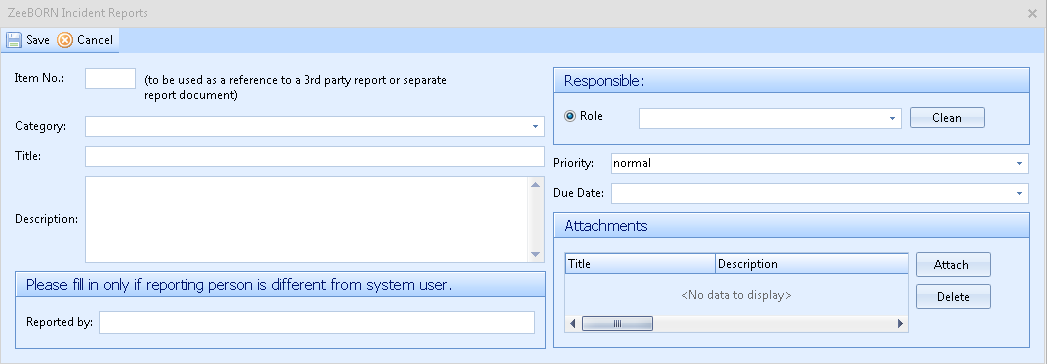
Fill in the details of the task and insert the responsible role and due date [if a responsible person instead of a role should be assigned – go to the (ship-specific) item and use follow-up button].
Follow-Up of ToDo-Items
Vessel
All reports with approved ToDo items will be shown on board in folder “For Follow Up”. Use button “Follow Up” for updating the status and details of the relevant tasks. Some status changes (e.g. closing a task item) require the input of an additional follow-up comment. Closing on board: If an item is completed, the complete inspection report moves under folder “Closed Inspections”.
Office
Closing in office: Each item closed on board still needs to be confirmed by the office. The item will be finally closed by setting its status in a final follow-up to “completed”. An additional comment/closing remark can be added as well.
Distribution of the Reports
If all items (To Do items and corrective action items) are closed, the report can be distributed. If a To Do item was assigned to a ship, this ship will automatically be on the distribution list. If the report is distributed to other ships as well, those ships will only see the report as such without the To Do item. Reports without items can be distributed immediately after approving in the office. Reports can be distributed to the fleet using the Distribution features of the module (for read/review). Reports that are specifically distributed for review will be allocated under folder “For Review” on board (folder “Fleet info” in the office). A report under folder “For Review” has to be reviewed by the vessel within a defined time period. On the right side under ‘Distributing Sites’ you will see the date of distribution by the office and the due date for review by the vessel. When the report is reviewed (use button “Review”), the review date will be saved and the report will move to folder “Fleet info” (except for own report which will move to folder “Closed” on board). Reports which are distributed for read will be closed in the office (Folder closed) and saved on board under folder “Fleet info”. If all ships reviewed the report, it will be closed after data transfer. You can also decide to close the report without distribution.
More Actions
Follow Transaction
Decides what happens after a report has been moved on. With the function switched on, the tree follows the report into its new folder — from "Open Reports" into "Approved Reports", for example — instead of staying where it was.
| Icon | Meaning |
|---|---|
 |
The tree follows the report |
 |
The tree stays in the same folder |
Check Reviewing Status (all)
info
Office only.
Checks the reviewing status of every report marked as distributed or for review, and corrects it where it no longer matches.
Show Inactive Sites Only
info
Office only.

Normally only active vessels are shown. With this switched on, the tree shows the reports of the inactive ones instead.
Refresh
(see Refresh)
Search
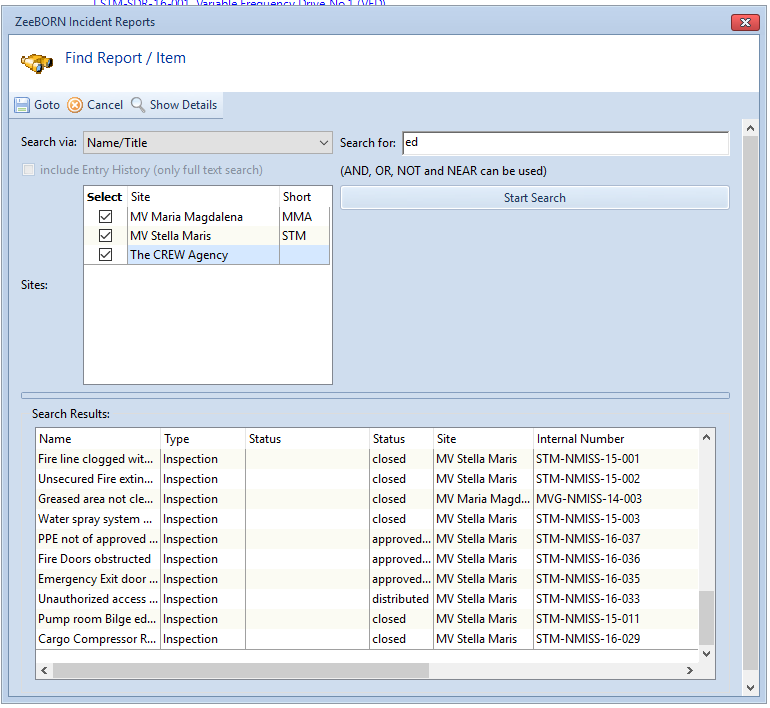
Search by name, by number, or as a full text search that also covers the descriptions of items — optionally including the history. Goto jumps to the report or item found. (see Search)
Legend
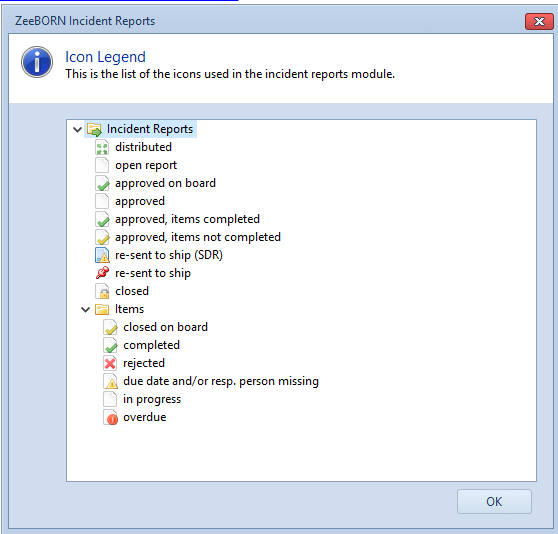
Under Button Action you will find the Legend. Legend gives you an overview about used icons and their meaning in the system.
Select my Ships
(see Select-my-Ships) Function is only usable in Office.
Reports
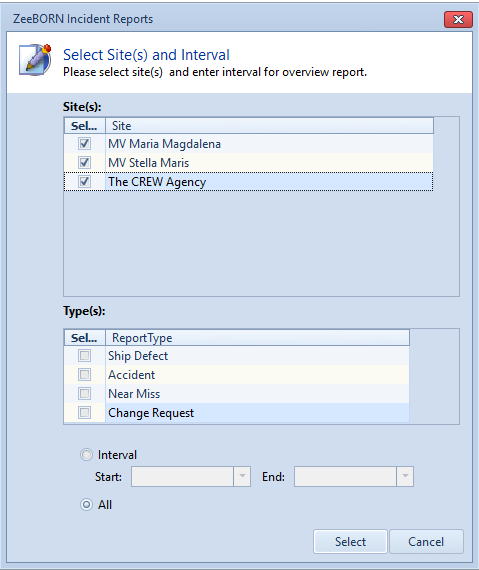
Overview per Interval
The Overview gives you a detailed overview about all reports. In the screen you have the option to either show all entries (in this case just use “OK” as all fields are check-marked per default) or define your loading options by choosing a site, interval or report category.
Analysis
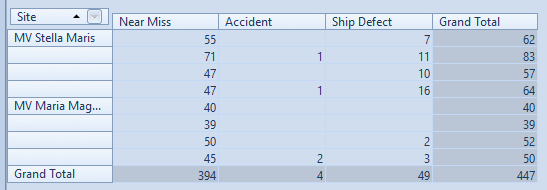
An analysis of the reports over a period you define.
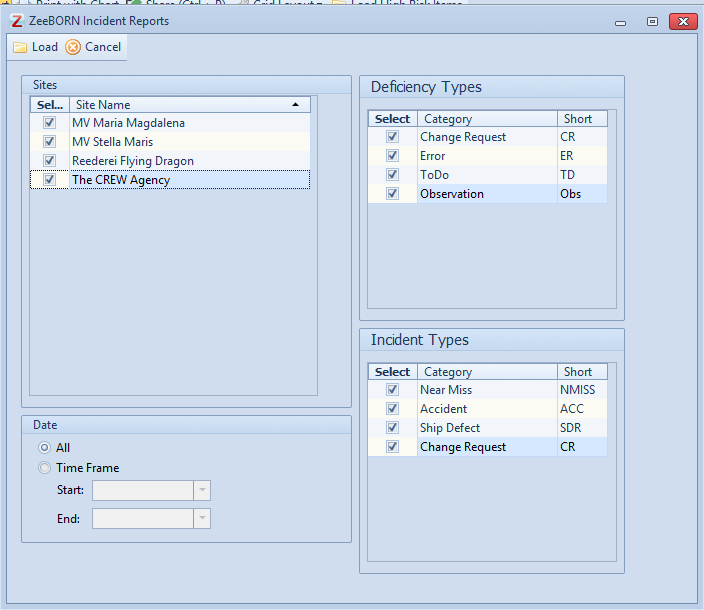
Overall Report (Incidents and Audits)
Covers incidents and audits together, by deficiency type and incident type. As with the other reports you can either take everything — all fields are ticked by default, so Load is enough — or narrow it down by site, interval, deficiency type or incident type.
Overall Item Report
Opens the overview of the individual items across the reports, rather than the reports themselves.
Management of Change Overview (Incidents and Audits)
Covers the Management of Change entries from both modules in one overview. For what Management of Change is, see Management of Change.