General Usage
When the module is started for the first time, a window appears with the reminders assigned to you. The list can be opened again at any time with Reminder List (by reminder date).
Select my Ships reduces the tree to the vessels you normally work with — see Select my Ships.
Insurances per Ship
Click Manage Insurances per Ship in the main form. Everything below happens in that window.
Creating a ship insurance
Click New Insurance, then choose the vessel and the insurance type and confirm.
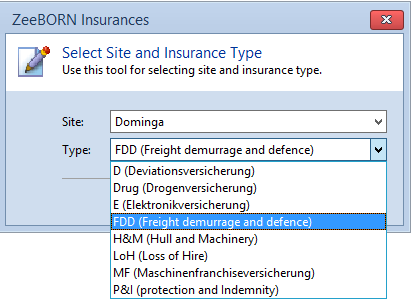
Now enter the details. Which fields appear depends on the insurance type: with Show LoH Rate pa switched on you get Daily Rate, Coverage Days and LoH Rate, without it Insurance Premium, Additional Premium and Tax. The type also decides how the annual rate is calculated — see Configuration > Insurance.
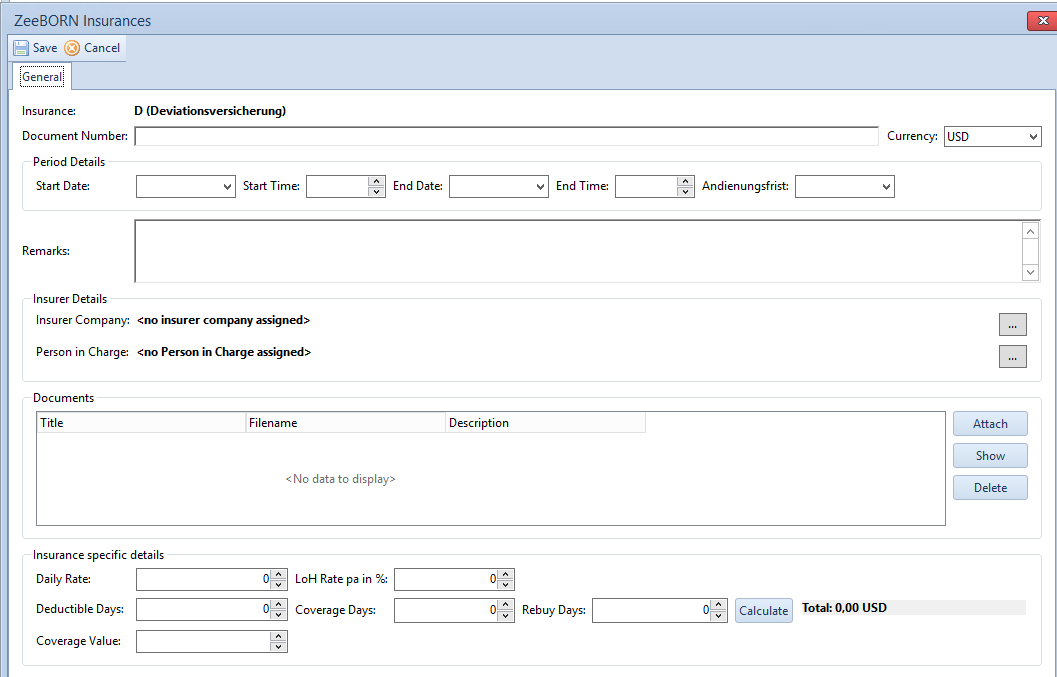
The deductible is preset to USD; the currency can be changed.
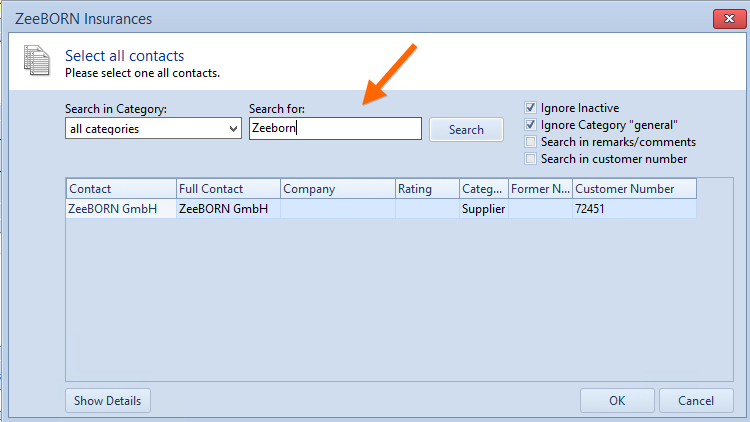
To pick the insurer, click the button with the three dots and then Assign.

Enter a search name, click Search, choose the entry from the table and confirm.
Where the insurers come from
Insurers are not maintained here but in the Contacts module: the company as a company address, the person in charge as a contact.
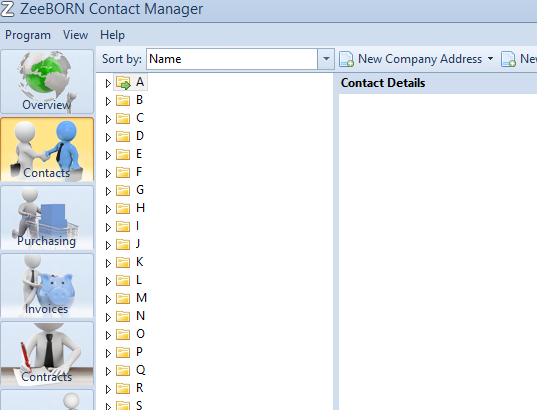
It is worth giving the insurer contacts a category of their own, and assigning the insurer as the company of the person in charge — the two are then shown together throughout the system.
Creating a fleet insurance
New Fleet Insurance works like a ship insurance, with one addition: the vessels it applies to are recorded with it.
Enter the insurance rate details on the first page before adding the vessels. They are then rolled out to the individual vessels as default values, which saves entering them one by one.
Switch to the Sites tab and add the vessels with Add Site. Every column shown in bold can then be corrected per vessel.
How insurances are shown
The insurance appears in the tree, its icon showing what kind it is:
| Icon | Meaning |
|---|---|
 |
Ship insurance |
 |
Pre insurance |
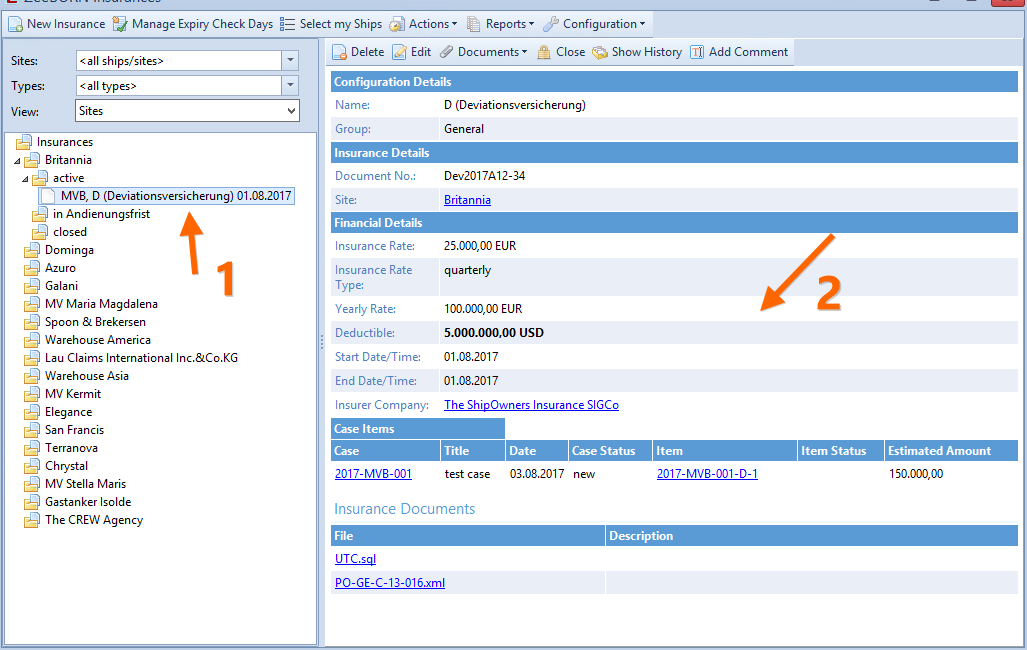
The details are shown on the right.
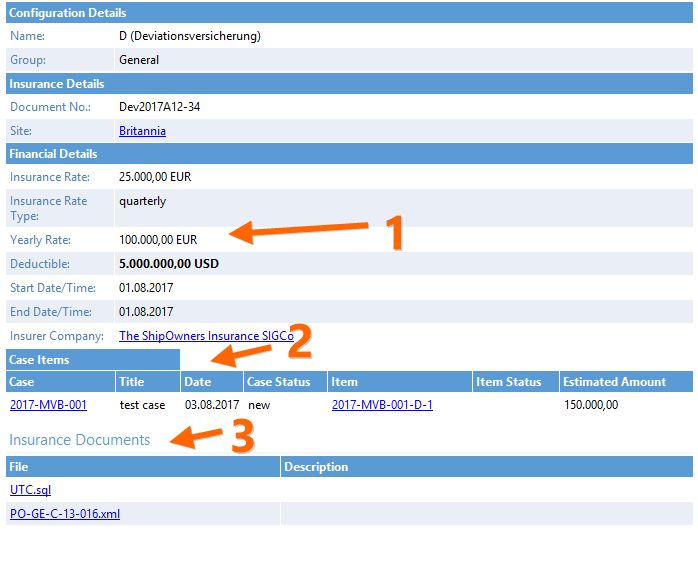
- The annual rate is calculated by the system.
- Open effected insurances belonging to this insurance are listed.
- Documents are listed.
The blue links can be clicked and lead to the underlying record.
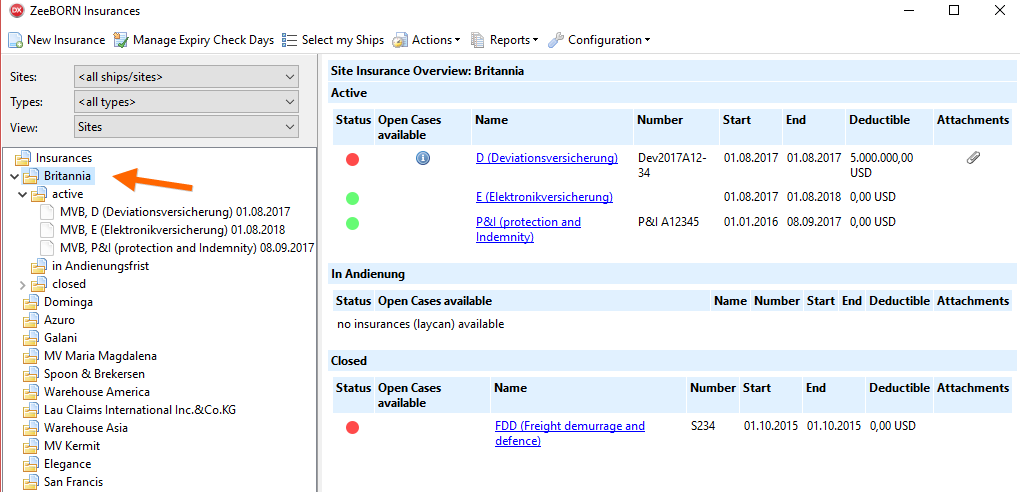
Selecting a vessel in the tree instead of a single insurance gives the complete picture for that vessel.
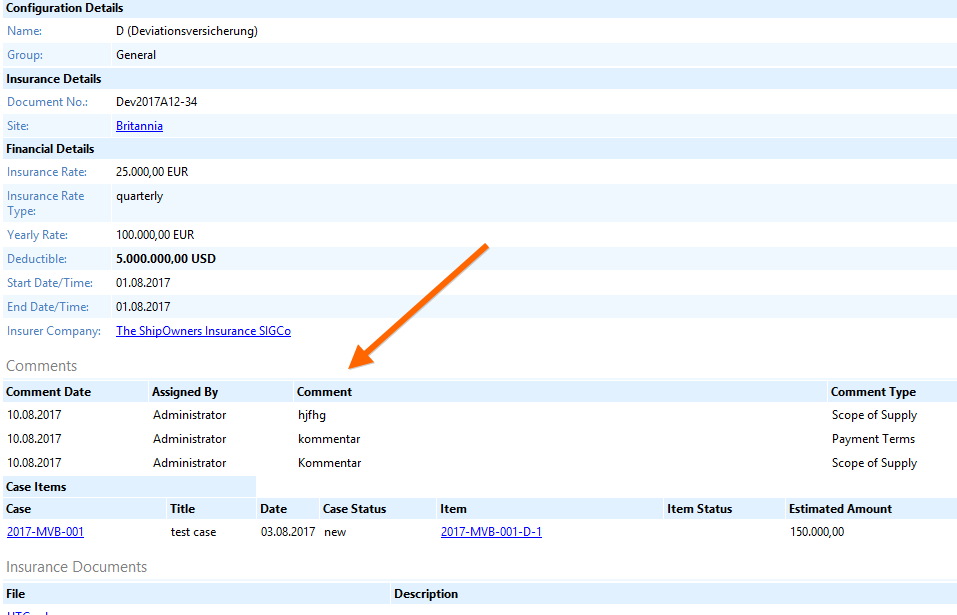
What can be done with an insurance

Being warned before an insurance expires
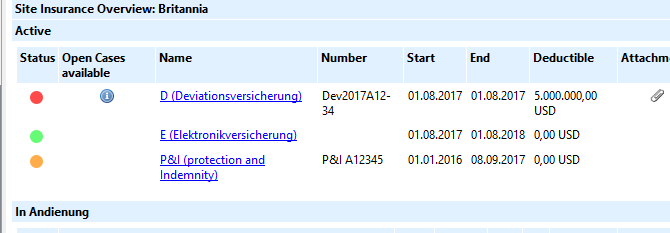
The status ball shows whether an insurance is valid (green) or overdue (red). To be warned before it runs out, set a lead time with Manage Expiry Check Days.
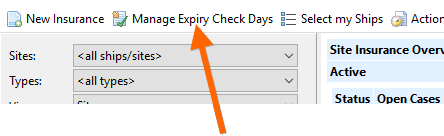
Entering 30 days, for example, changes the status of an insurance a month before it actually expires, leaving time to arrange the replacement.
Arranging the tree
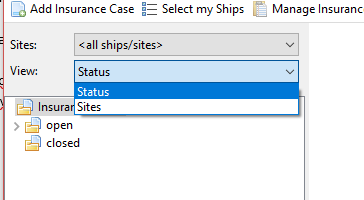
The tree can be built in two ways: by status, which is the default, or by vessel and then by status.
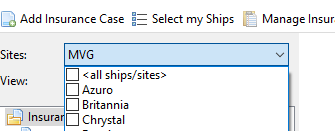
It can also be reduced to selected vessels under Sites.
The remaining functions behave as everywhere else in the system — Refresh, Search, Share, and the legend explaining the icons.